
Conversations & helpdesk · Ticket tracking portal
How does a customer track their ticket and reply to the support team?
Customers follow their request step by step, reply and attach pictures, and confirm themselves that their problem is solved.
Who this is for: Your customers
Where: A public link ending in /t/<link-name>/<private-code> — the customer gets it on the confirmation page, by email, or on WhatsApp from a staff member · or the “Track a ticket” page (ending in /t/<link-name>)
Steps
- The customer opens the ticket link.
- They read the status and replies, and write a reply in “Type your message here…”, or tap “Attach”, then “Send”.
- When the problem is solved, they tap “My problem is solved” and confirm.
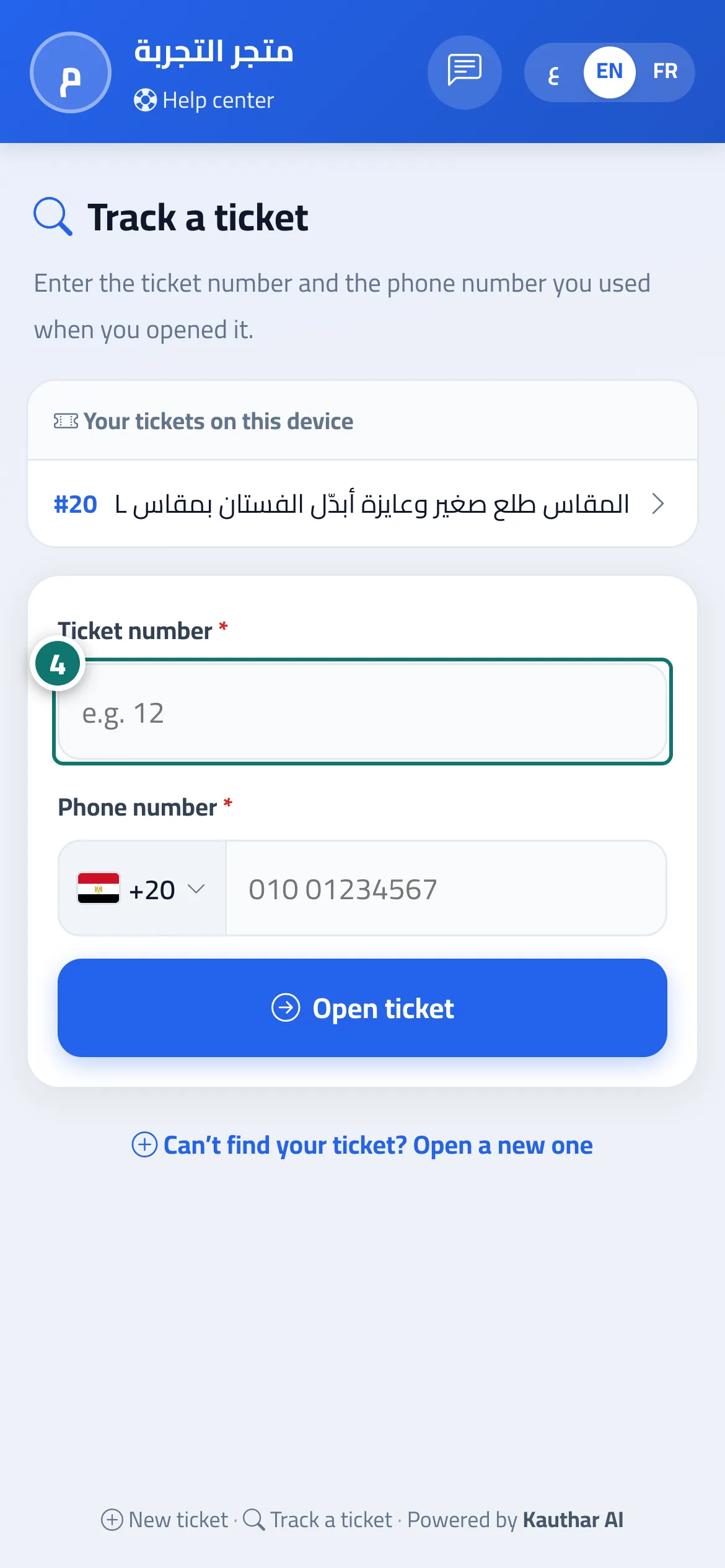
- If they lose the link, they open “Track a ticket”, enter the “Ticket number” and “Phone number”, then tap “Open ticket”. Number 4 on the picture
Steps
- The customer opens the ticket link.
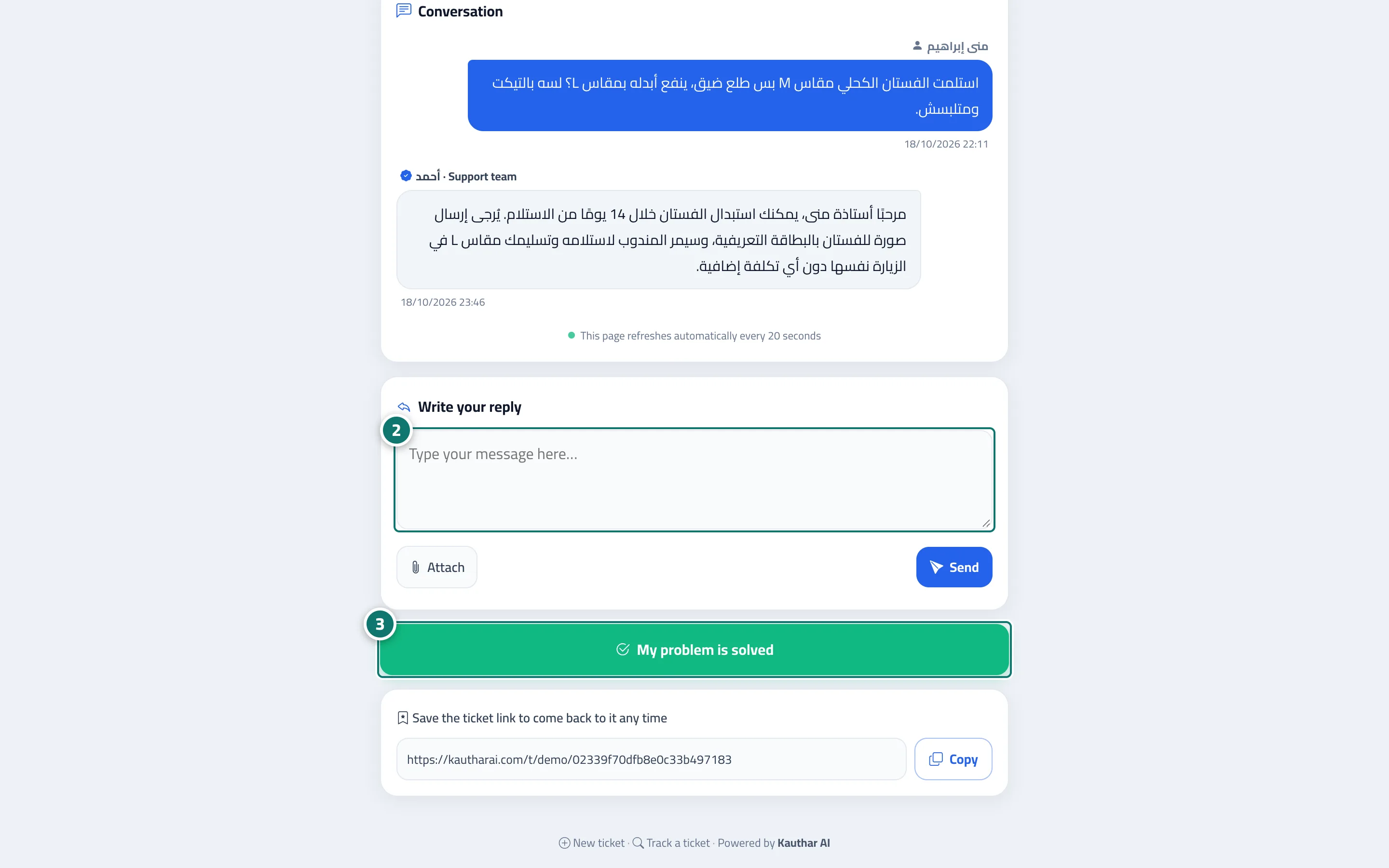
- They read the status and replies, and write a reply in “Type your message here…”, or tap “Attach”, then “Send”. Number 2 on the picture
- When the problem is solved, they tap “My problem is solved” and confirm. Number 3 on the picture
- If they lose the link, they open “Track a ticket”, enter the “Ticket number” and “Phone number”, then tap “Open ticket”.