
Conversations & helpdesk · Smart ticket list
How do I see all my customers' tickets in one place?
Every customer request and complaint in one place, sorted into ready-made views: My tickets, Unassigned, Overdue and Solved.
Who this is for: Owner & manager · Team members
Where: Sidebar → Support desk → Tickets
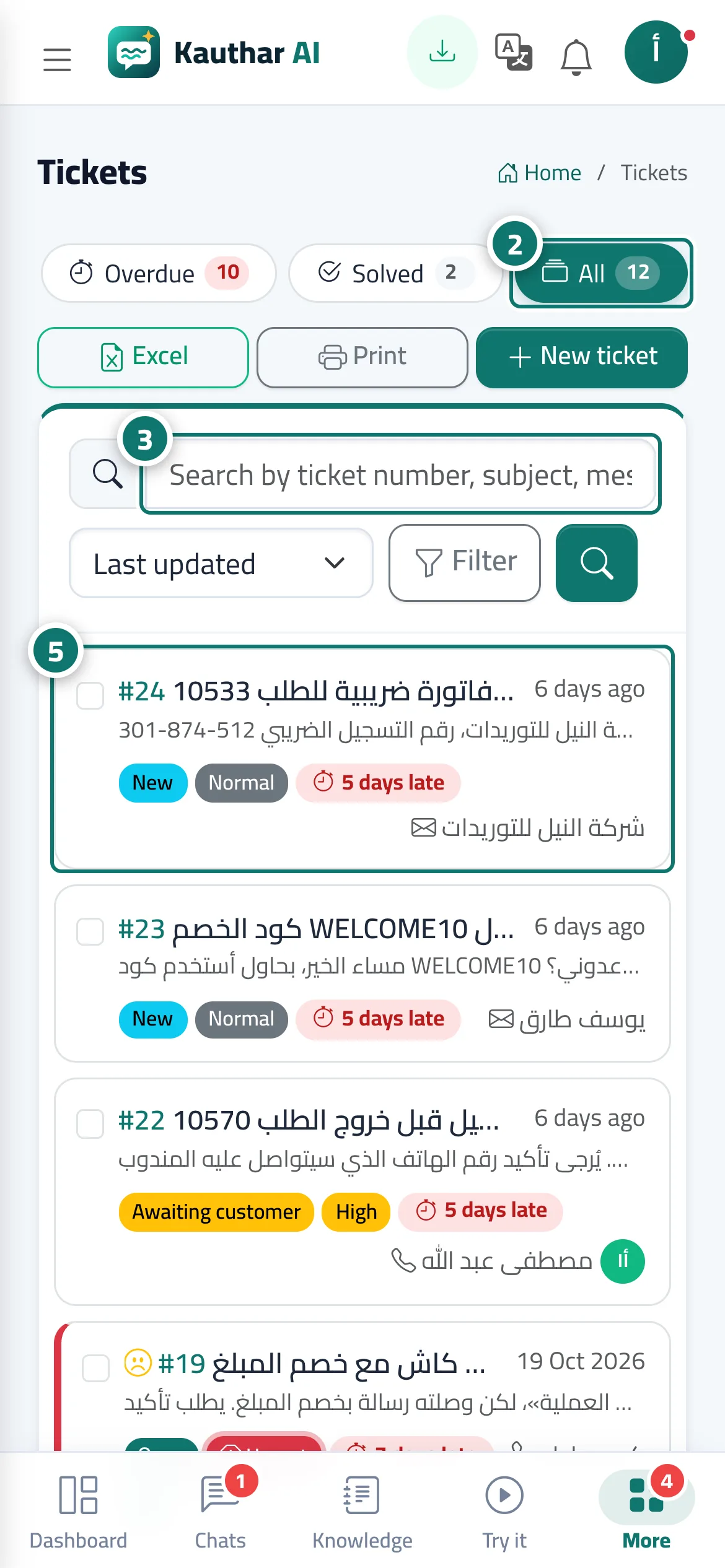
Steps
- Open «Tickets» from the sidebar.
- Pick a view: «My tickets» · «Unassigned» · «All open» · «Awaiting customer» · «Overdue» · «Solved» · «All». Each view shows how many tickets it holds. Number 2 on the picture
- Type a ticket number, a word from the subject or messages, or the customer's phone or email into the search box, then press «Search». Number 3 on the picture
- Change the sort order from the drop-down: «Last update» · «Newest» · «Priority» · «Nearest deadline» · «Ticket number».
- Click any ticket to open it. Number 5 on the picture
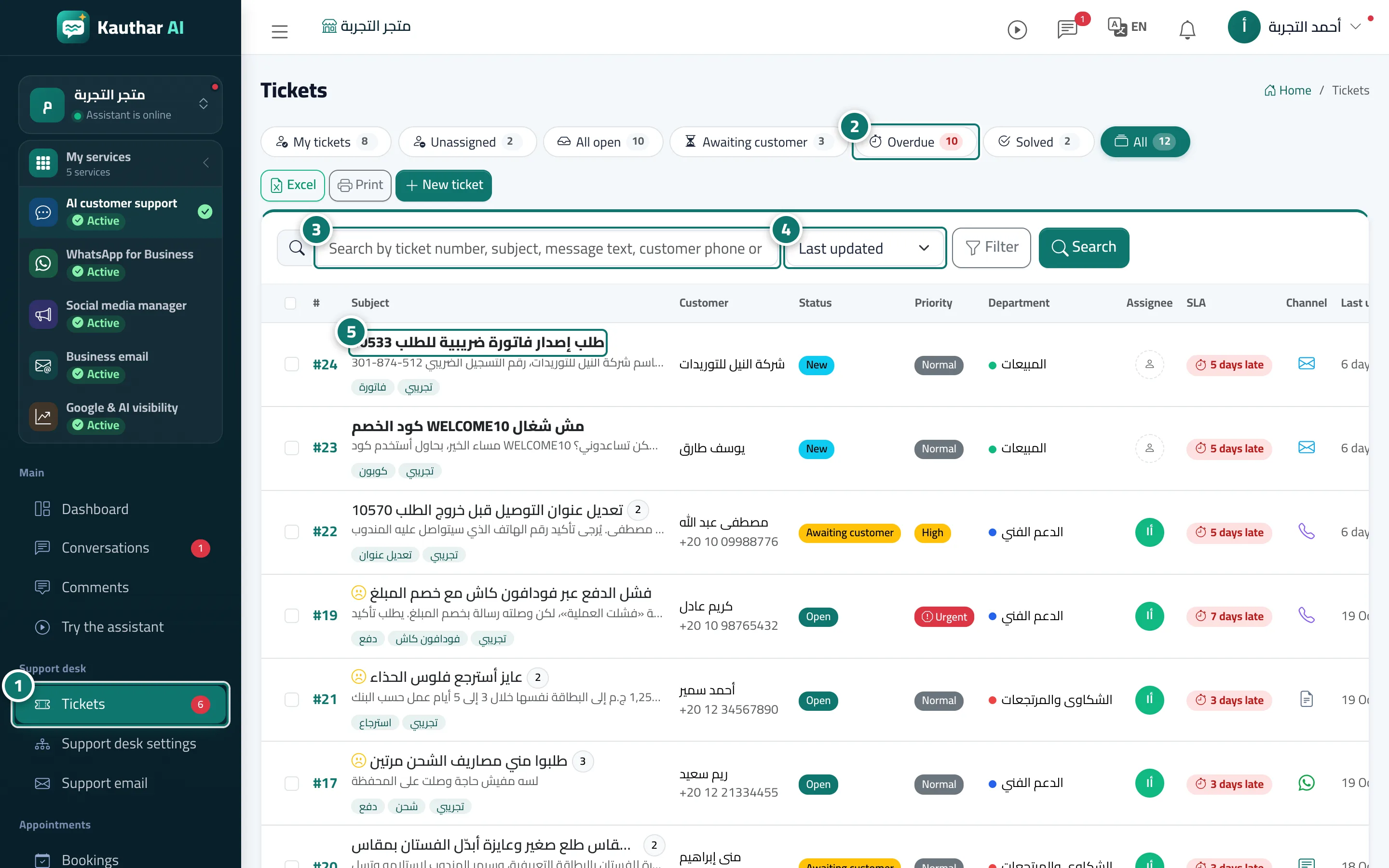
Steps
- Open «Tickets» from the sidebar. Number 1 on the picture
- Pick a view: «My tickets» · «Unassigned» · «All open» · «Awaiting customer» · «Overdue» · «Solved» · «All». Each view shows how many tickets it holds. Number 2 on the picture
- Type a ticket number, a word from the subject or messages, or the customer's phone or email into the search box, then press «Search». Number 3 on the picture
- Change the sort order from the drop-down: «Last update» · «Newest» · «Priority» · «Nearest deadline» · «Ticket number». Number 4 on the picture
- Click any ticket to open it. Number 5 on the picture