
Conversations & helpdesk · Bulk ticket actions
How do I assign several tickets to one agent at once?
Select several tickets and change their status or priority, assign them to an agent or department, or merge them — in one click.
Who this is for: Owner & manager · Team members
Where: Sidebar → Support desk → Tickets
Steps
- Tick the boxes next to the tickets you want, or the «Select all» box in the table header to select the whole page.
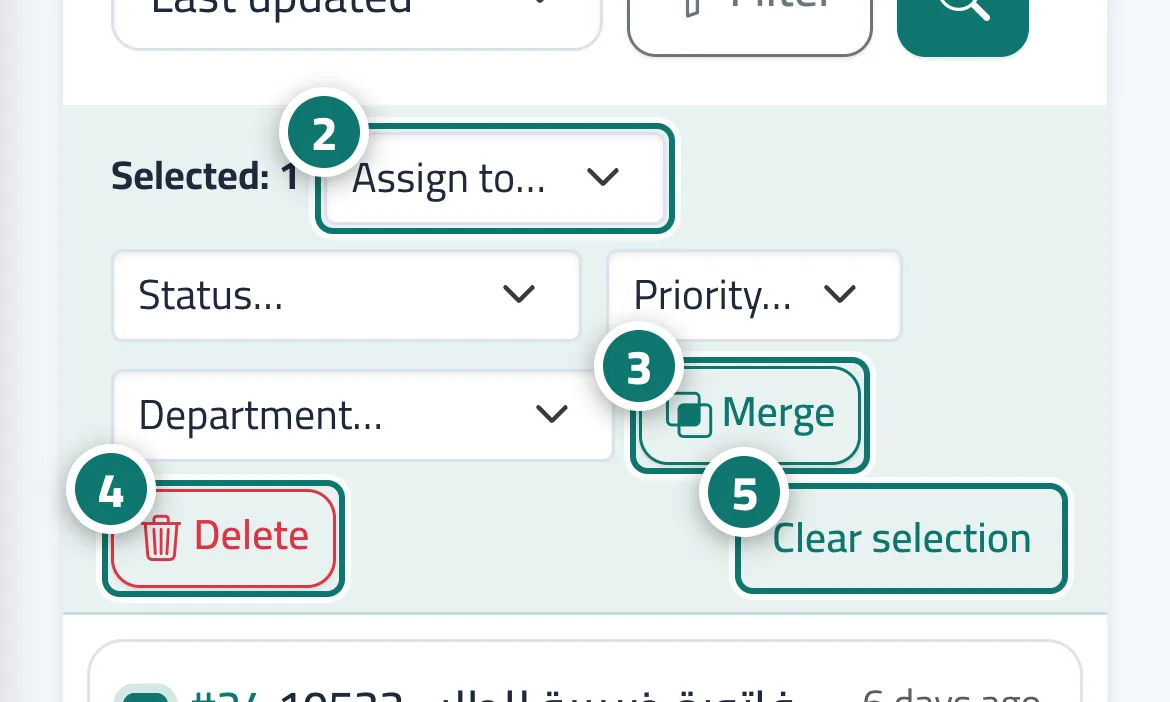
- From the bar that appears, choose «Assign to…», «Status…», «Priority…» or «Department…»; the action is applied immediately. Number 2 on the picture
- To merge, press «Merge» and enter the number of the main ticket that the others will be combined into. Number 3 on the picture
- To delete, press «Delete» and confirm; the tickets move to Trash. Number 4 on the picture
- Press «Clear selection» to deselect. Number 5 on the picture
Steps
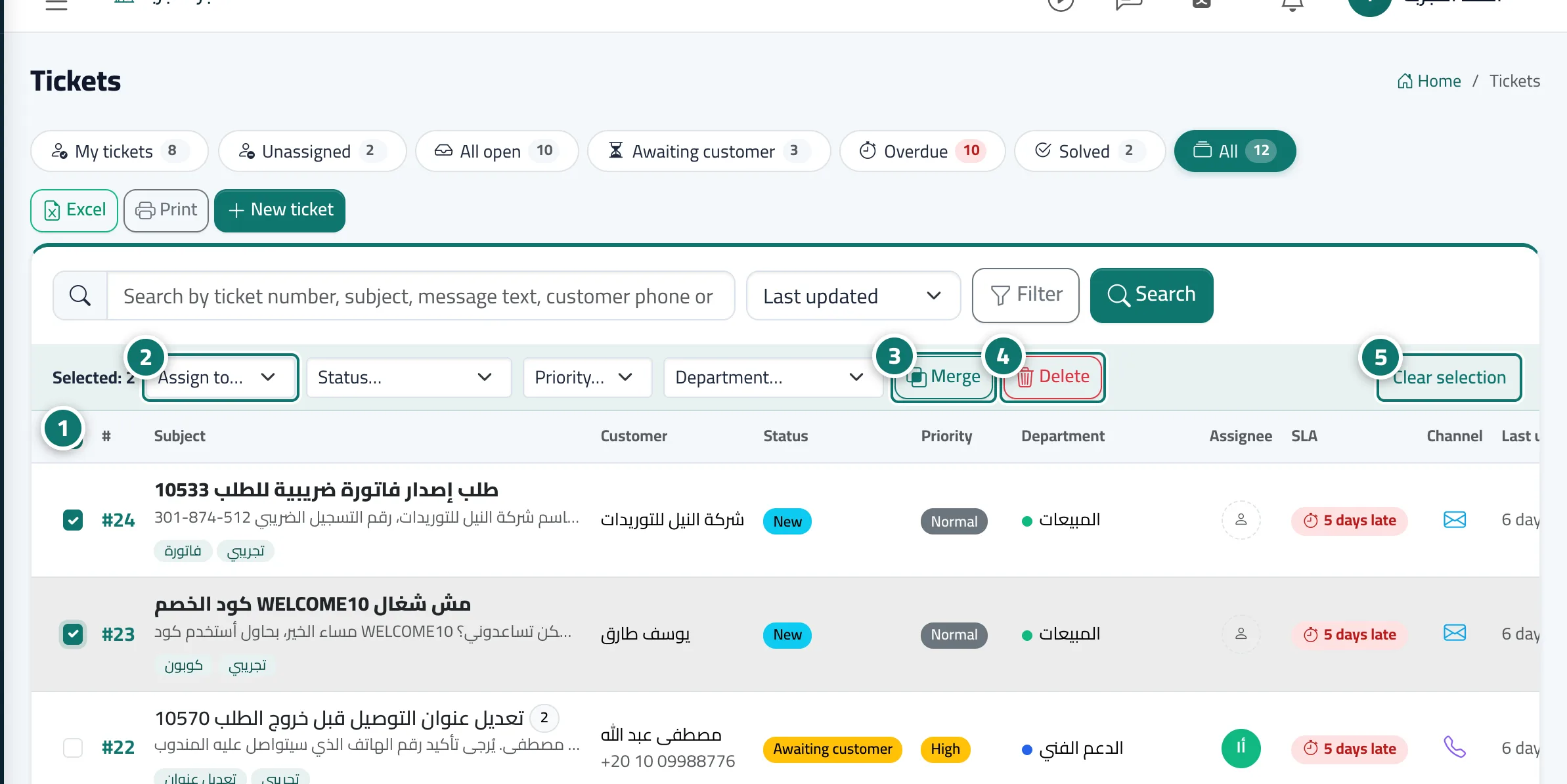
- Tick the boxes next to the tickets you want, or the «Select all» box in the table header to select the whole page. Number 1 on the picture
- From the bar that appears, choose «Assign to…», «Status…», «Priority…» or «Department…»; the action is applied immediately. Number 2 on the picture
- To merge, press «Merge» and enter the number of the main ticket that the others will be combined into. Number 3 on the picture
- To delete, press «Delete» and confirm; the tickets move to Trash. Number 4 on the picture
- Press «Clear selection» to deselect. Number 5 on the picture