
Getting started · Dashboard
How do I see the state of my customer service on one screen?
Your whole customer service at a glance: appointments, tickets, response times, customer satisfaction and how well the AI assistant is doing.
Who this is for: Owner & manager · Team members
Where: Sidebar → Main → Dashboard
Steps
- Open “Dashboard” from the sidebar (it opens automatically after sign-in when “AI customer support” is your only service).
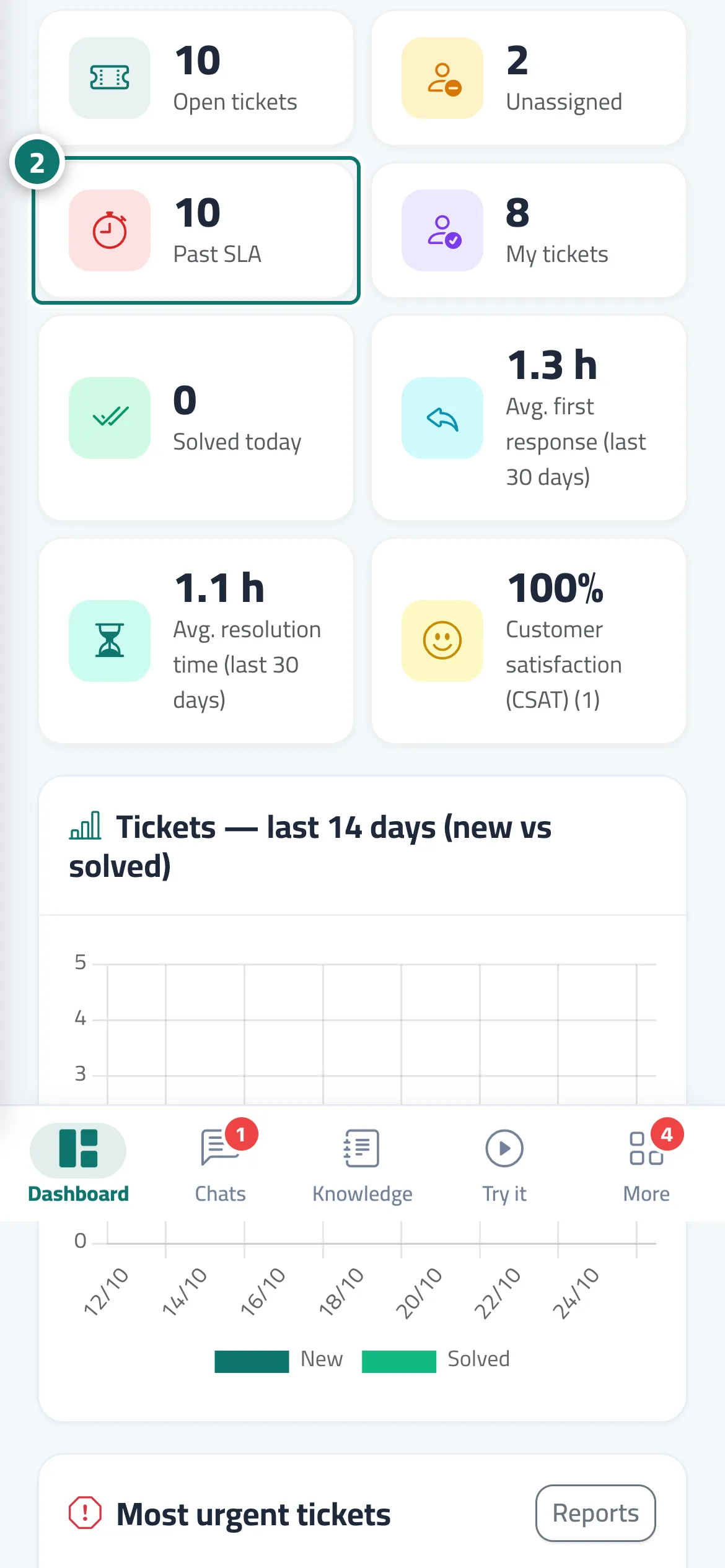
- Click any indicator (such as “Overdue”) to jump straight to the filtered list. Number 2 on the picture
- From “Most urgent tickets”, open the ticket closest to missing its deadline.
- On the “Unanswered questions” card, click “Train the assistant” to add the missing answers.
- On the “Assistant link” card, click “Copy link” to share it with your customers.
Steps
- Open “Dashboard” from the sidebar (it opens automatically after sign-in when “AI customer support” is your only service).
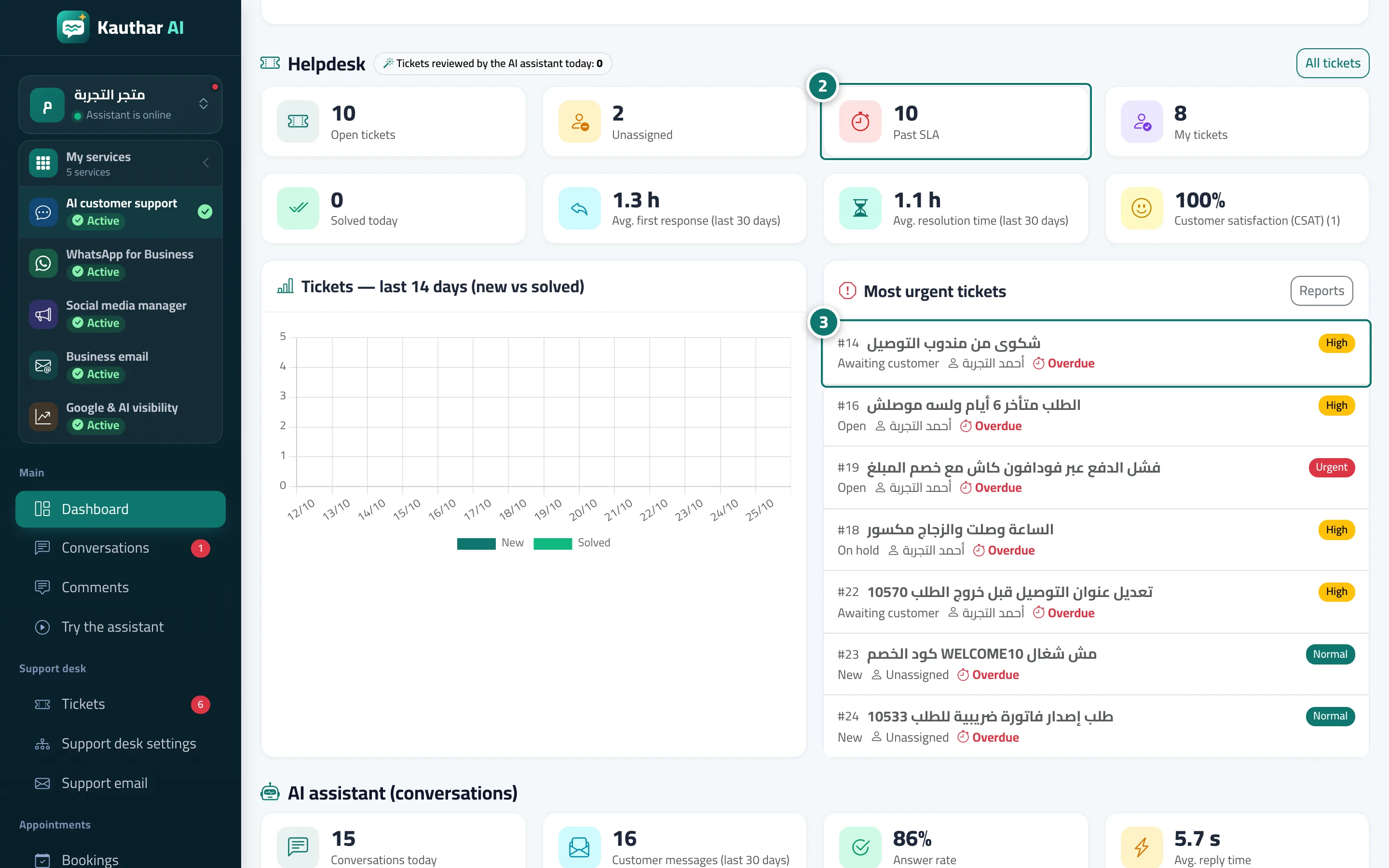
- Click any indicator (such as “Overdue”) to jump straight to the filtered list. Number 2 on the picture
- From “Most urgent tickets”, open the ticket closest to missing its deadline. Number 3 on the picture
- On the “Unanswered questions” card, click “Train the assistant” to add the missing answers.
- On the “Assistant link” card, click “Copy link” to share it with your customers.