
Dashboard
Your whole customer service at a glance: appointments, tickets, response times, customer satisfaction and how well the AI assistant is doing.
Overview#
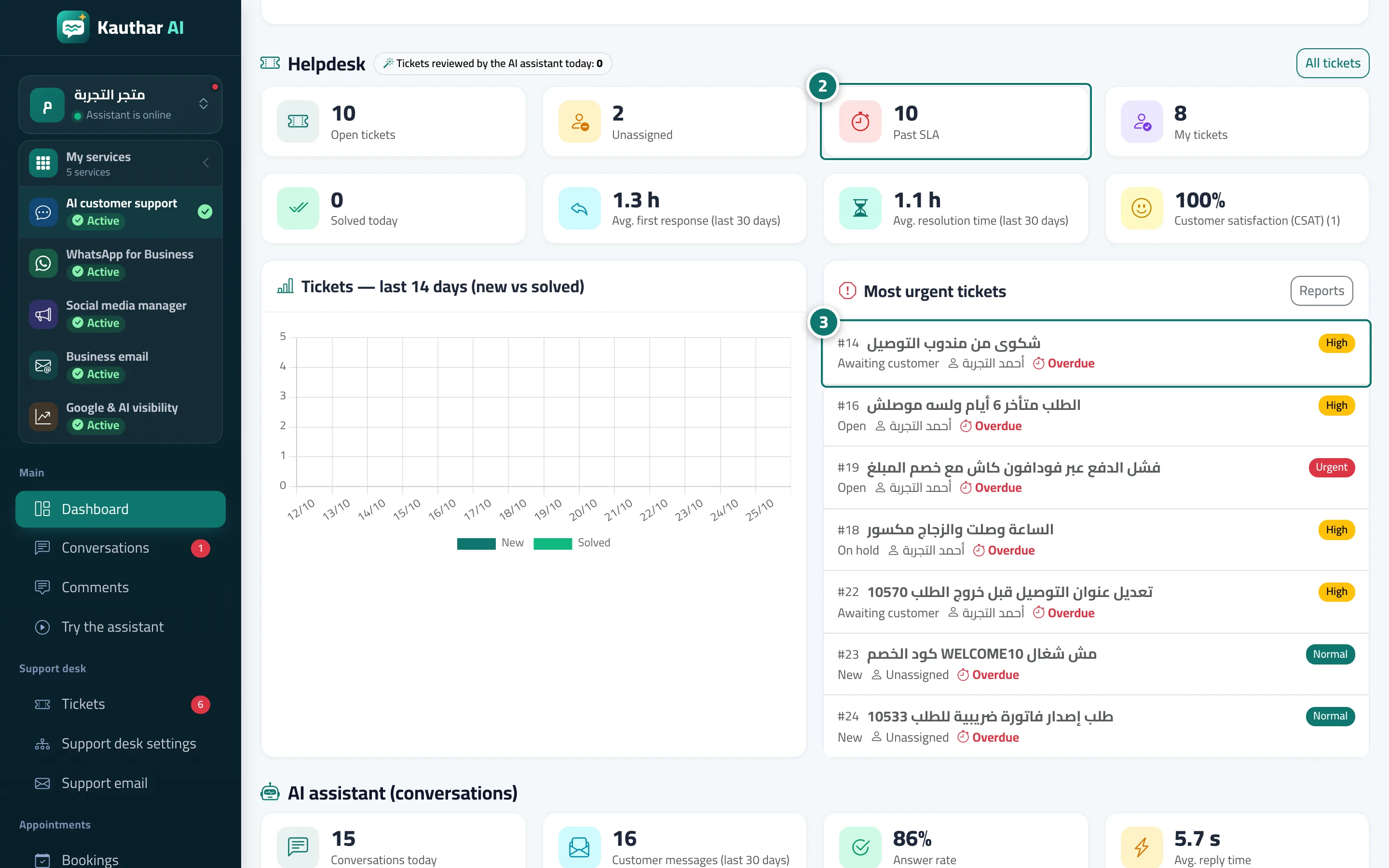
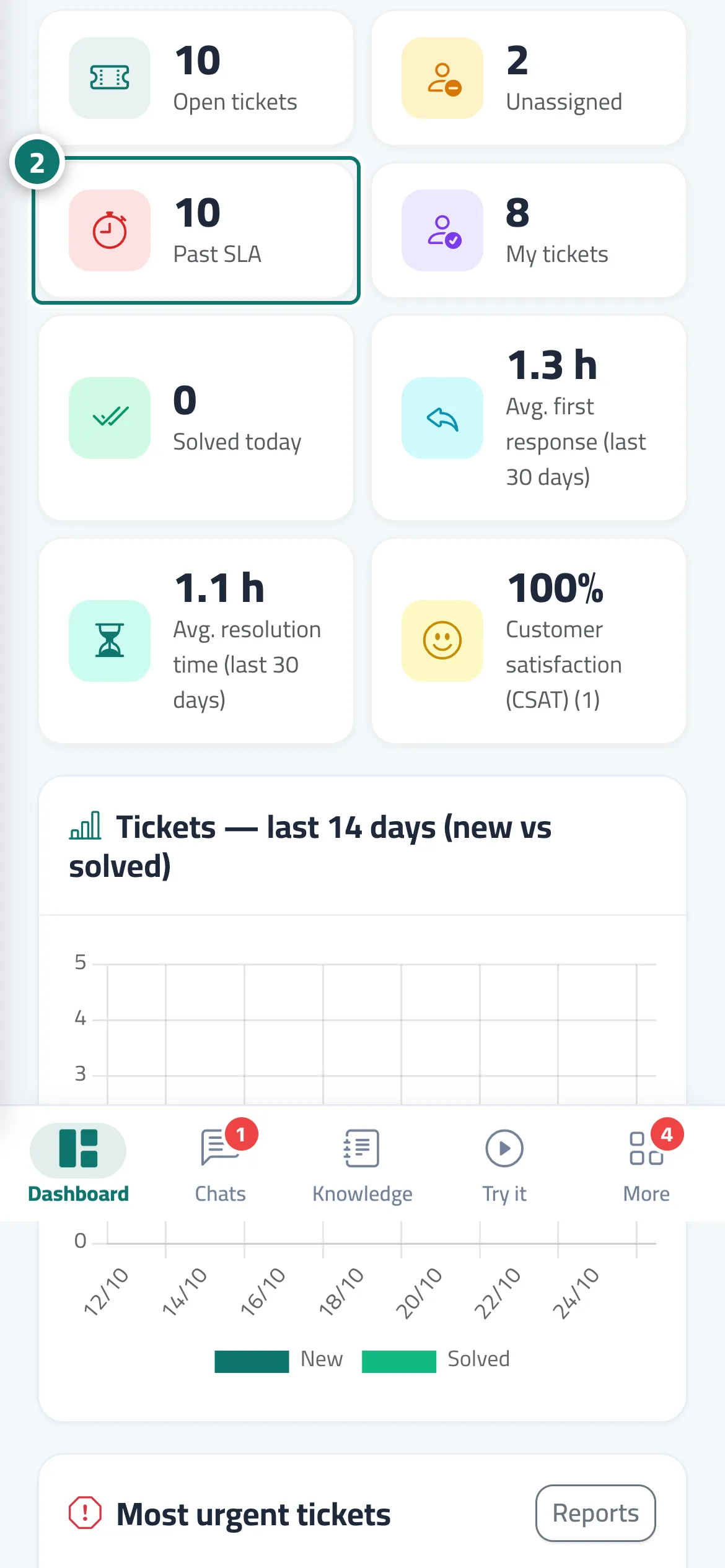
The home page of the AI customer support service (and the first screen after you sign in when it is your only service; with more than one service, My services opens first). It has a Bookings section (today's and this week's appointments, the no-show rate and cancellations over the last 30 days, and today's appointment list below), a Support desk section (open, unassigned and overdue tickets, my tickets, solved today, average first-response and resolution times, CSAT customer satisfaction, a 14-day ticket chart and the Most urgent tickets list), and an AI assistant (conversations) section (today's conversations, customer messages, answer rate, average reply time, conversations that need an agent, customers who left their details, ready knowledge base files, customer rating and the Instant replies card). At the bottom you'll find Latest conversations, Unanswered questions and the Assistant link card with a QR code for quick copying.
- Who can use it
- Business owner / manager / agent
- Where to find it
- Sidebar → Main → Dashboard
Step by step#
- Open Dashboard from the sidebar (it opens automatically after sign-in when AI customer support is your only service).
- Click any indicator (such as Overdue) to jump straight to the filtered list.
- From Most urgent tickets, open the ticket closest to missing its deadline.
- On the Unanswered questions card, click Train the assistant to add the missing answers.
- On the Assistant link card, click Copy link to share it with your customers.
Tips#
Good to know#
Frequently asked questions#
What does Answer rate mean?
It is the share of customer questions for which the AI assistant found an answer in the knowledge base or the fixed answers. If it is low, open Unanswered questions and add the missing answers.
What does Overdue mean?
These are tickets that went past the time allowed for the first reply or for resolution under your Response times settings. Click the number to see them.
Do agents see the same dashboard?
Yes, but only the sections their permissions allow, and the My tickets indicator shows the tickets assigned to them. The subscription-ending strip is shown only to the owner and managers.