
Ordering from inside the chat
The customer taps “Order now” on a product card, enters their address, and reviews and confirms the order without leaving the chat.
Overview#
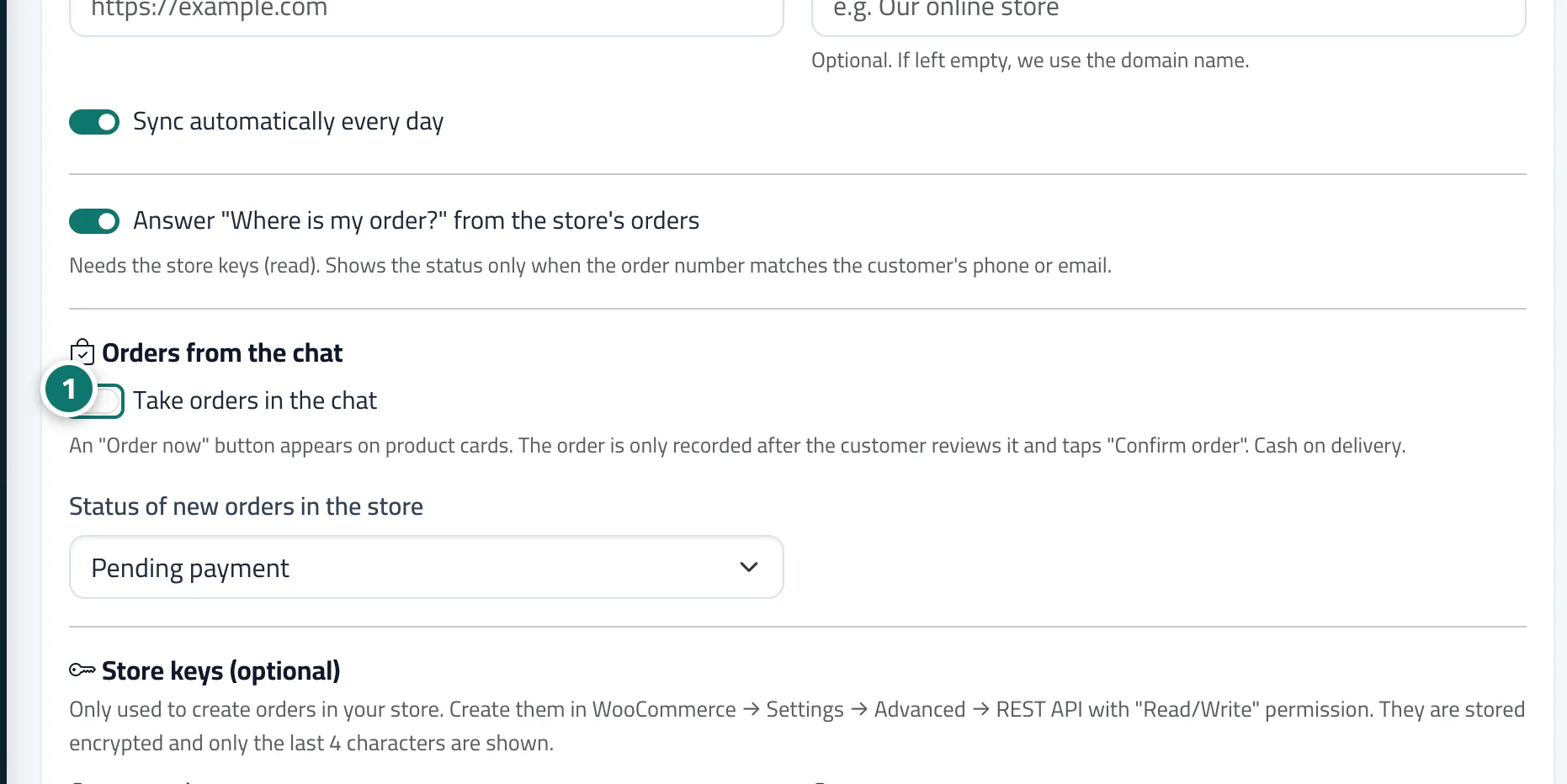
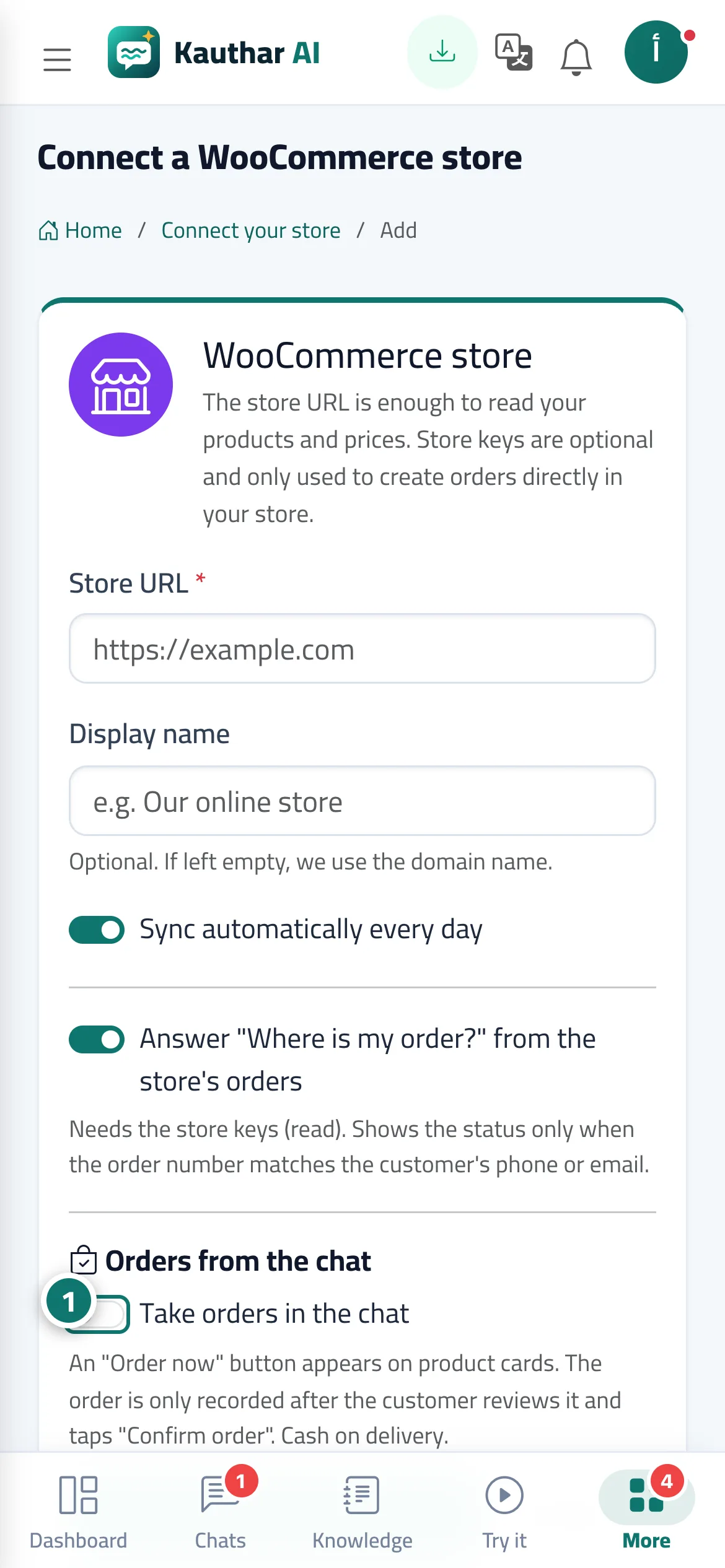
When Take orders in the chat is turned on in your store connection, an Order now button appears on your store's product cards in the chat, and a clear Order now: product name button appears when the customer writes that they want to buy (for example I'd like to order 2). The button opens an Order a product card in the chat: the product with its picture and current price, the Option (such as colour or size) if any, the Quantity, the name and phone number pre-filled from the customer's registration, State / province / region, City or district, Full address and Notes (optional). Then the Review your order screen shows the total and the payment method Cash on delivery, and the order is only placed after the customer taps Confirm order. If the store keys were added, the order is created in the store directly and the customer sees the store's order number; otherwise it is recorded in the Orders screen. The business receives an instant alert for every order, and a confirmation message with the order number appears in the chat.
- Who can use it
- Your business's customers
- Where to find it
- The chat page and the chat window on your website, on the product cards of the connected store · turned on from the sidebar → Train your assistant → Connect your store → Edit
Step by step#
- Turn on Take orders in the chat in the WooCommerce store connection form (and add Store keys (optional) so orders are created in your store directly).
- A customer asks about a product, and the price appears with a product card and an Order now button.
- They tap Order now, choose the option and quantity, complete the address, then tap Review order.
- They review the order and the total, then tap Confirm order.
- They see Your order #… has been placed and you receive an order alert.
Tips#
Good to know#
Frequently asked questions#
What if I don't add the store keys?
The order is recorded in the Orders screen with the status Chat order and you receive an alert; your team follows up with the customer and enters it in the store manually.
What if the store rejects the order?
The customer gets a confirmation that their order was received, the order is saved in Orders with the status Not recorded in the store and the reason, and you receive an alert to follow it up.