
Signing in with your phone number and staying signed in
Sign in with your phone number (with country code) and password, or with your linked Google account, and you won't need to sign in again on the same device for up to 90 days.
Overview#
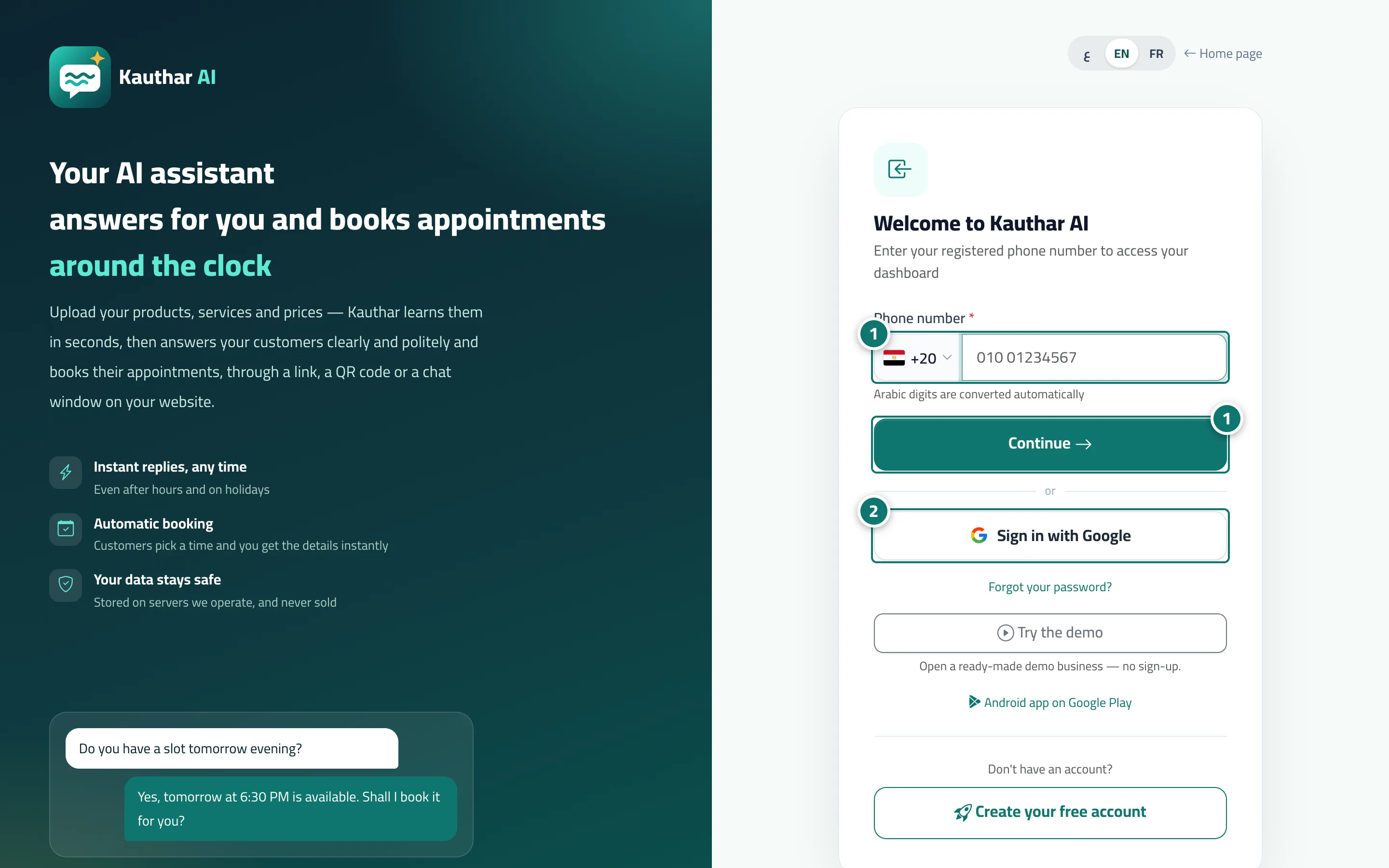
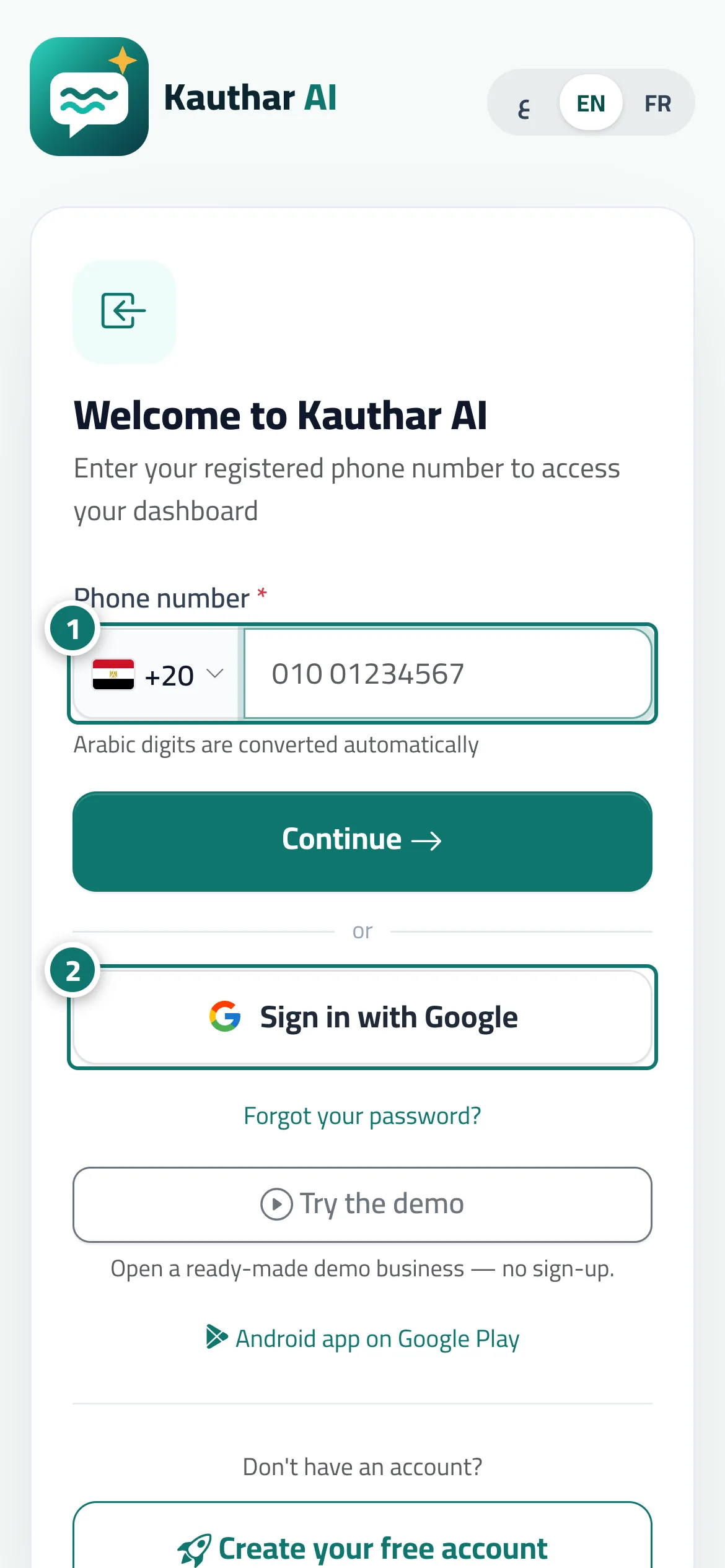
Signing in takes two steps: choose your country, type your registered phone number and tap Continue, then enter your password and tap Sign in. Alternatively, tap Sign in with Google if you've linked your account to it. The session stays on the device for up to 90 days and renews as you use it. A new staff member signing in with their number for the first time is asked for their Full name and a password, then taps Activate and sign in. At the top of the sign-in page is the language switcher (ع · EN · FR); the whole interface is available in Arabic, English and French, and your language is saved to your account. If you work in more than one business with the same number, you switch between them after signing in from My accounts.
- Who can use it
- Business owner / manager / staff member
- Where to find it
- The sign-in page
Step by step#
- Choose your country, type your phone number and tap Continue.
- Type your password and tap Sign in — or tap Sign in with Google if your account is linked to it.
- On a staff member's first sign-in: type your full name and a new password, and tap Activate and sign in.
Tips#
Good to know#
Frequently asked questions#
A staff member says their number isn't registered — what's the fix?
Make sure they were added in Team & permissions with exactly the same country and number.
I signed in on someone else's device — what should I do?
Change your password from My account, or ask the owner to Reset password, and all other sessions are closed.