
Connect a WhatsApp number in one click
Connect your business WhatsApp number to Kauthar straight from Meta's window, without copying any token or password; Kauthar then registers the number, turns on incoming messages and tests the connection by itself.
Overview#
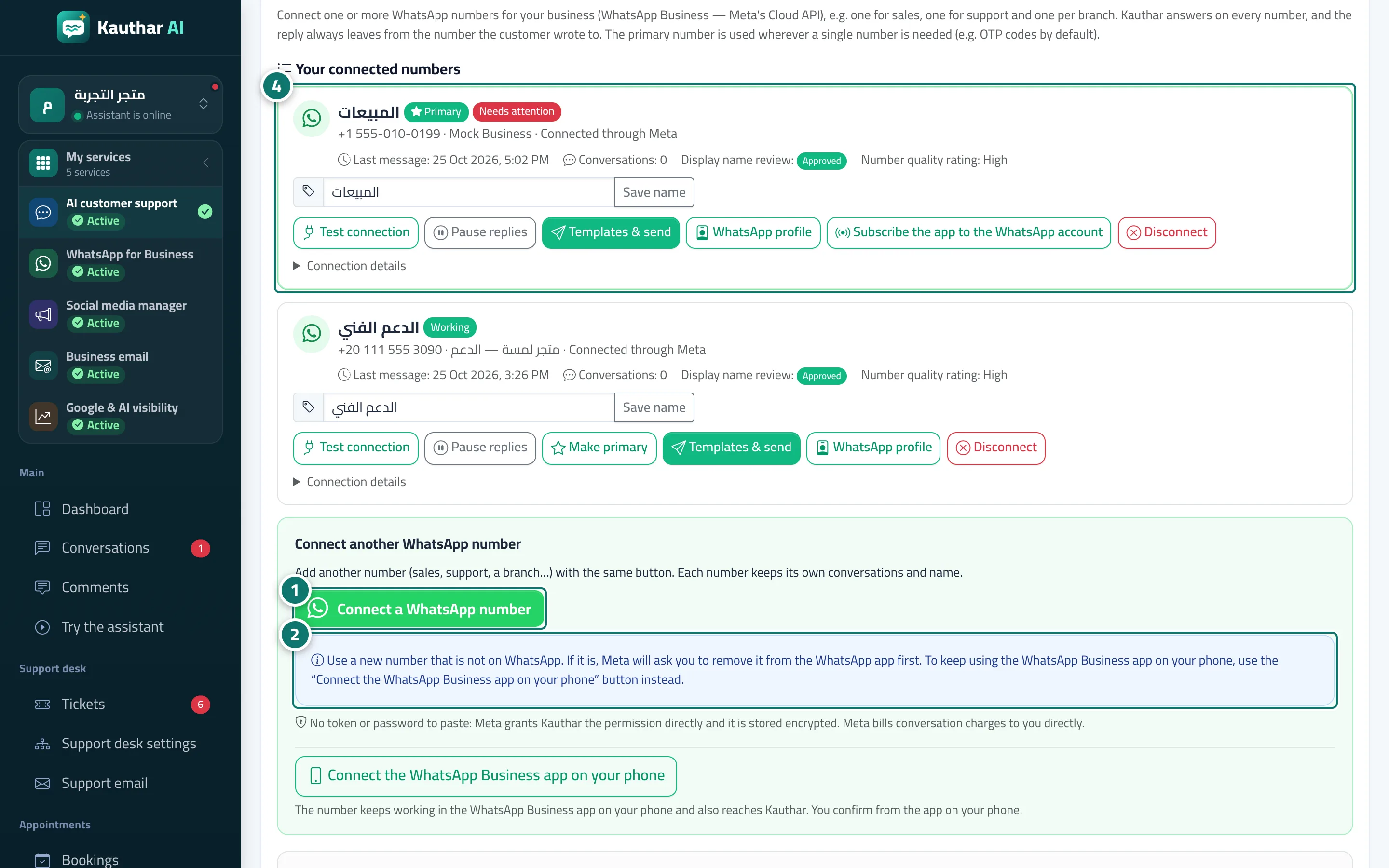
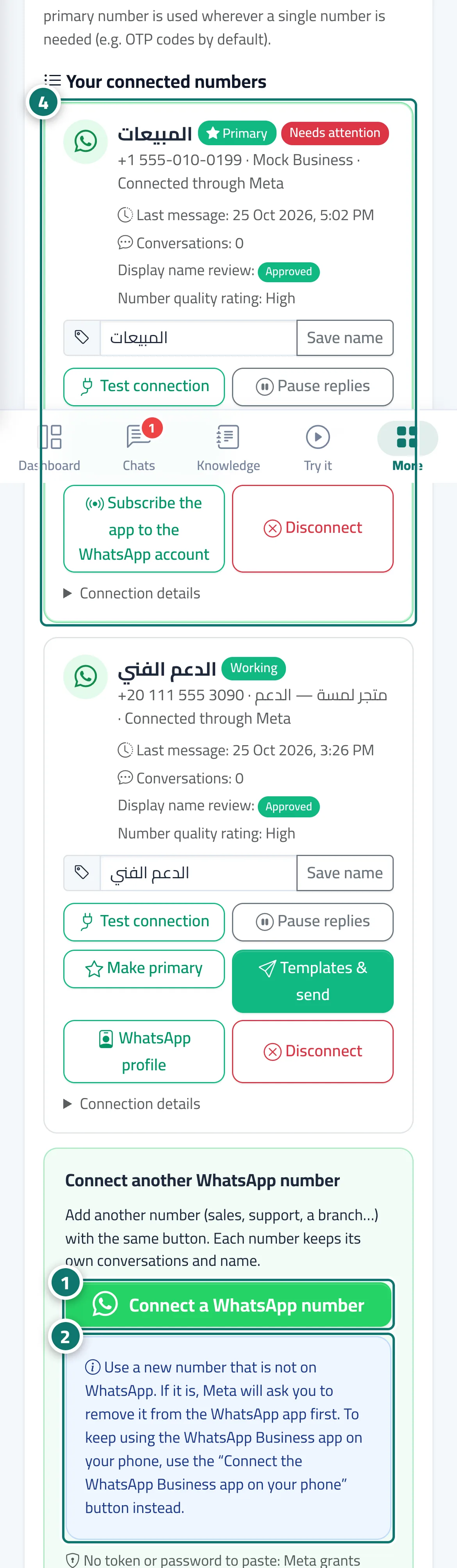
The WhatsApp card on the Channels page has one way to connect: the Connect your business WhatsApp number in one click section (or Connect another WhatsApp number if you already have one). Pressing Connect a WhatsApp number opens a window from Meta: you sign in with Facebook, choose (or create) your WhatsApp Business Account and the number, Meta verifies the number by SMS or call, and then gives Kauthar permission to answer on that number only. When the window closes, Kauthar registers the number, turns on incoming messages and tests the connection, and a WhatsApp number … connected message appears with the verified name and the name-review status. The number then shows in Your connected numbers as Working, together with its 6-digit two-step verification PIN — shown once only. Next to the button one info line says: «Use a new number that is not on WhatsApp. If the number is on WhatsApp, Meta will ask you to delete it from the app first.» — to keep using the WhatsApp Business app on your phone, use Connect the WhatsApp Business app on your phone instead (see its topic). Each number shows one simple badge: Working, Paused or Needs attention; technical details sit under Connection details, and the status and display name refresh automatically when the page opens.
- Who can use it
- Business owner / manager (or a staff member allowed to edit Channels)
- Where to find it
- Sidebar → Channels & customers → Channels → WhatsApp card → Connect a WhatsApp number
Step by step#
- In the WhatsApp card press the green Connect a WhatsApp number button.
- Use a new number that is not on WhatsApp (if it is, Meta asks you to remove it from the app first).
- In Meta's window sign in, choose the WhatsApp Business Account and the number, and enter the verification code Meta sends you.
- Back in Kauthar, a WhatsApp number connected message appears and the number shows in Your connected numbers as Working. Copy the two-step verification PIN and keep it safe.
Tips#
Good to know#
Frequently asked questions#
I closed Meta's window before finishing. Did anything change?
No. You see The Meta window was closed before the connection finished. Nothing was changed. and you can try again.
What does display name review mean?
Meta reviews your business name as shown on WhatsApp; the number's card shows the status: approved, under review at Meta, or rejected with a request to change it in WhatsApp Manager.