
Learning from your team's replies
When a team member answers a question the assistant couldn't, their reply appears in «Unanswered questions» so you can approve it as a fixed answer in one click after reviewing it.
Overview#
If the assistant couldn't answer a customer's question and a team member then replied to the customer from Conversations, the reply is saved as a suggestion linked to that question. In Unanswered questions you see a Staff reply under the question with the person's name and the time of the reply, and an Approve as answer button opens the fixed-answer window pre-filled with the question and the team member's text, so you can edit it (for example, remove the customer's name or details) and save it — the assistant starts using it immediately. You can also Dismiss the suggestion and leave the question on the list. No reply is ever published automatically.
- Who can use it
- Business owner / manager / team member allowed to add fixed answers
- Where to find it
- Sidebar → Train your assistant → Unanswered questions
Step by step#
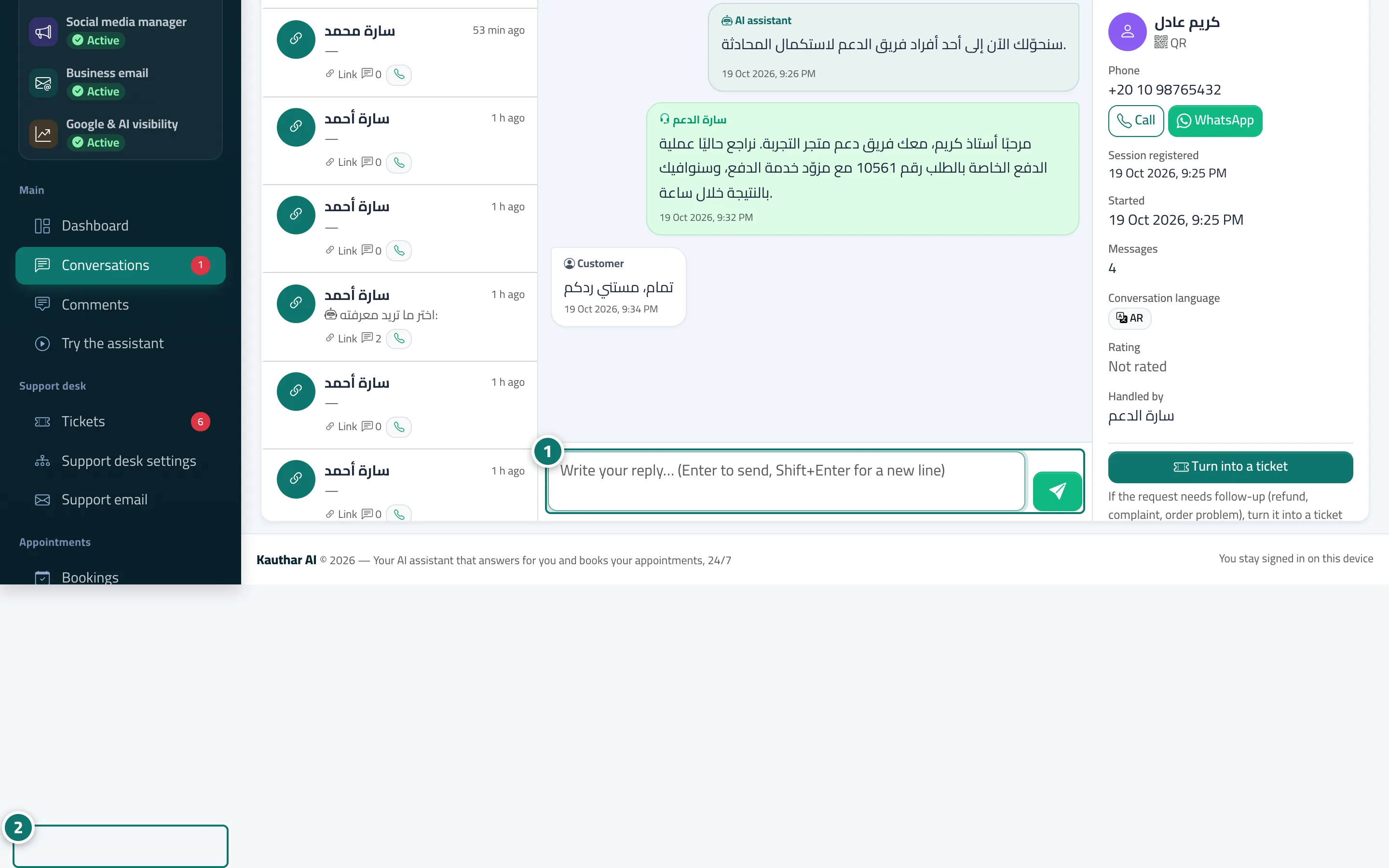
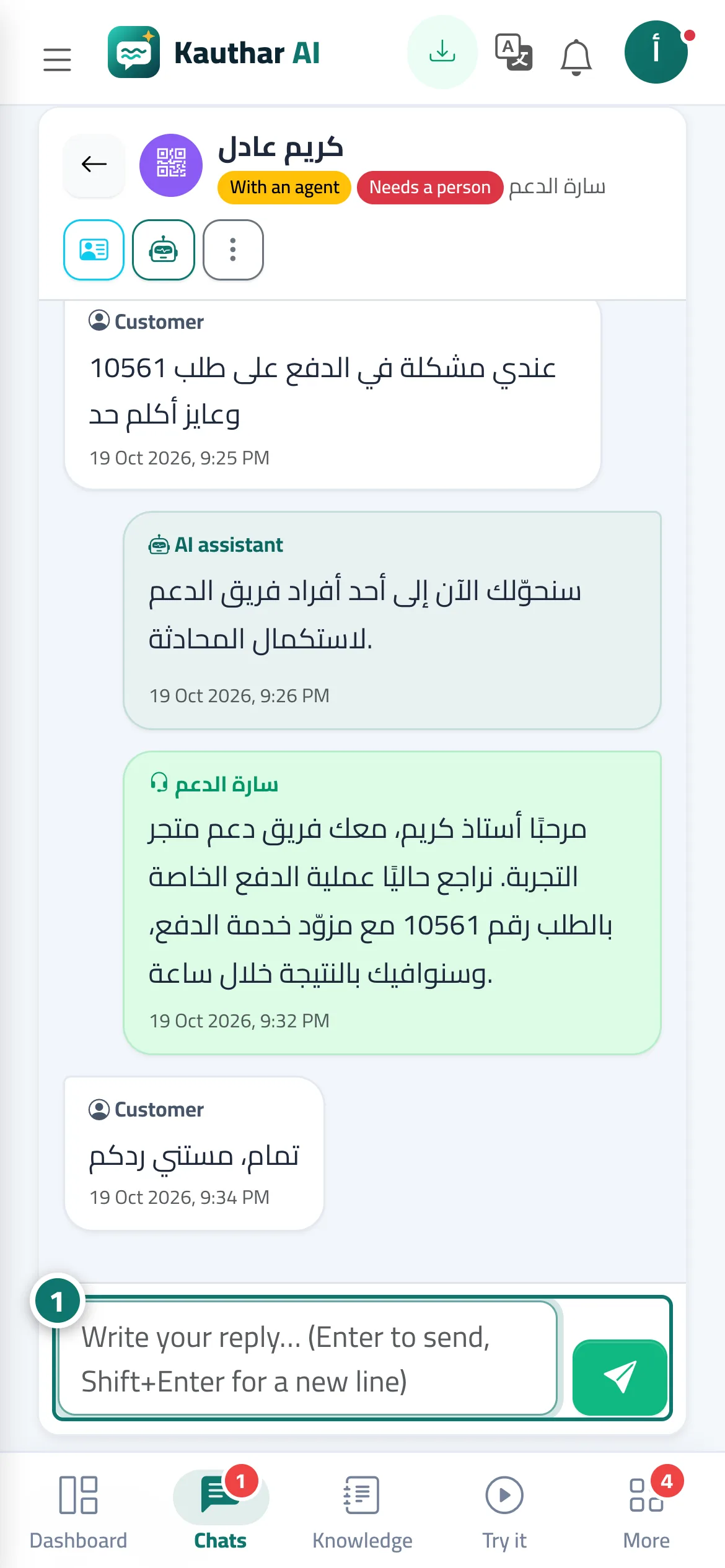
- The team member replies to the customer from Conversations as usual (after taking over the conversation).
- Open Unanswered questions; you'll find the Staff reply under the question.
- Click Approve as answer, review the text and remove any details specific to one customer.
- Click Save answer; the assistant uses it from now on.
Tips#
Good to know#
Frequently asked questions#
Does the assistant publish team replies automatically?
No. A reply is only used after you approve it as a fixed answer.