
Notifications and today's reminders
A bell at the top for everything new: a ticket assigned to you, a customer reply, an unanswered question, a customer who left their number, plus a summary for the day — each notification in its reader's language.
Overview#
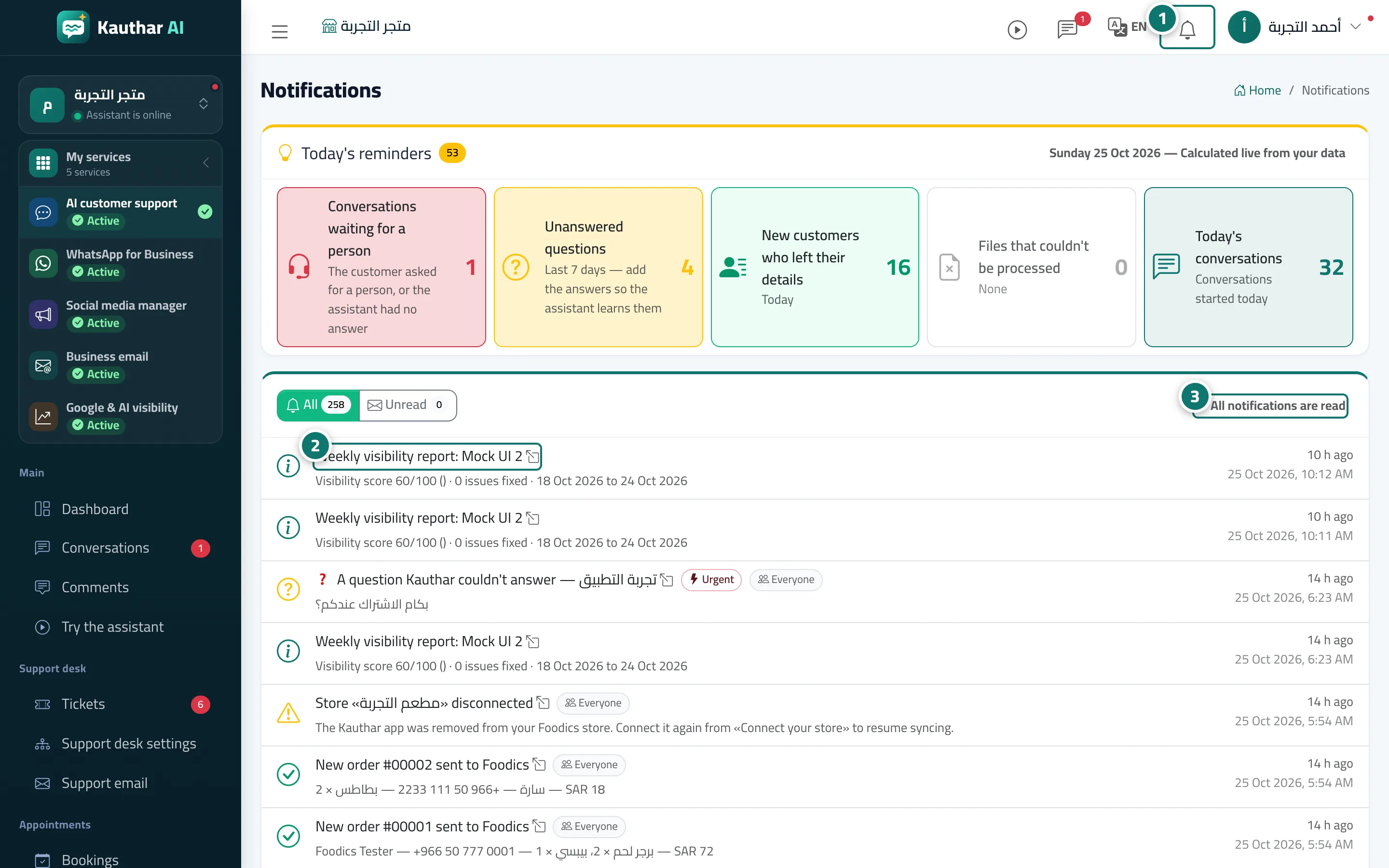
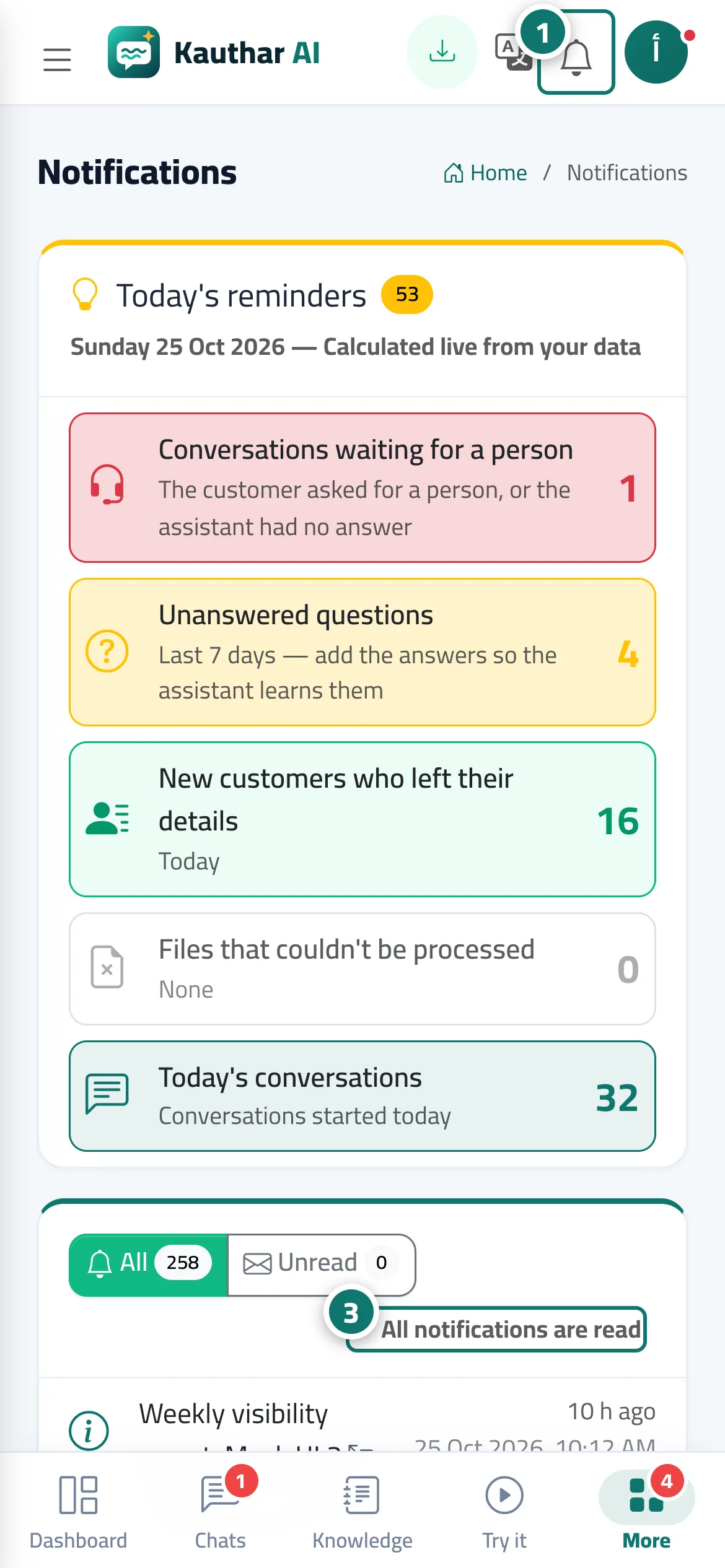
The bell in the top bar shows the latest notifications, the unread count and an All notifications link. The Notifications page starts with a Today's reminders card calculated live: conversations that need a person, unanswered questions (last 7 days), new customers who left their details, files that couldn't be read, and today's conversations. Below it are all notifications with an All / Unread filter and a Mark all as read button. Each notification arrives in its reader's language (Arabic, English or French), based on their account language.
- Who can use it
- Business owner / admin / staff
- Where to find it
- Bell in the top bar · Sidebar → Account → Notifications
Step by step#
- Click the bell in the top bar to see the latest notifications, or open Notifications from the sidebar.
- Click any notification to open the screen it relates to.
- Press Mark all as read when you're done.
Tips#
Good to know#
Frequently asked questions#
Do I get a notification for every question the assistant couldn't answer?
You get one notification per conversation, at its first unanswered question, so you can reach the customer without repeated noise.
Are notifications deleted?
No. They stay on the page, and you can mark them as read.