
AI-suggested replies
The AI assistant reads the ticket and drafts a reply from your business's files — you review it and send it in one click.
Overview#
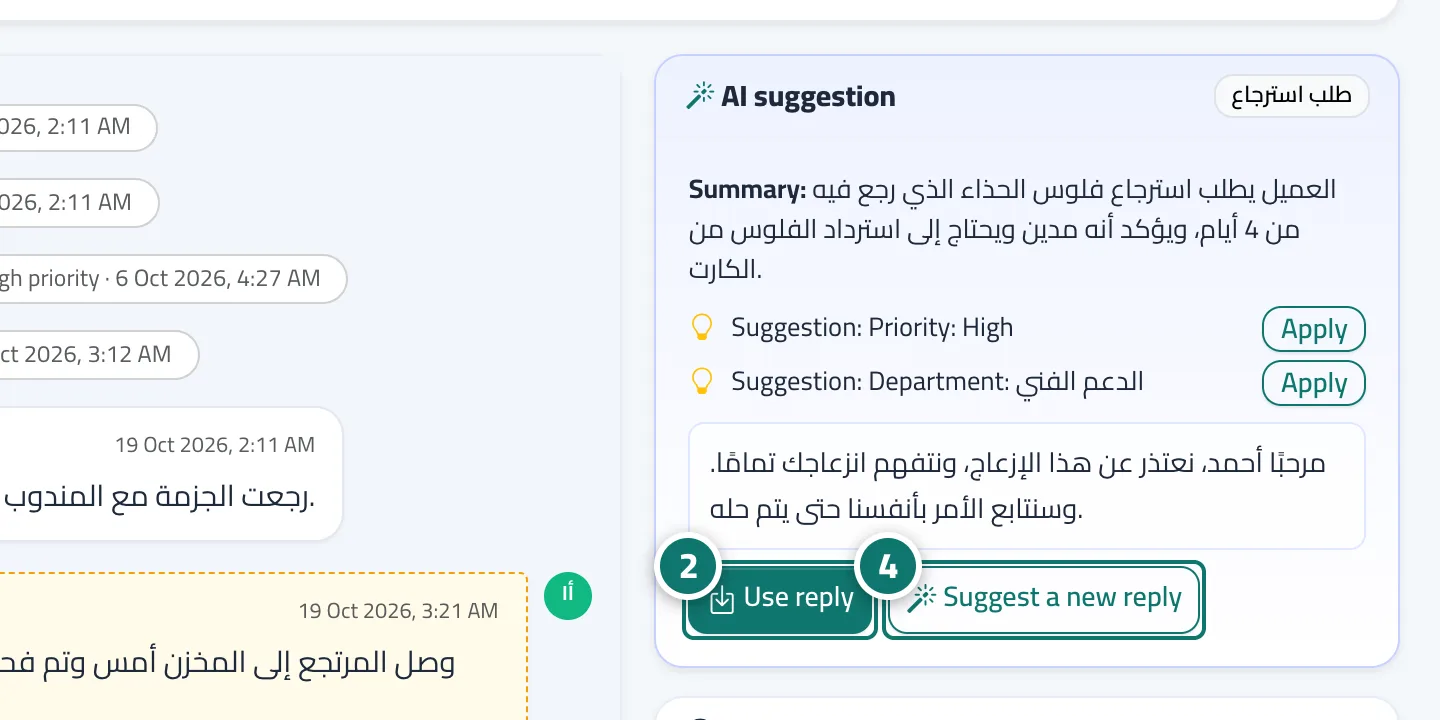
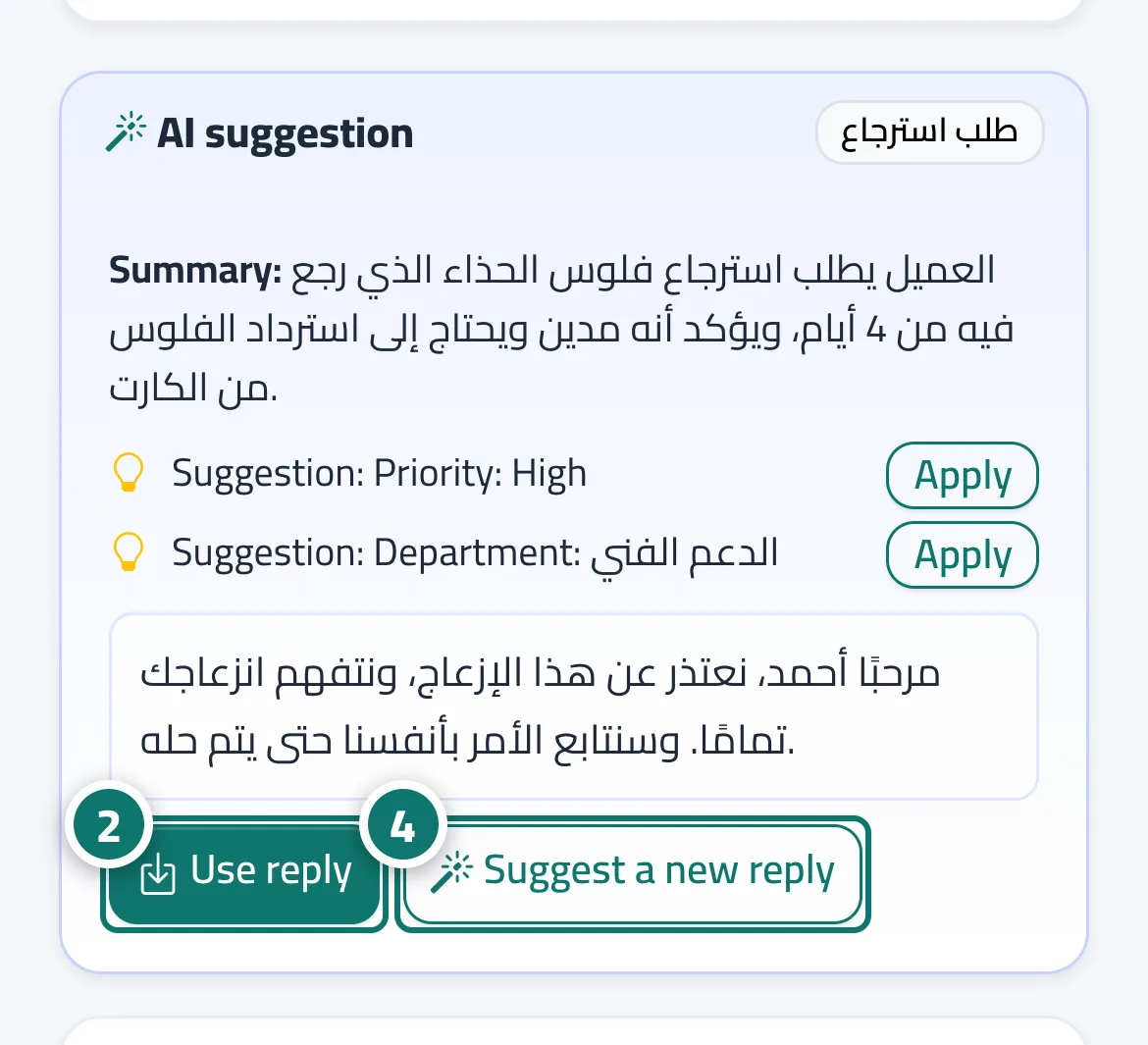
In the AI suggestion card on the ticket page, the AI assistant prepares a suggested reply to the customer based on your knowledge base, fixed answers and canned responses, and lists its sources. Use reply puts it in the Reply to customer box so you can review and edit it before sending, and Suggest a new reply asks for a different wording straight away. A suggestion is never sent to the customer automatically — the agent decides.
- Who can use it
- Business owner / manager / agent
- Where to find it
- Sidebar → Support desk → Tickets → (the ticket) → AI suggestion
Step by step#
- Open the ticket. If the suggestion is still being prepared, you'll see The AI assistant is analysing the ticket….
- When the suggestion appears, press Use reply; it is placed in the Reply to customer box.
- Edit whatever you need, then press Send.
- Want a different wording? Press Suggest a new reply (it can take up to 40 seconds).
Tips#
Good to know#
Frequently asked questions#
Does the AI reply to customers on tickets by itself?
No. On tickets it only suggests; the agent reviews and presses Send. Fully automatic replies happen in chats only.
Why is the suggestion sometimes generic or inaccurate?
Because the assistant relies on your files alone. Add more detail to your knowledge base and fixed answers to improve suggestions.
How long does a suggestion take?
A new suggestion usually takes from a few seconds up to 40 seconds, depending on load.
Is my customers' data sent to a third party?
Yes. To classify and summarise the ticket and suggest a reply, the ticket text and the relevant parts of your information are sent to Kauthar's cloud engine (Google Gemini), which writes them on our behalf. We don't sell your data, and your tickets and files stay stored on our servers. If you connect your own AI provider account (Business plan), your provider is used instead.