
Post studio: a new post from your products in two steps
Press “New post”, pick a product, an answer or a section of your business profile, then the format, channels and image — Kauthar writes the text and designs the image at each platform’s size in the background, and saves it as a draft for you to review.
Overview#
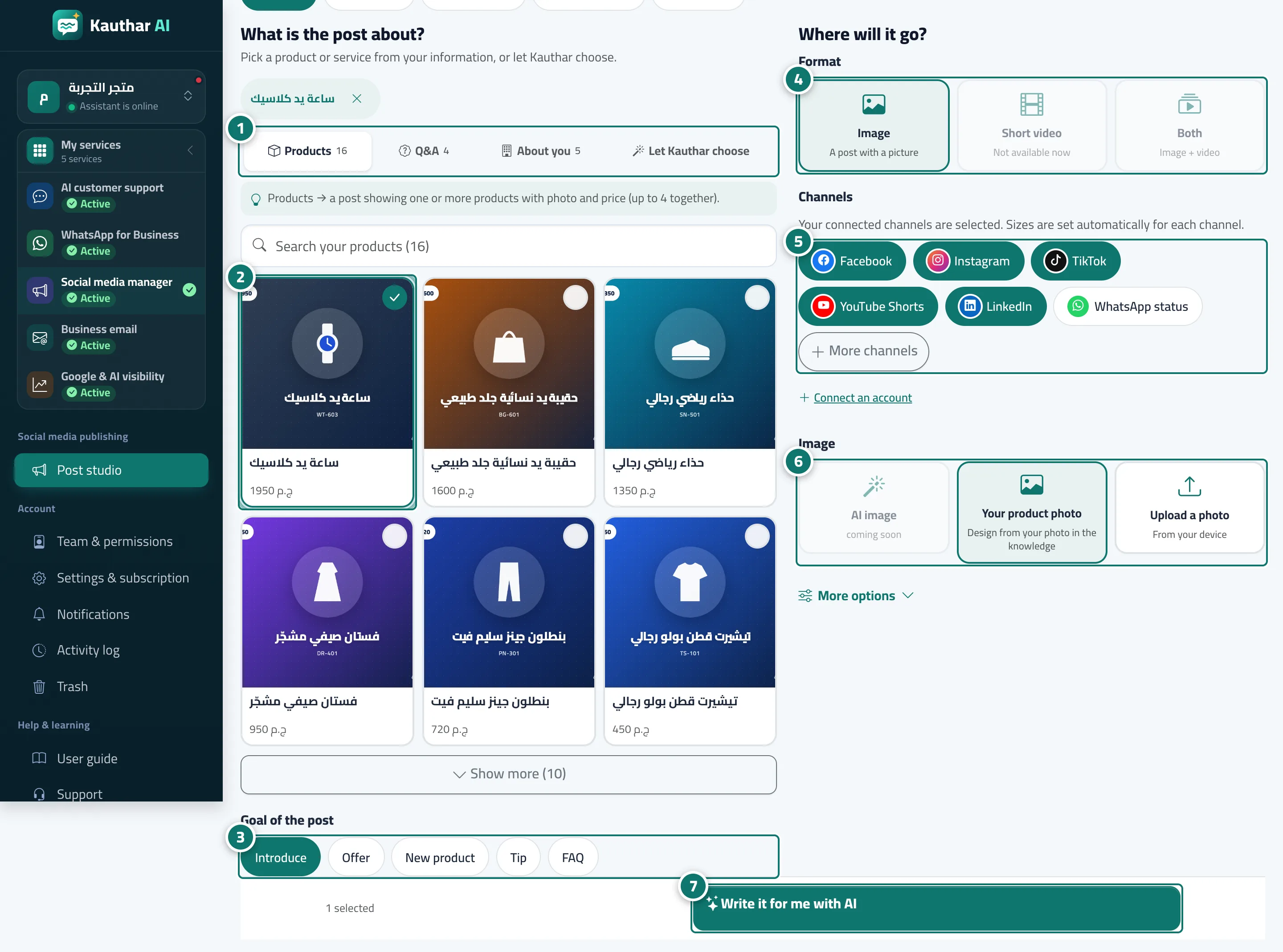
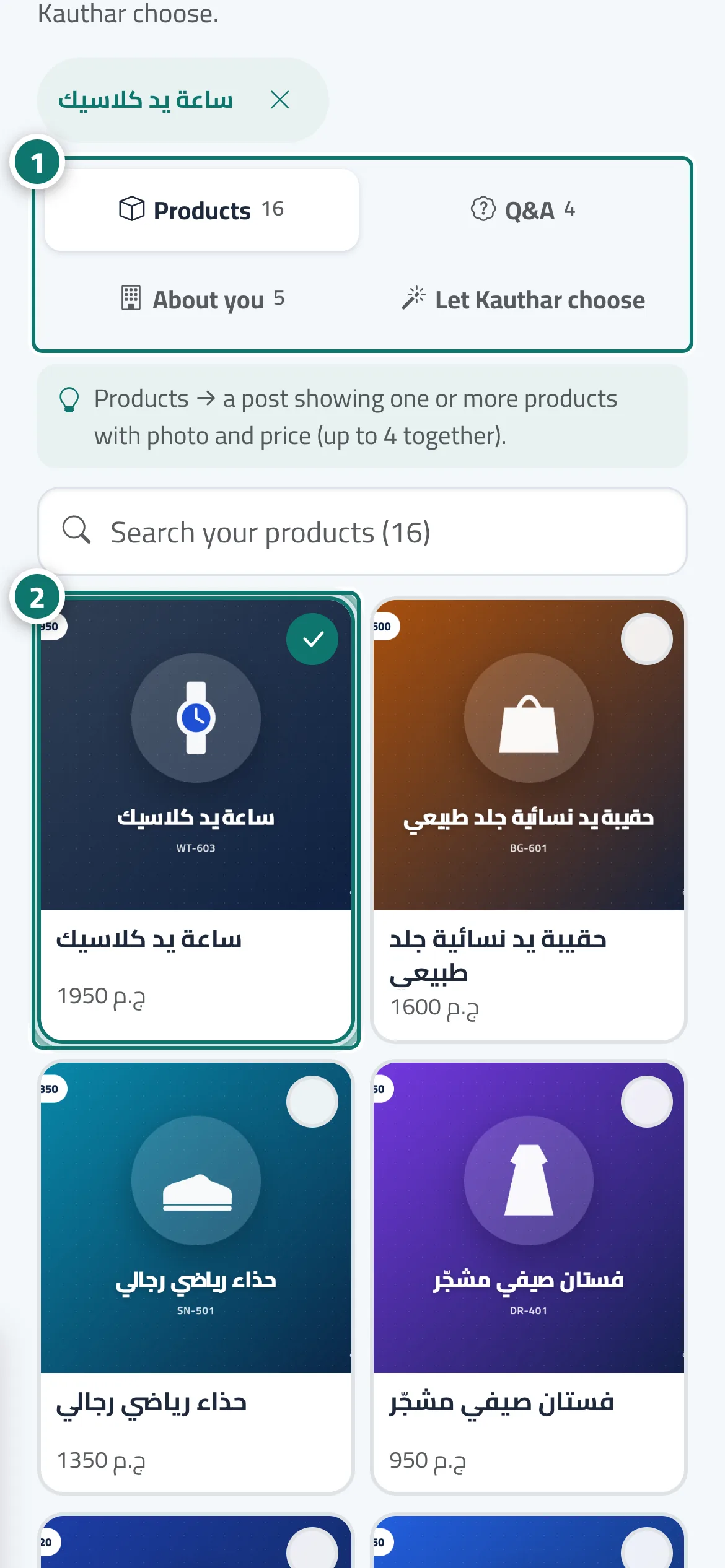
The Post studio has five tabs at the top: Home (your upcoming posts and drafts, the New post button, your connected channels and the This month’s usage bar), Calendar, Month plan, Performance and Accounts. New post opens a two-step wizard (on a phone each step is its own screen with a Next button). Step one, What is the post about?: choose the source — Products (up to 4 products in one post, with search and show more), Q&A or About you (one item), or Let Kauthar choose, which picks something you haven’t posted about lately — then the Goal of the post (Introduce, Offer, New product, Tip, FAQ). Step two, Where will it go?: the Format (Image, Short video, Both), the Channels (your connected accounts are pre-selected; More channels adds stories, squares and Reels of the same accounts, plus WhatsApp Status) and the Image (AI image, Your product photo, Upload a photo). More options holds the tone, design layout, language & dialect, other goals (book an appointment, trust & reviews), Text only (no image), the type (one post or a campaign) and I’ll write it myself. When you press Write it for me with AI, the post page opens straight away and Kauthar works in the background — Writing the text, then Designing the image (and Preparing the video if you chose one). You can close the page and find the post in your drafts.
- Who can use it
- Business owner / manager / staff allowed into the post studio
- Where to find it
- Sidebar → Social media publishing → Post studio → New post
Step by step#
- Under What is the post about?, choose the source: Products, Q&A, About you or Let Kauthar choose.
- Tick one or more products (up to 4 per post); use the search box to find one quickly.
- Choose the Goal of the post.
- Under Where will it go?, choose the Format: Image, Short video or Both.
- Check the Channels: your connected accounts are already selected, and More channels adds stories, squares, Reels and WhatsApp Status.
- Choose the Image: AI image, your product photo, or upload one from your device.
- Press Write it for me with AI. The post page opens, Kauthar prepares the post in the background and saves it as a draft.
Tips#
Good to know#
Frequently asked questions#
Is the post published as soon as it is written?
No. It is saved as a draft and only goes out after you press Approve & schedule on its page.