Mail: one shared inbox for your team
Connect your business mailbox, Gmail, Outlook or any IMAP account and handle every email with your team in one Gmail-style place: folders, labels, assignment to a colleague, internal notes and turning a conversation into a ticket.
On this page
Overview#
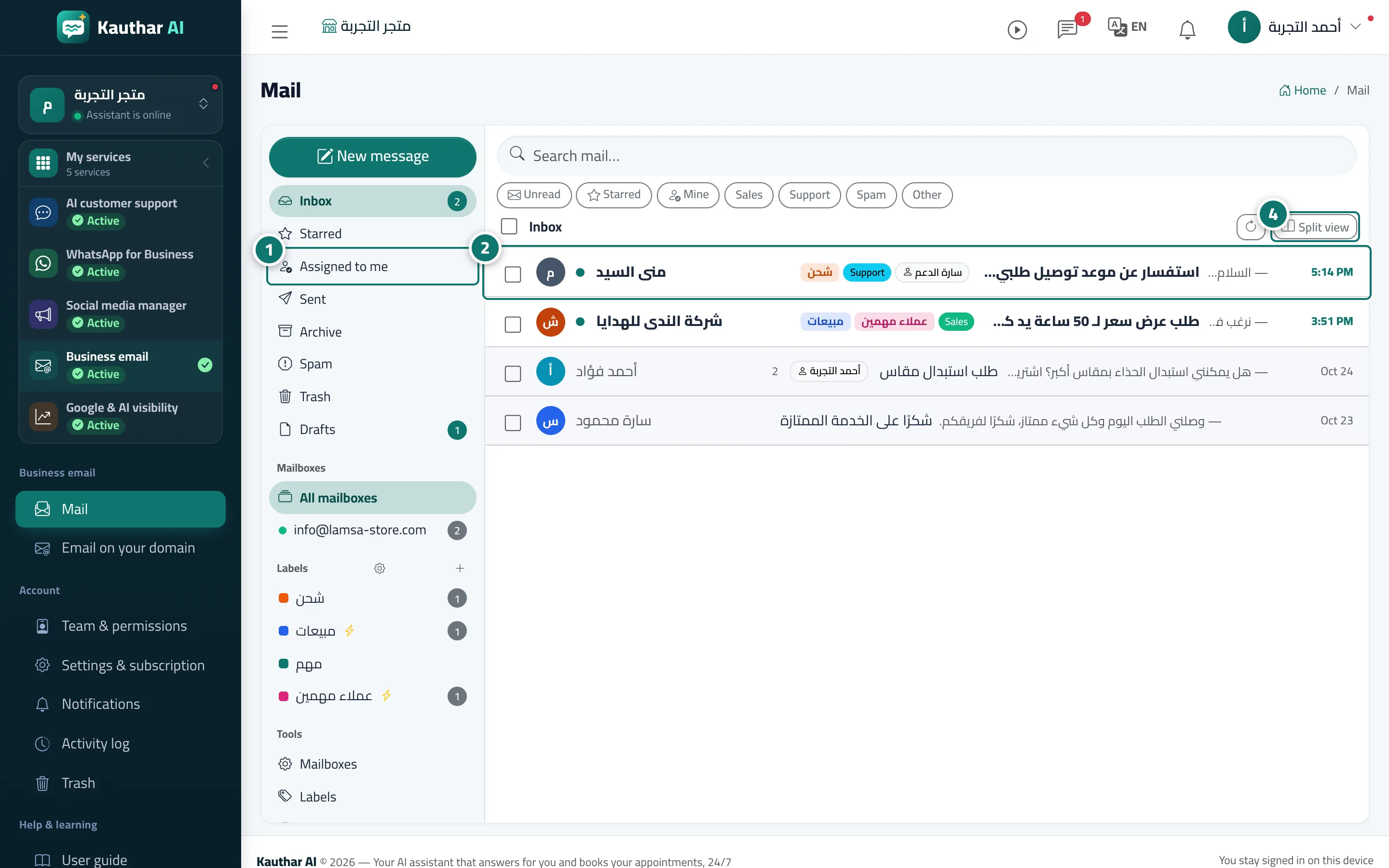
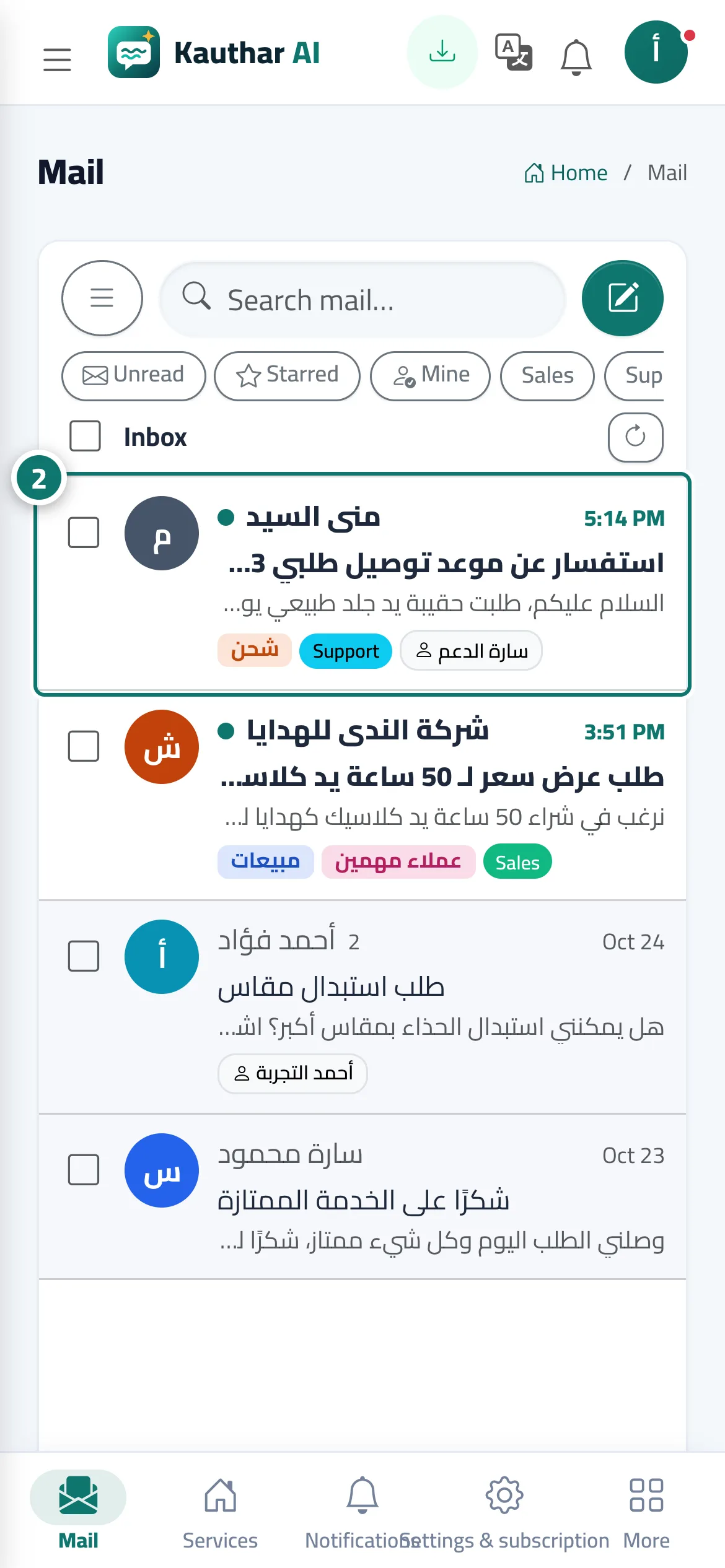
The Mail page lists the folders (Inbox, Starred, Assigned to me, Sent, Archive, Spam, Trash, Drafts), your connected mailboxes and your labels on the side, and the conversation list in the middle with search and filters (unread, starred, assigned to me and categories). On a computer every conversation is one line (sender · labels · subject and snippet · date); on a phone it is a compact three-line row. Split view (on wide screens) keeps the open message next to the list, and your browser remembers the choice. Links inside messages are clickable: web links open in a new tab, email links open a new message in Kauthar and phone numbers start a call. Switching to another mailbox, folder or label closes the open message. You connect a mailbox from Mailboxes → Connect a mailbox: one click with Google or Microsoft when available, Gmail with an app password, your Kauthar-hosted business mailbox, or any IMAP/SMTP server.
- Who can use it
- Business owner / manager (connecting) · the team according to the Mail permission
- Where to find it
- Sidebar → Business email → Mail
Step by step#
- Pick a folder in the list (such as Inbox or Assigned to me) or a specific mailbox.
- Open a conversation from the list to read and answer it.
- To connect a new mailbox, open Mailboxes → Connect a mailbox, choose the provider, then Connect and test.
- On a wide screen, click Split view to keep the list and the message side by side.