
Resetting your password
Recover your account yourself: phone number → verification code on WhatsApp or by SMS → a new password — or sign in with your linked Google account.
Overview#
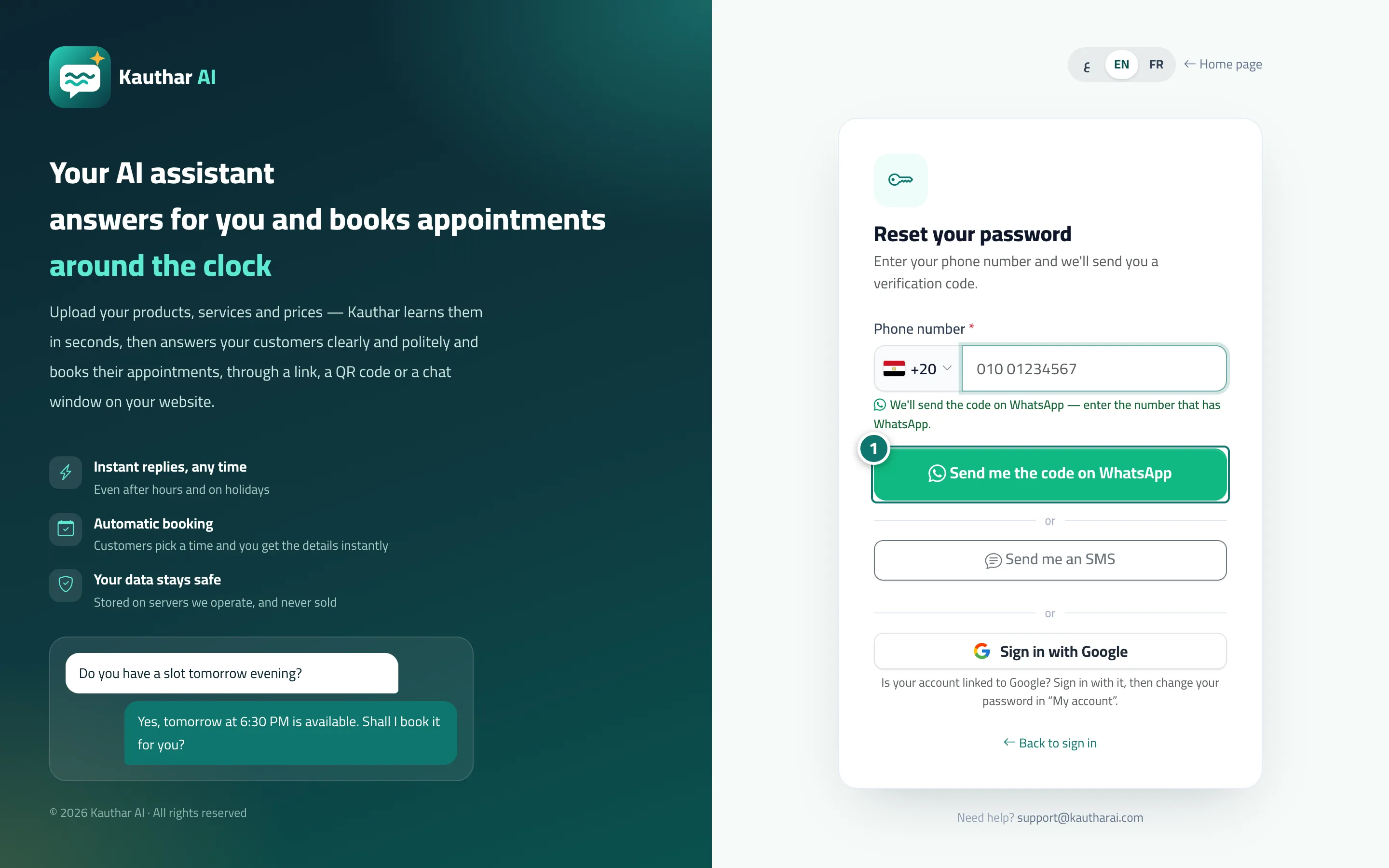
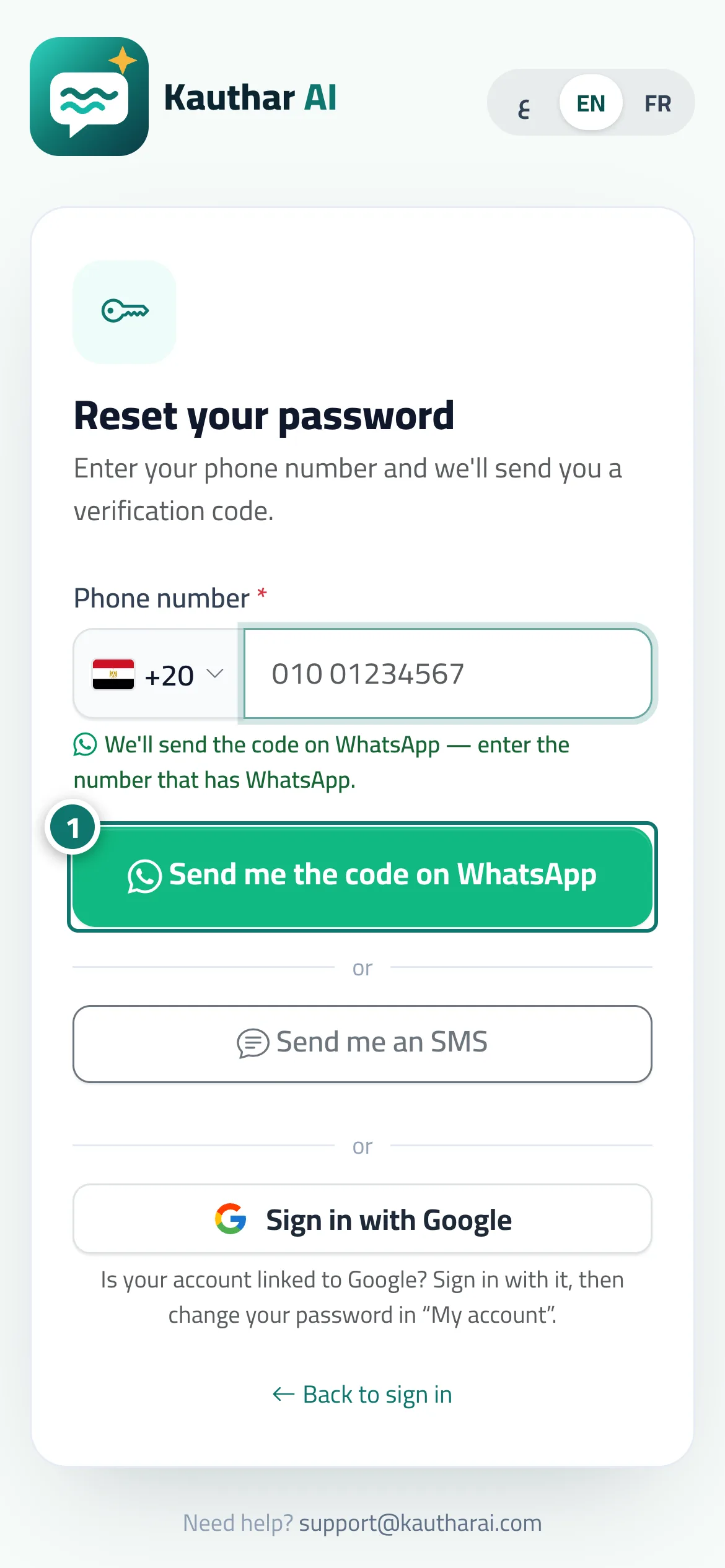
On the sign-in page, tap Forgot your password?, then choose your country and type your phone number to receive a 6-digit verification code on WhatsApp or by text message. After entering it, type your new password and its confirmation and tap Save and sign in. The same page has a Sign in with Google button for accounts linked to Google: you sign in directly, then change your password from My account.
- Who can use it
- Business owner / manager / staff member
- Where to find it
- Sign-in page → Forgot your password?
Step by step#
- Choose your country, type your phone number, and tap Send me the code on WhatsApp (or Send me an SMS).
- Type the code and tap Verify.
- Type your new password twice and tap Save and sign in.
Tips#
Good to know#
Frequently asked questions#
The code expired — what do I do?
Tap Resend code to request a new one.
The code didn't arrive?
Check the country and number, wait a minute and try again, or contact the account owner to reset your password.