
Post calendar and scheduling in bulk
All your posts as a list, a week or a month, coloured by status, with a channel filter, drag-to-move, and multi-select to schedule, unschedule or delete several posts together — plus Excel export and A4 printing.
Overview#
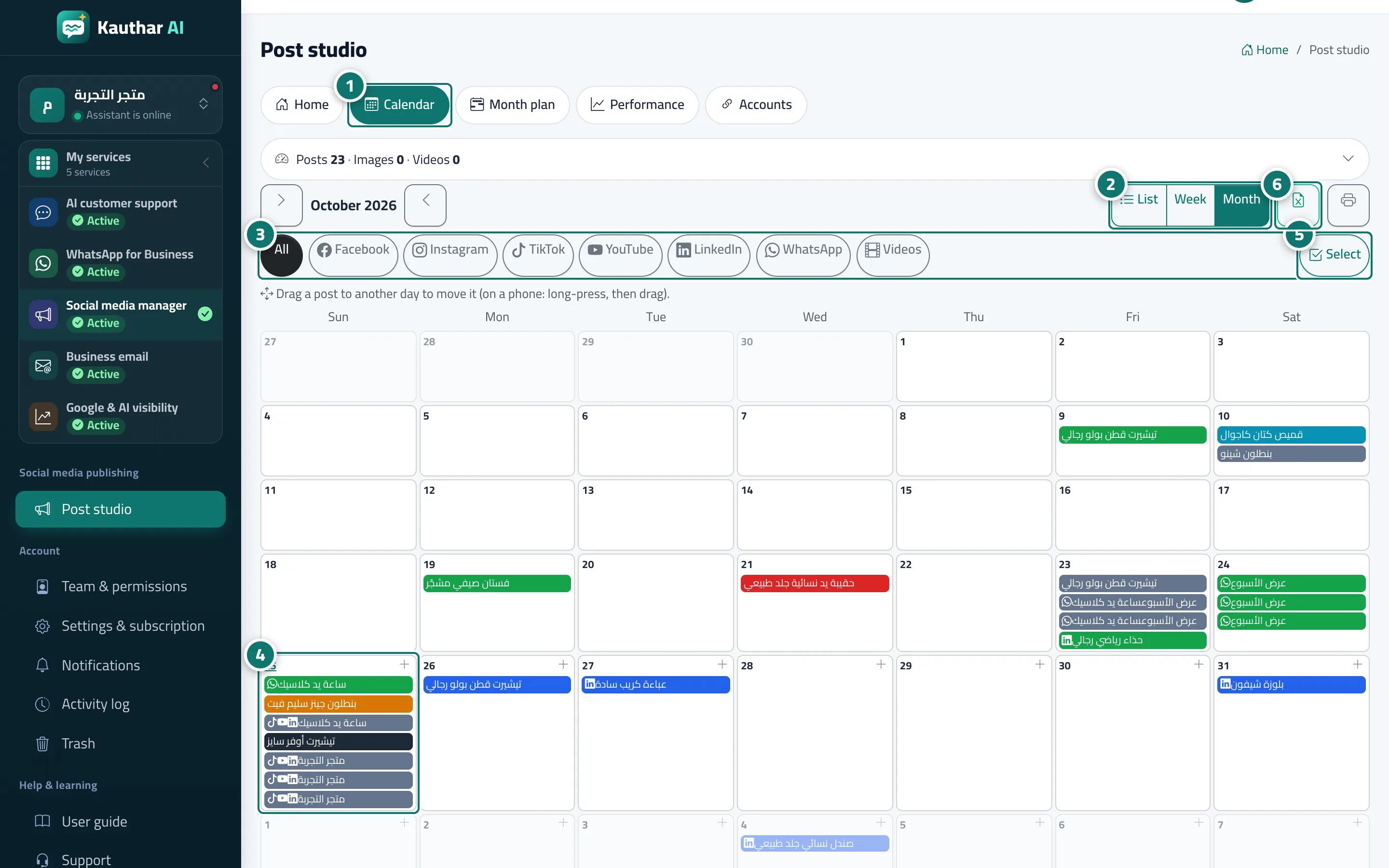
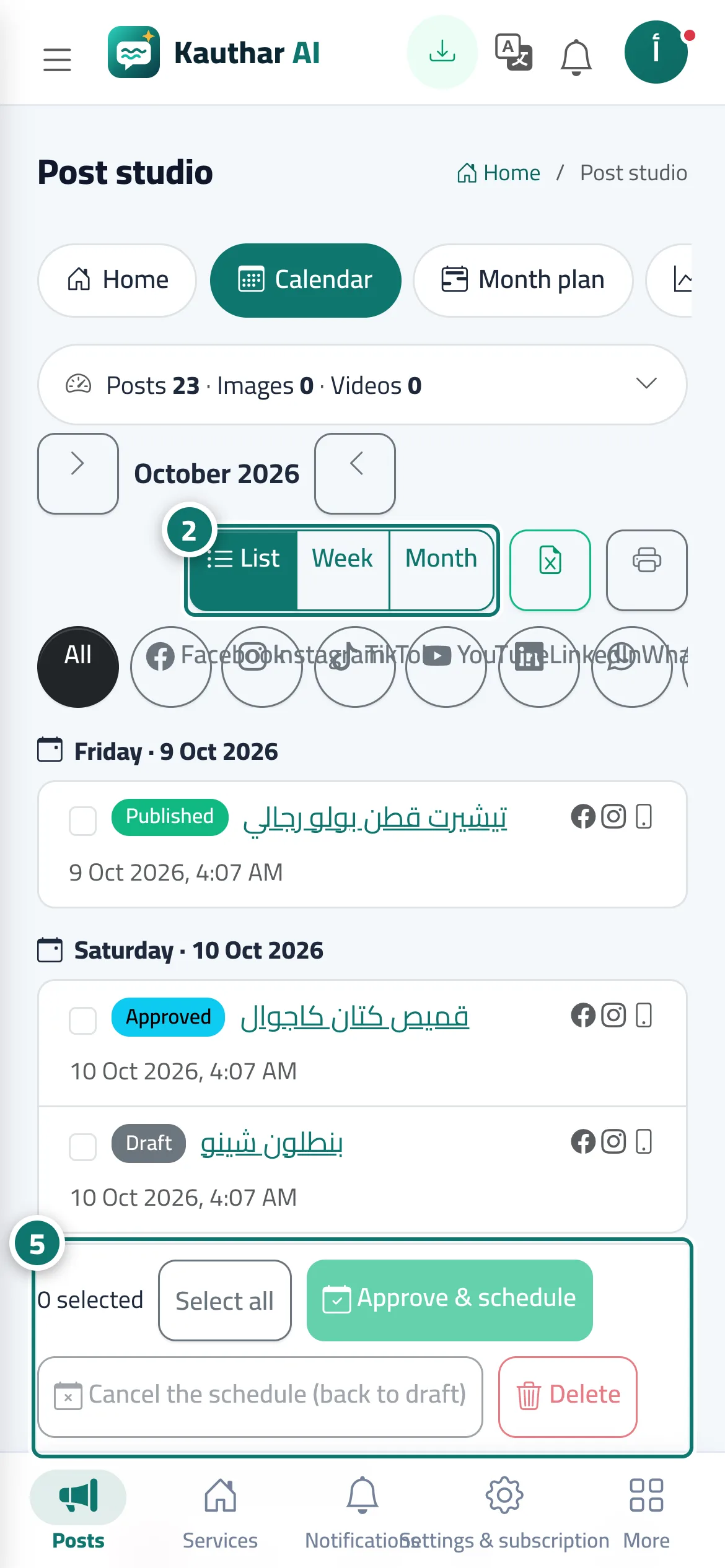
The Calendar tab shows posts three ways: List (grouped by day — the default on a phone), Week and Month (the default on a computer), as coloured strips by status (Draft, Approved, Scheduled, Publishing, Published, Failed, Rejected) with a colour key. At the top are the arrows to move between periods, the Filter by channel buttons (Facebook, Instagram, TikTok, YouTube, LinkedIn, WhatsApp, Videos), Excel and A4 printing. In the month and week views, drag a post to another day to move it (on a phone: long-press, then drag), and the + on each upcoming day creates a New post on this day. Below the calendar, the list of posts has a checkbox for each post and a suggested time mark; Select turns on tap-to-select, and the bar underneath offers Select all, Approve & schedule (at the suggested times), Cancel the schedule (back to draft) and Delete.
- Who can use it
- Business owner / manager / staff allowed into the post studio
- Where to find it
- Sidebar → Social media publishing → Post studio → Calendar
Step by step#
- Open the Calendar tab.
- Choose the view: List, Week or Month.
- Filter the posts by channel with the buttons above the calendar.
- Drag a post to another day to move it, or press + on an upcoming day for a new post on that day.
- Press Select and pick several posts, then Approve & schedule, Cancel the schedule or Delete in the bar below the list.
- Export the posts to Excel or print them on A4.
Tips#
Good to know#
Frequently asked questions#
When does Approve & schedule schedule the selected posts?
At each post’s own time if it has an upcoming one, otherwise at the time Kauthar suggests.