
What the assistant learned from each file
Open any file and see every piece of information the assistant understood from it, chunk by chunk — and correct it before your customers notice.
Overview#
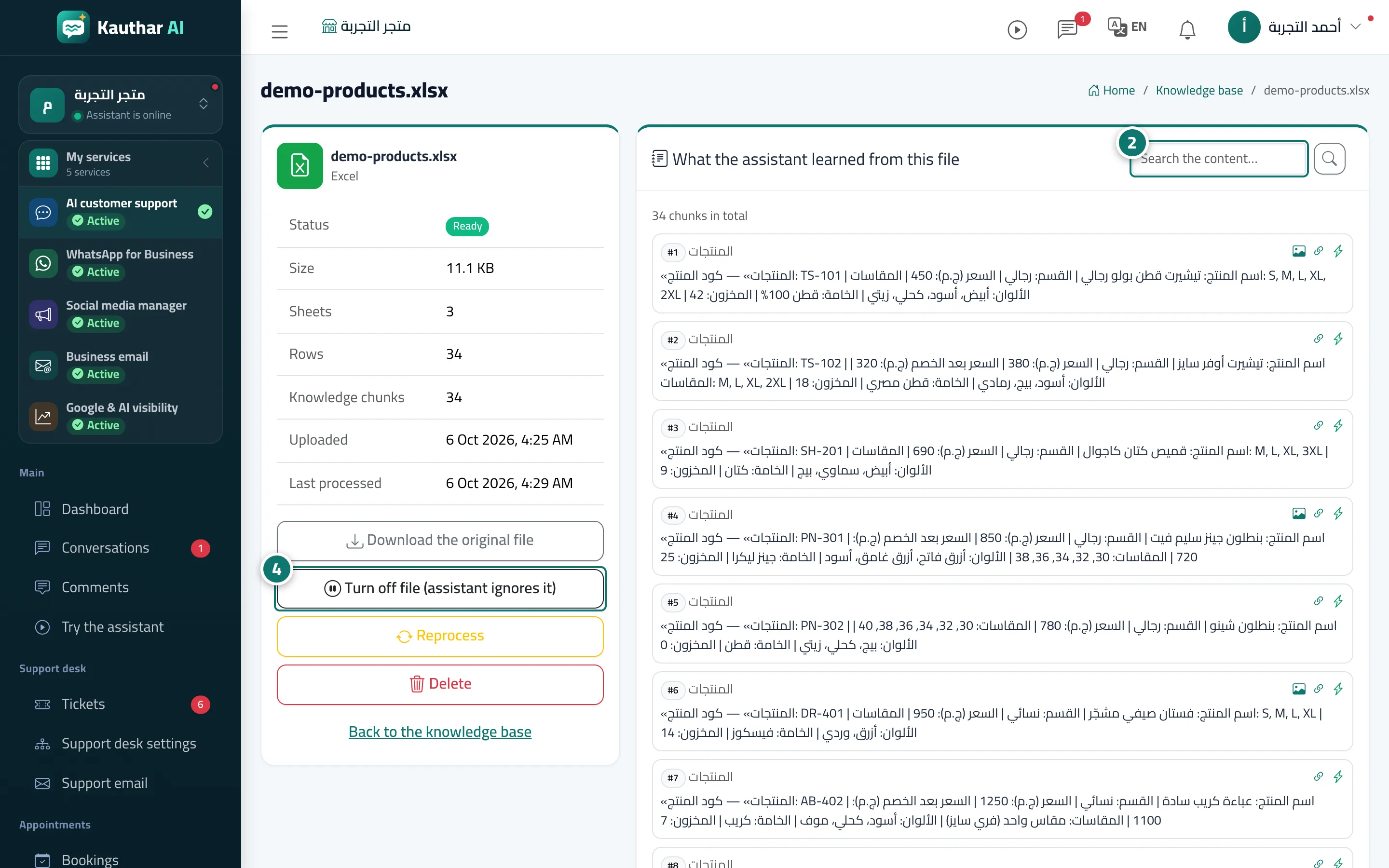
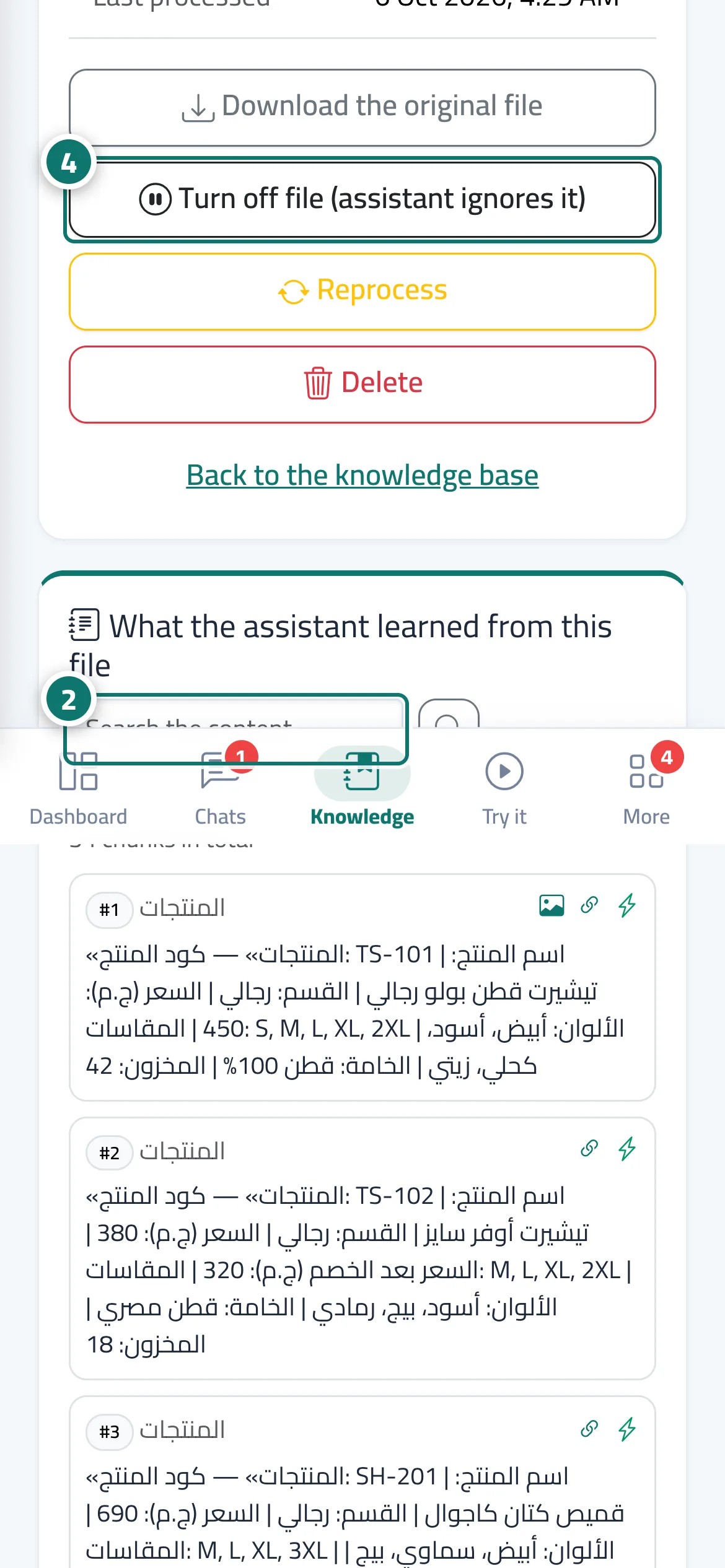
The file page shows its details: the status (and the Failure reason, if any), the size, the number of Sheets and Rows for Excel files, the Knowledge chunks, the upload date and Last processed. The section What the assistant learned from this file lists the chunks, numbered with their headings, with a Search the content… box; next to each chunk a lightning icon means Ready for smart search, and an image or link icon appears when the chunk is tied to a product image or a link. From the same page: Download the original file · Turn off file (assistant ignores it) or Turn on file · Reprocess · Delete. For connected sources (store or website) you also see Last sync and a Manage connection & sync button.
- Who can use it
- Business owner / manager / team member (depending on permissions)
- Where to find it
- Sidebar → Train your assistant → Knowledge base → click the file name
Step by step#
- Open Knowledge base and click the file name (or the Preview what the assistant learned icon).
- Review the chunks, and use Search the content… to jump to a specific piece of information.
- If something is missing or unclear, correct the original file and upload it again.
- To pause the file, click Turn off file (assistant ignores it); bring it back later with Turn on file.
Tips#
Good to know#
Frequently asked questions#
What is a chunk?
A small part of your file (a product row, or a question with its answer) that the assistant searches when a customer asks something.
Why does my file show Processing failed?
Usually because the file is empty, damaged, password-protected, or not a genuine .xlsx, .md or .txt file. The cause is shown under Failure reason. Open the file, save it in the right format and upload it again, or click Reprocess.