
Publishing result per platform and retrying
After publishing you can see where the post went out, where it failed and why — and retry only the platforms that failed, without repeating what was published.
Overview#
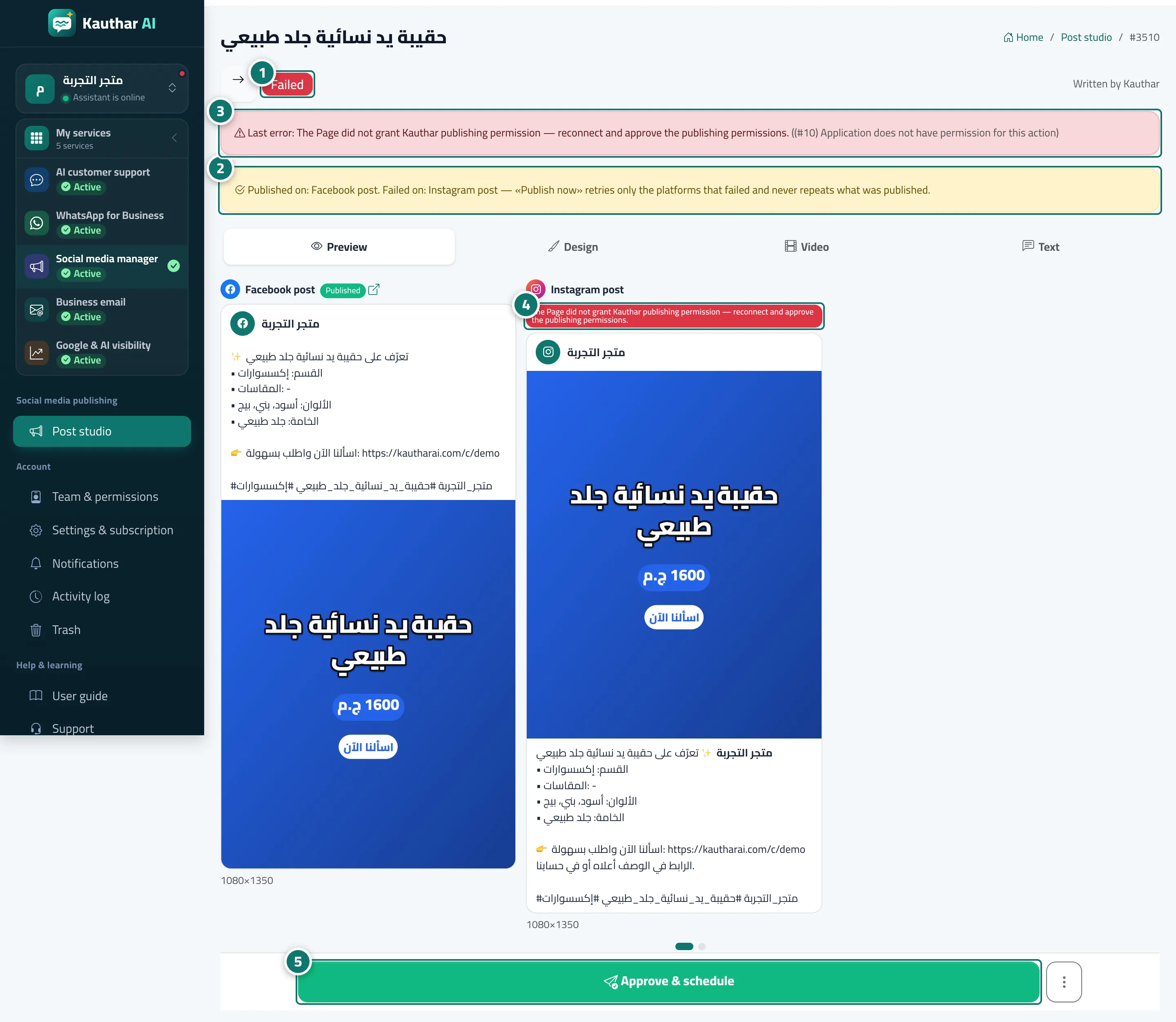
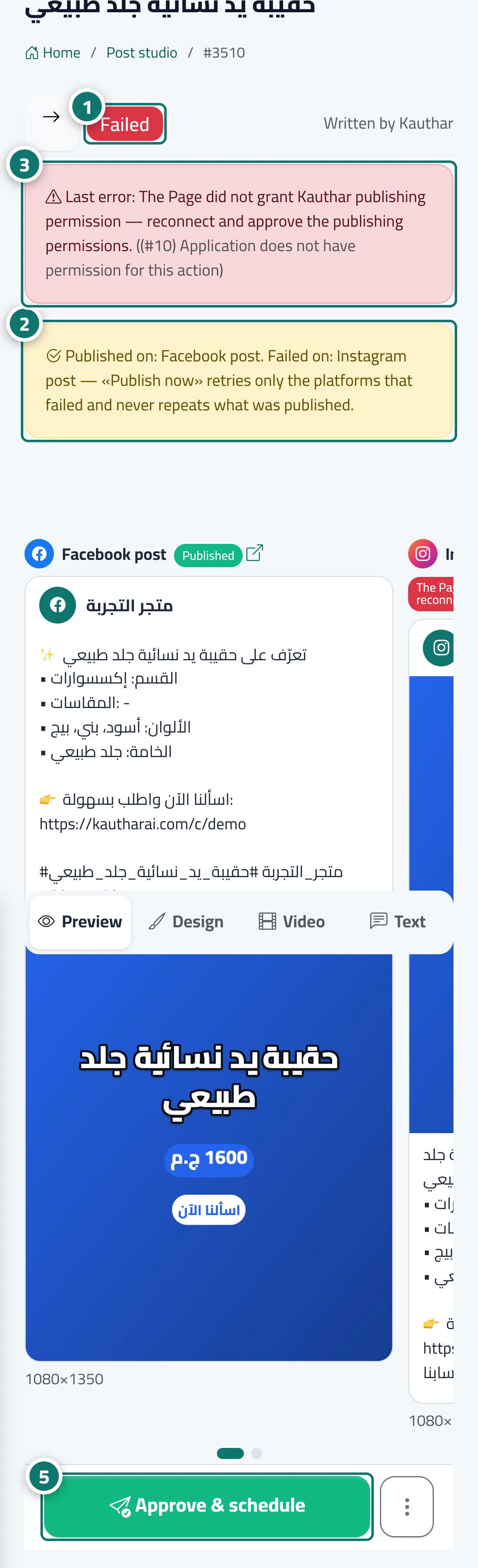
After publishing, the post page shows each platform’s result next to its name in Preview: Published with a link that opens the post on the platform, or the reason it failed in plain words (for example “The Page did not give Kauthar permission to publish — reconnect and accept the publishing permissions”). If the post went out on some platforms and failed on others, a message reads Published on: … Failed on: … and the post stays Failed with its Last error. After a temporary error the post goes back to Scheduled with next try and attempt n of 4.
- Who can use it
- Business owner / manager / staff allowed into the post studio
- Where to find it
- Sidebar → Social media publishing → Post studio → Calendar → the failed post
Step by step#
- Check the post’s status at the top of the page.
- Read the partial-success message to see which platforms it went out on and which failed.
- Read the Last error and fix its cause (usually by reconnecting the account in the Accounts tab).
- Check each platform’s result next to its name in Preview.
- Press Approve & schedule, then Approve & publish now to retry only the platforms that failed.
Tips#
Good to know#
Frequently asked questions#
Will the post be duplicated when I retry?
No. Kauthar skips every platform where the post was already published and retries only the ones that failed.