
The customer's manage-booking link
Customers change or cancel their own appointment from their link, within the deadline you set.
Overview#
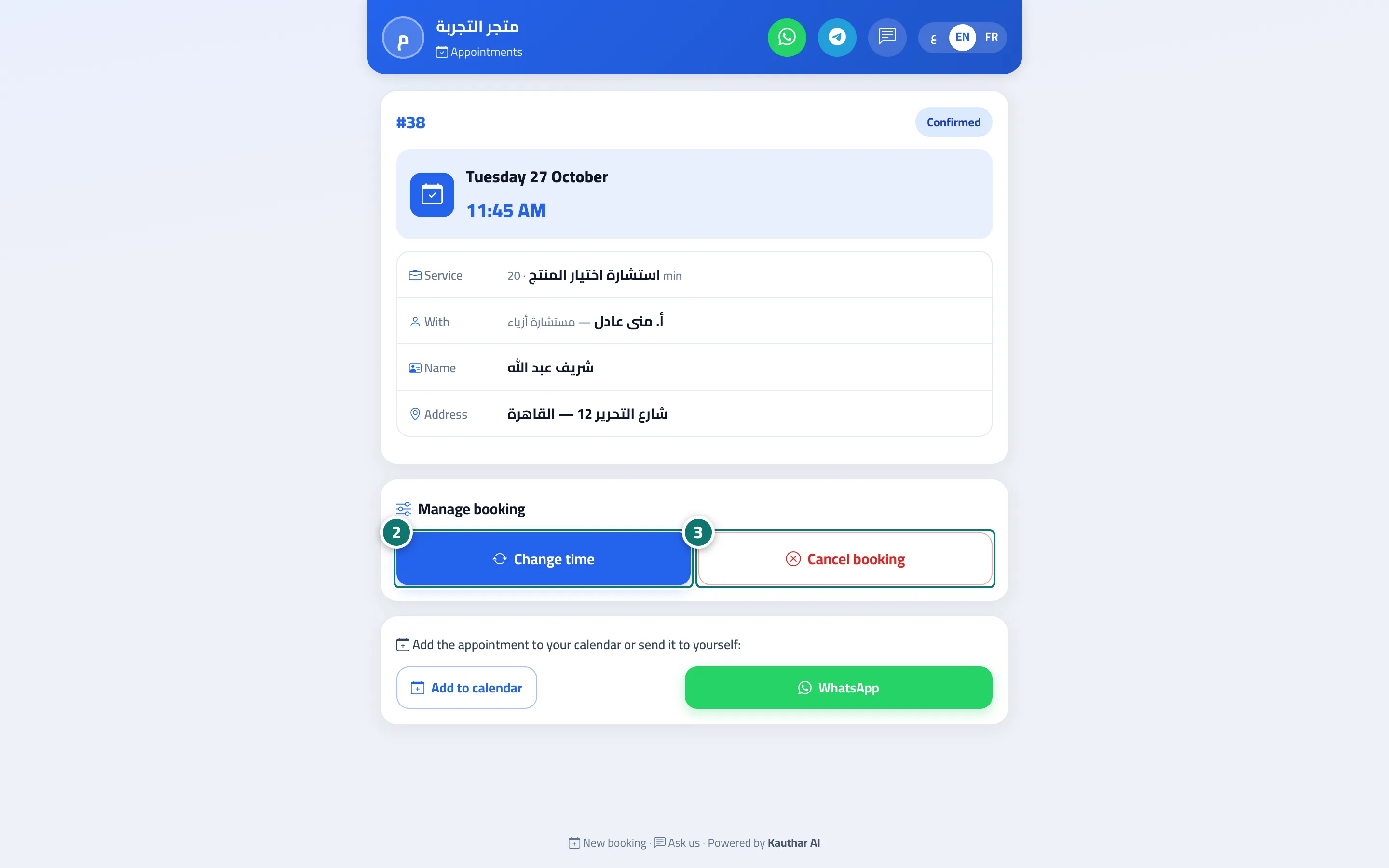
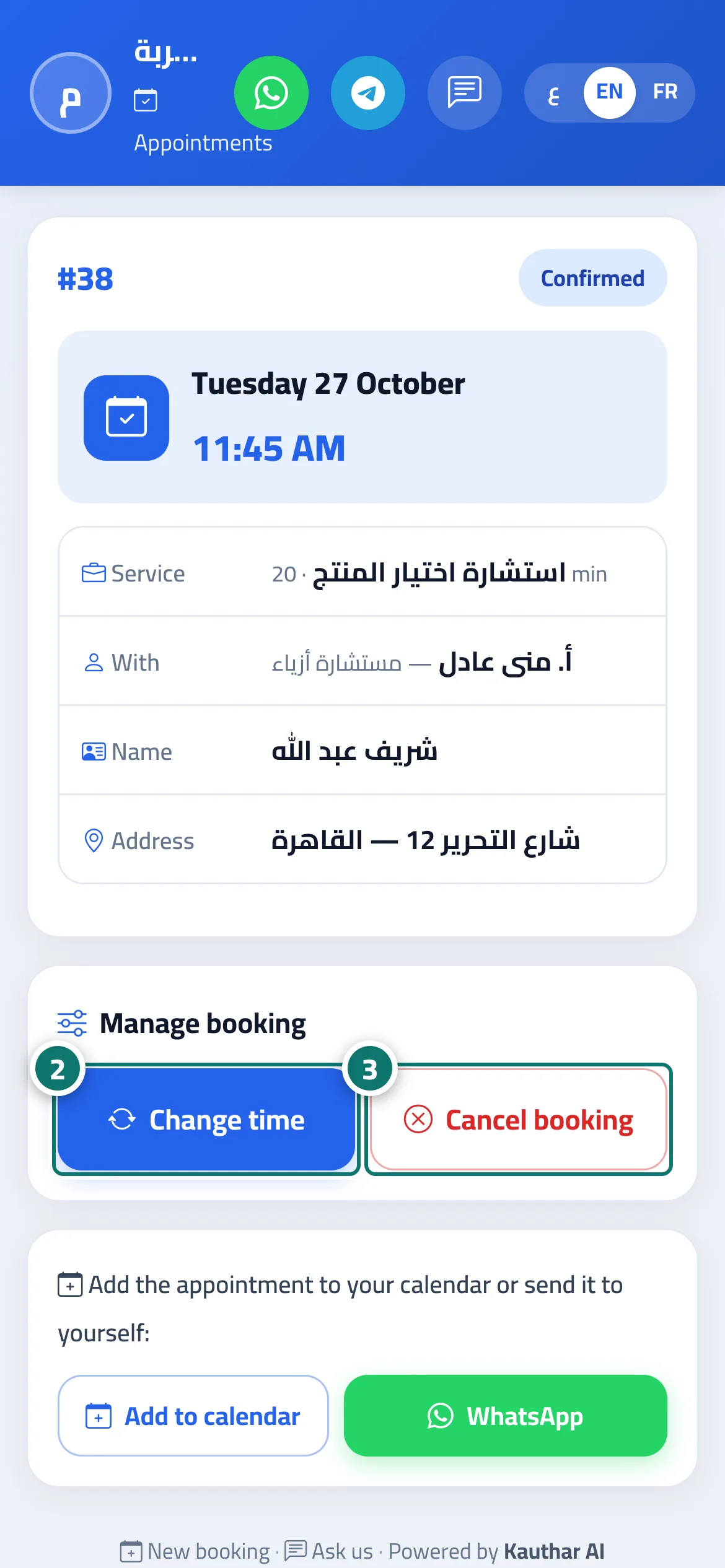
Every booking has a private link showing the booking number, status, day and time, the Service and its duration, the provider, the Price, the customer's name and the Address, plus a Manage booking section with two buttons: Change time (pick a new day and time with the same provider, then Confirm new time) and Cancel booking with an optional Reason for cancelling, then Confirm cancellation. At the bottom are Add to calendar and WhatsApp. When the time is changed, the same link stays valid for the new booking. The page appears in the customer's language and in your brand — colour, name and logo (logo upload is available on the Business plan) — set under Settings & subscription → Brand tab.
- Who can use it
- Your business's customers / staff
- Where to find it
- A public link ending in /b/<link-name>/<private-code> — the customer gets it after booking and in emails
Step by step#
- The customer opens the booking link.
- They tap Change time, pick a new day and time, then Confirm new time.
- Or they tap Cancel booking, add a reason if they wish, then Confirm cancellation.
Tips#
Good to know#
Frequently asked questions#
How do I know a customer changed their appointment?
You receive the alert The customer moved booking #old to #new, and the new time appears on the schedule with a new booking number.
And if the customer cancels?
You receive the alert The customer cancelled booking #N, and the time is freed up for another customer.