
Customer satisfaction rating (CSAT)
After a ticket is solved, the customer rates the service from 1 to 5 with an optional comment, and the result appears in your reports.
Overview#
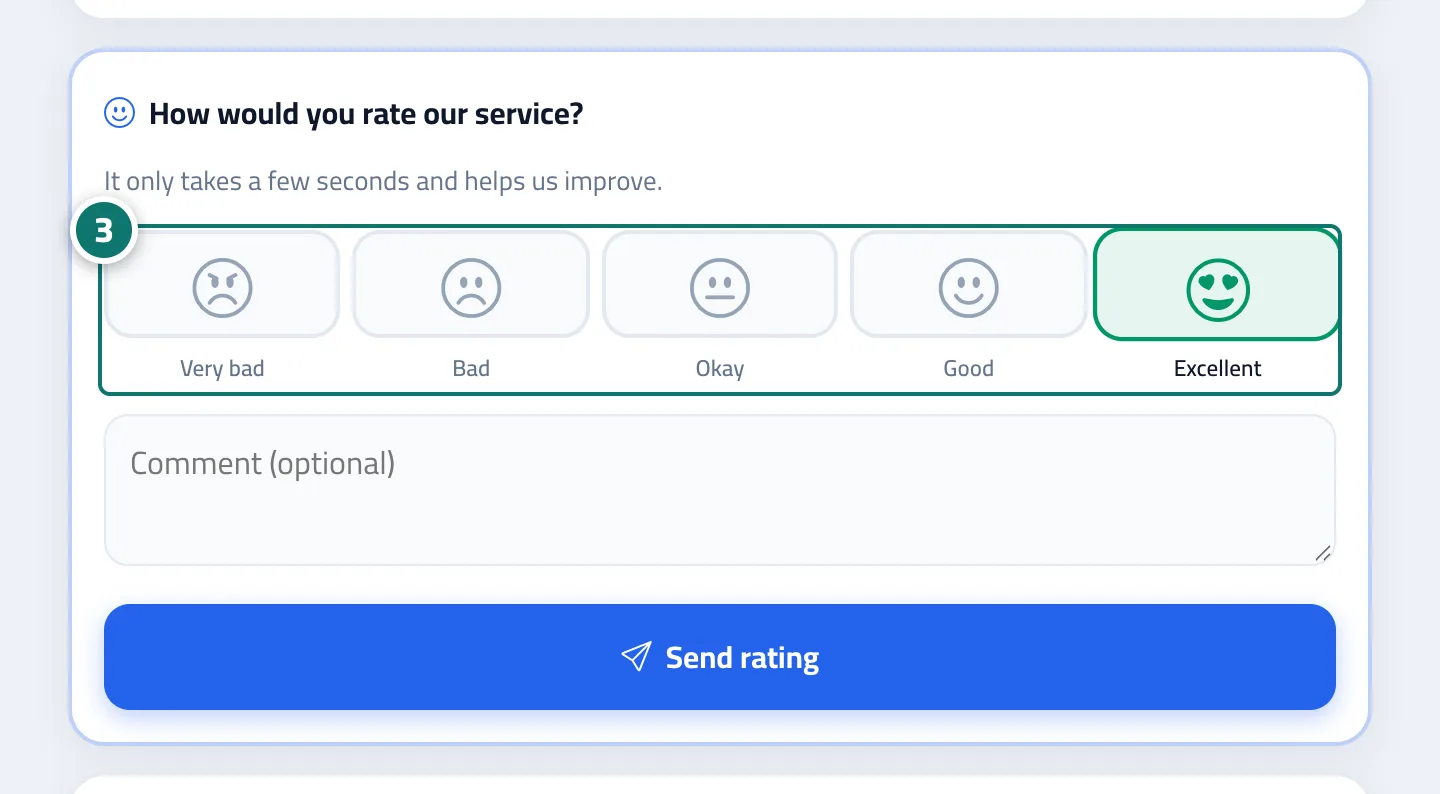
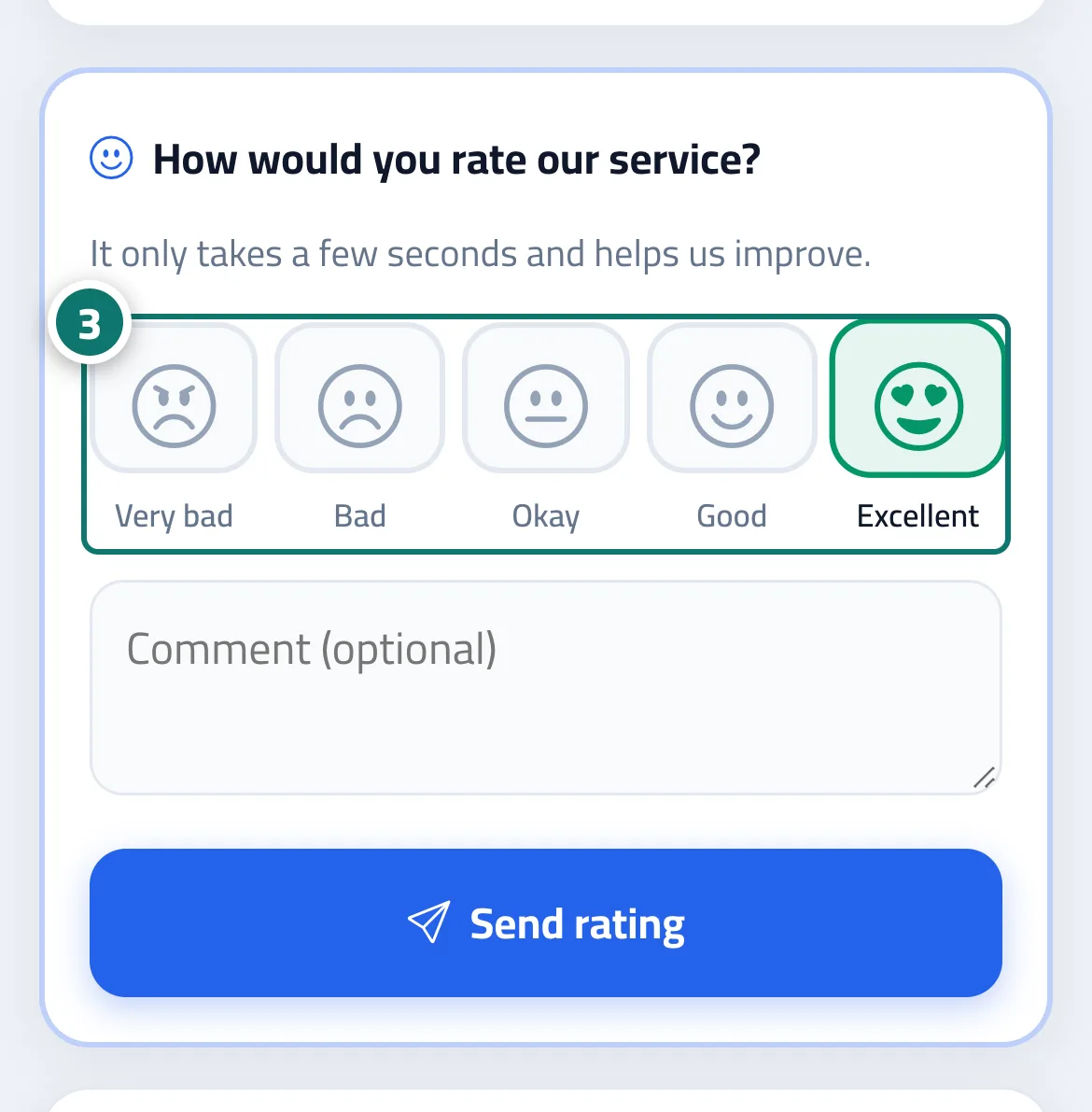
When a ticket becomes Solved or Closed, the ticket tracking portal shows the card How would you rate our service? with five choices (Very bad · Bad · Okay · Good · Excellent), a Comment (optional) box and a Send rating button. After rating, the customer sees Thanks for your rating! Your feedback helps us improve our service., Your rating stays visible on the page, and the staff member in charge receives the alert Rating N of 5 on ticket #…. The rating appears on the ticket page, on the dashboard and in the ticket reports (Customer ratings breakdown, customer satisfaction per agent, and Latest customer comments).
- Who can use it
- Your business's customers / business owner
- Where to find it
- Ticket tracking portal · turned on from the sidebar → Support desk → Support desk settings → Routing & ratings → Customer satisfaction rating
Step by step#
- Make sure Customer satisfaction rating is on (it is on by default).
- When the ticket is solved, the customer opens its link (or you send it to them).
- The customer picks a rating, adds a comment if they wish, then taps Send rating.
Tips#
Good to know#
Frequently asked questions#
How is the customer satisfaction rate calculated?
It is the share of 4 and 5 ratings out of all ratings in the period, shown together with the average rating out of 5.
Can I see each agent's rating?
Yes, in the Agent performance section of the ticket reports.