
The Kauthar app for Shopify and the chat bubble
Install the Kauthar app on your Shopify store in one click so your products sync automatically, then turn on the Kauthar chat bubble from the theme editor — no code to edit.
Overview#
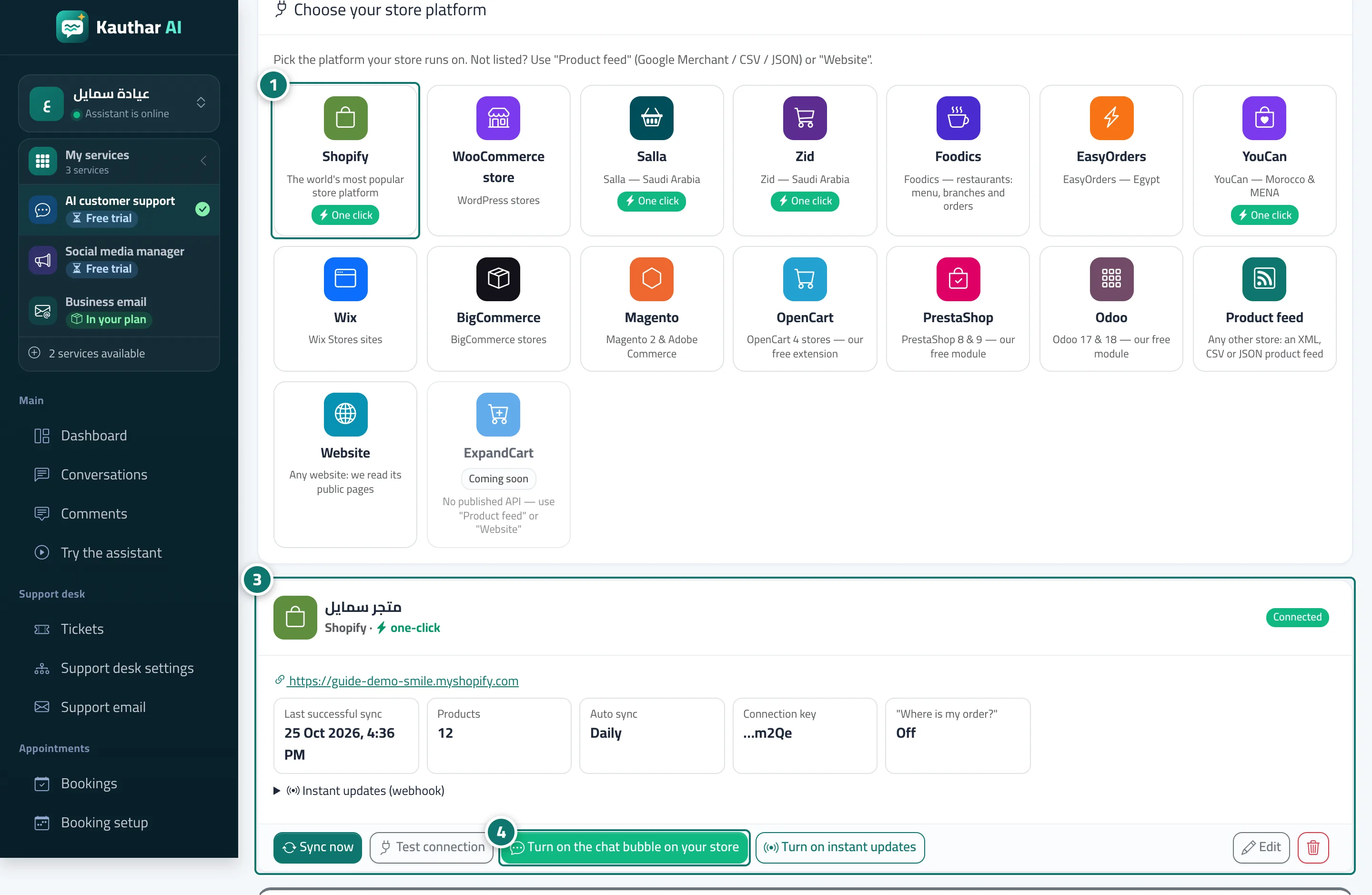
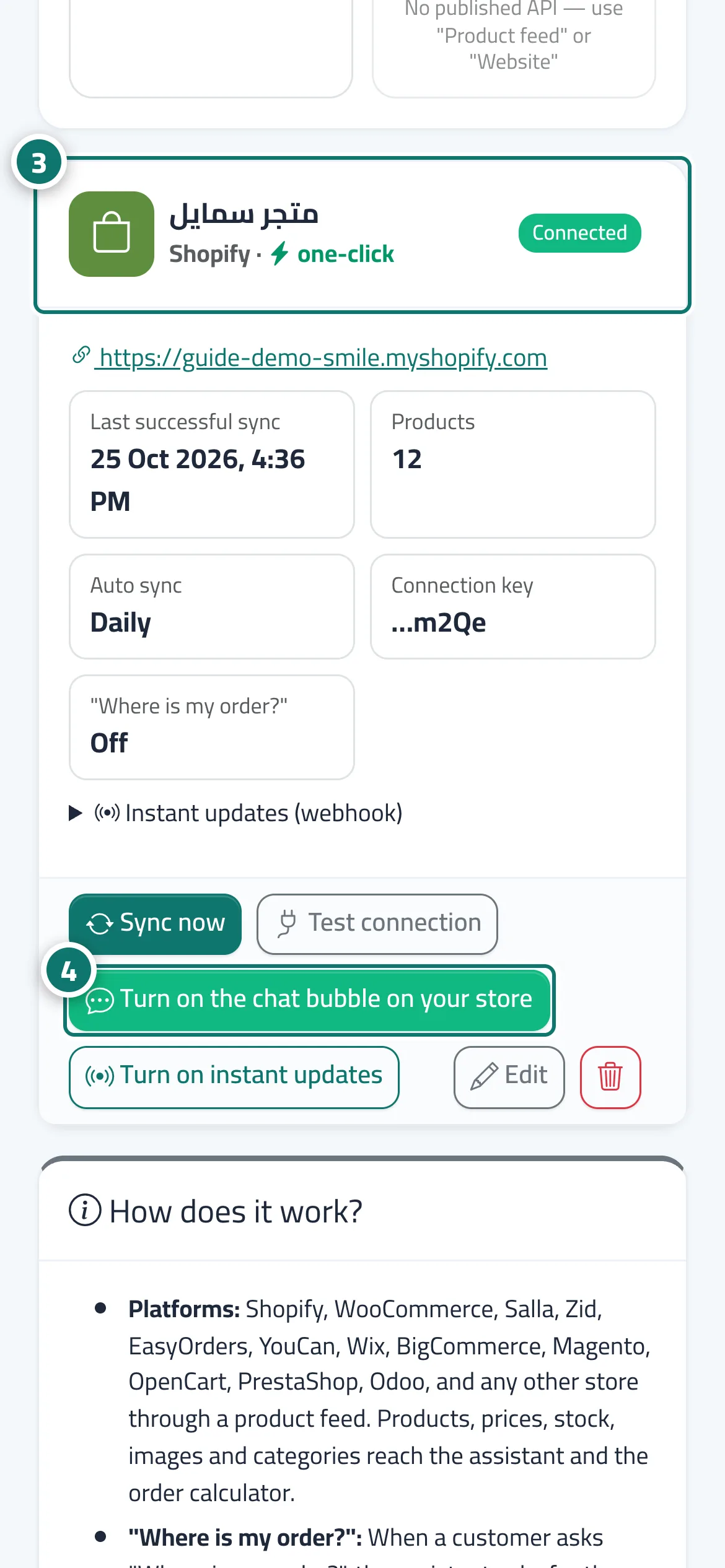
Kauthar's official Shopify app connects your store without copying any keys. You can start from the app's page on Shopify (installing opens Shopify's approval page and brings you back to Kauthar; if you're not signed in, you sign in or create your account and the store is linked to it), or from Kauthar: Connect your store → Shopify → type your my-shop.myshopify.com address and press Connect in one click. After you approve, the store card appears with the one-click badge and the product sync starts; the keys renew automatically. The store card has a Turn on the chat bubble on your store button: it opens the Shopify theme editor with the Kauthar bubble already switched on as an app embed — press Save there and your customers see the bubble, with no change to your theme code. The app reads your products and inventory; it also asks permission to update product data and content, which is used only by the Google & AI visibility service if you subscribe to it.
- Who can use it
- Business owner / manager (the Shopify store owner)
- Where to find it
- Sidebar → Train your assistant → Connect your store → Shopify (or the Kauthar app page on Shopify)
Step by step#
- In Connect your store press Shopify, type your store address and press Connect in one click (or install the Kauthar app from its page on Shopify).
- Approve the permissions on Shopify's page; you return to Kauthar automatically.
- Your store card appears with the one-click badge and the product sync starts.
- Press Turn on the chat bubble on your store, then press Save in the theme editor that Shopify opens.
Tips#
Good to know#
Frequently asked questions#
I pressed Turn on the chat bubble but it doesn't show in my store. Why?
It is only saved after you press Save in the Shopify theme editor. Open the button again and save.