
WhatsApp Business profile
Edit what your customers see when they open your chat on WhatsApp — picture, about text, business category, description, address, email and websites — for each number, from inside Kauthar.
Overview#
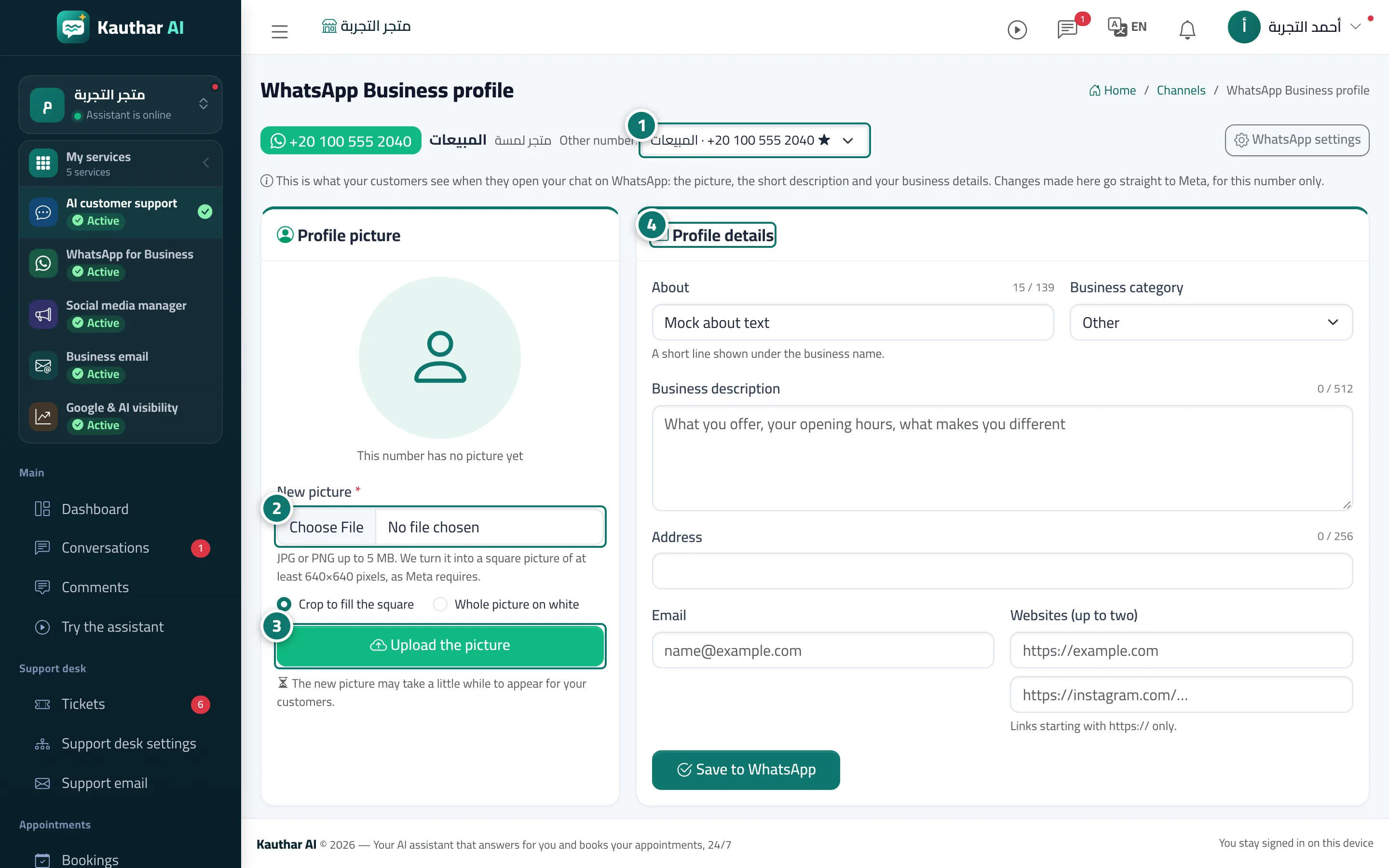
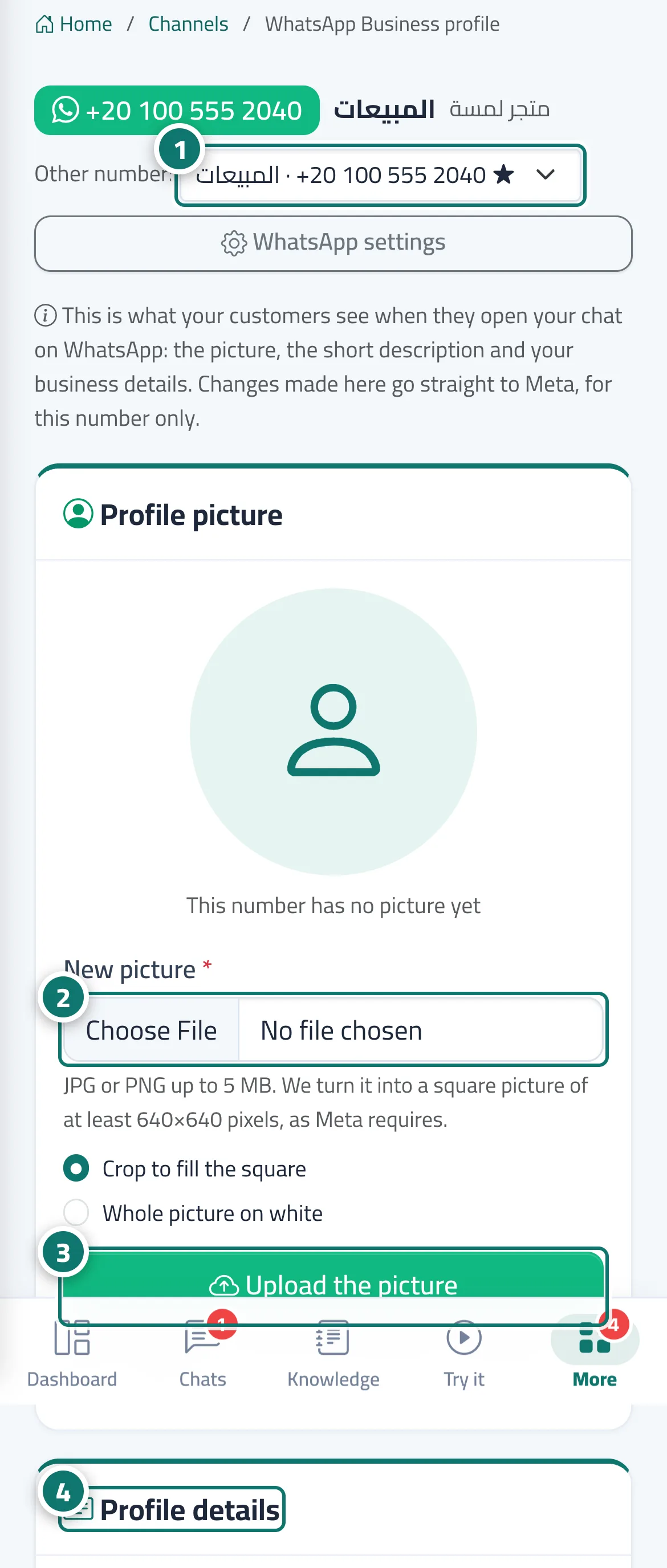
The WhatsApp Business profile page opens from the WhatsApp profile button on any connected number's card. It has a Profile picture card (the current picture on WhatsApp, plus uploading a new JPG or PNG up to 5 MB, which Kauthar automatically turns into a square image of at least 640×640 pixels as Meta requires, with the choice to crop it to fill the square or use Whole picture on white, or a Use my business logo button) and a Profile details card: About, business category, business description, address, email and up to two websites starting with https://. Changes are sent to Meta directly, for this number only.
- Who can use it
- Business owner / manager (or a team member allowed to edit Channels)
- Where to find it
- Sidebar → Channels & customers → Channels → the number's card → WhatsApp profile
Step by step#
- On the number's card in Channels, click WhatsApp profile; the other-number menu lets you switch to another number's profile.
- In Profile picture, choose a new picture and how it fills the square.
- Click Upload the picture (or Use my business logo to use your business's logo).
- In Profile details, edit the about text, category, description, address, email and websites, then click Save to WhatsApp.
Tips#
Good to know#
Frequently asked questions#
Does editing one number's profile change my other numbers?
No. Each change applies only to the number that is open.