
Time off and closed periods
Close a day, several days or specific hours for one provider or the whole business, and those times disappear from booking.
Overview#
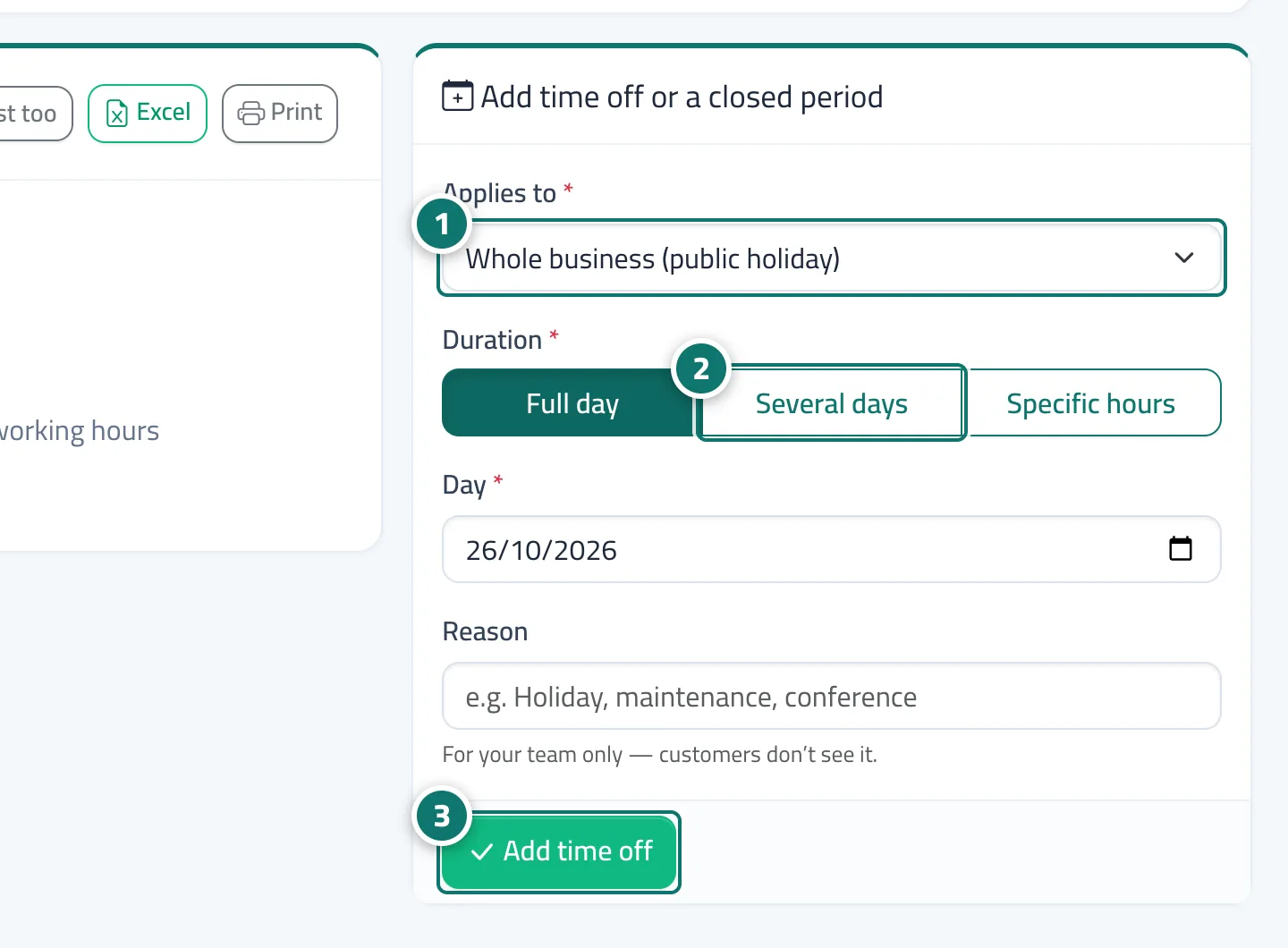
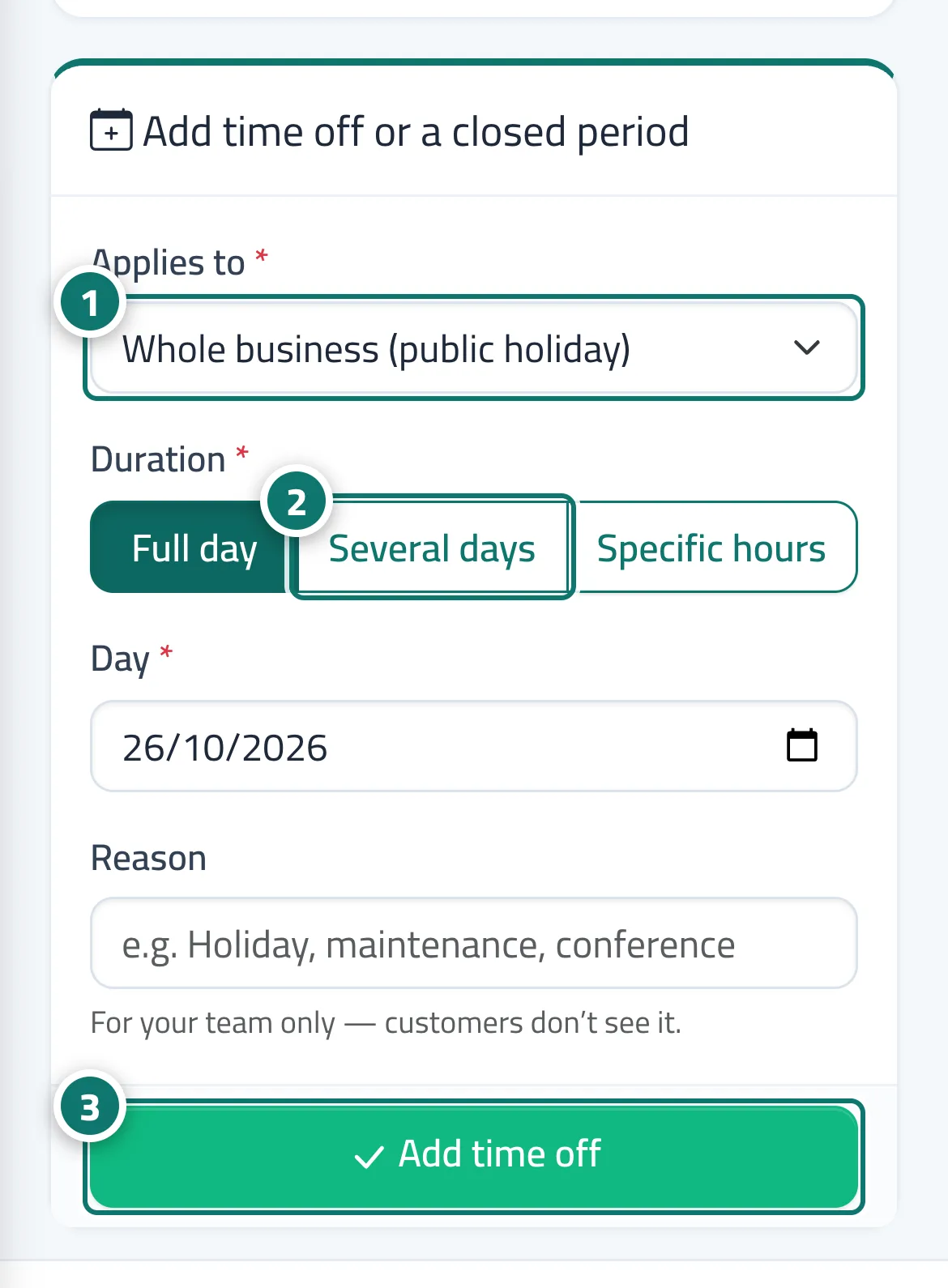
The Time off tab in Booking setup: the Add time off or a closed period form lets you choose who it Applies to (Whole business (public holiday) or a specific provider), the Period (Full day · Several days · Specific hours) and the Reason (for your team only, never shown to the customer). No times can be booked during these periods. The list shows upcoming time off, with a Show past too option and Excel and Print buttons.
- Who can use it
- Business owner / manager
- Where to find it
- Sidebar → Appointments → Booking setup → Time off tab
Step by step#
- Under Applies to, choose the whole business or the provider.
- Choose the Period, then set the day, days or hours.
- Enter the reason and press Add time off.
Tips#
Good to know#
Frequently asked questions#
I added time off and a customer was already booked in that period — what happens?
The booking stays as it is, and you see a message with the number of existing bookings in the period. Open them from Bookings, choose Reschedule or Cancel, and let the customer know.