The post page: preview, text and video
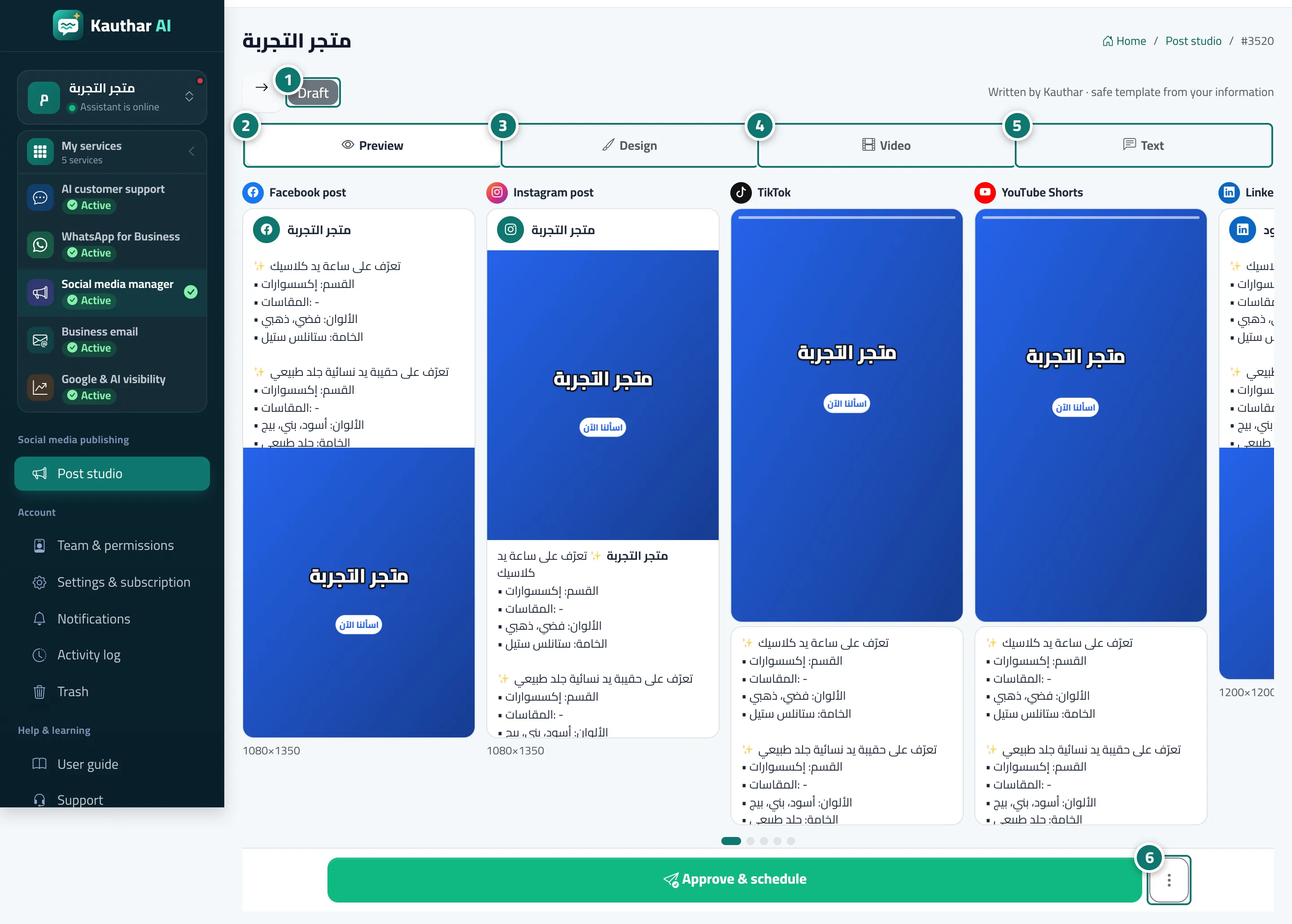
Before publishing you see the post as it will look on each platform, edit each platform’s text, turn it into a short video with music, or ask Kauthar for a new version.
On this page
Overview#
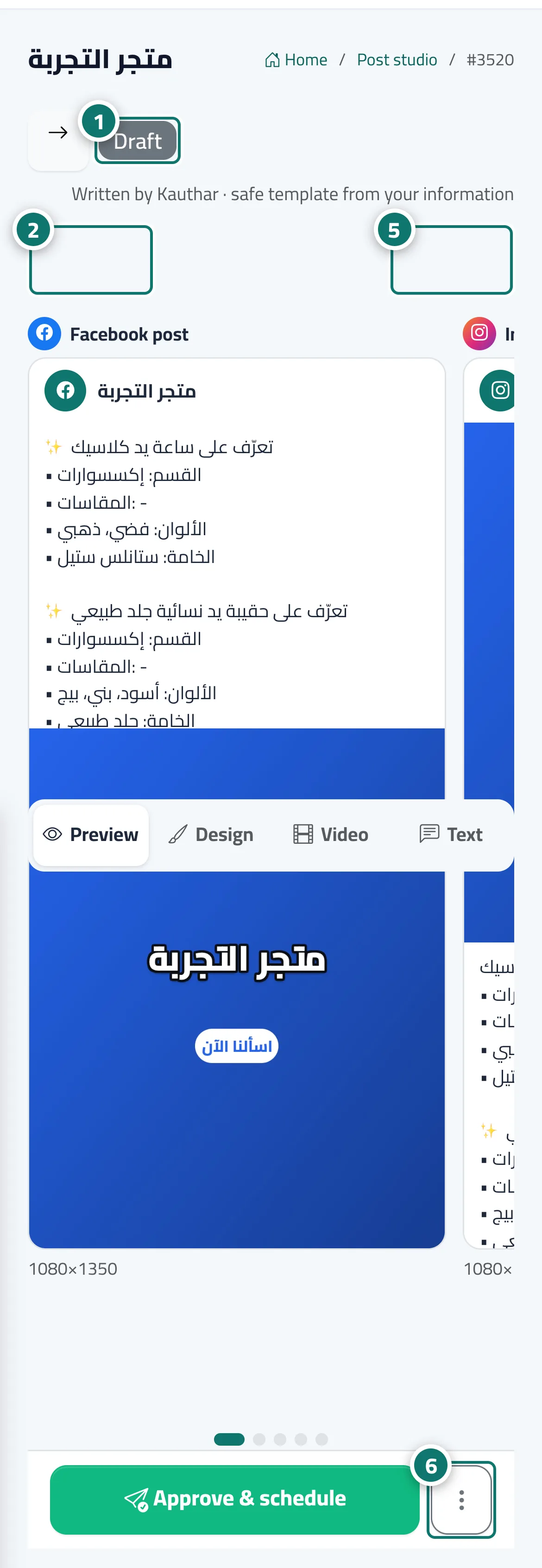
The post page starts with its status (Draft, Approved, Scheduled, Publishing, Published, Failed, Rejected) and who wrote it (Written by Kauthar or Written by you), then four tabs: Preview (one slide per platform at its real size — swipe, or use the dots below), Design (the design editor, template and photo), Video (Animate — a short video with music: frames, length, transition, text animation and music from the Kauthar library or your own, then Make the video) and Text (each platform’s text with a Copy button and Save, Rewrite for posts Kauthar wrote, and the TikTok, YouTube and LinkedIn settings when those are selected). A bar fixed at the bottom holds Approve & schedule and a More actions button (Duplicate, Reject, Delete, and cancelling the schedule of a scheduled post).
- Who can use it
- Business owner / manager / staff allowed into the post studio
- Where to find it
- Sidebar → Social media publishing → Post studio → tap any post
Step by step#
- Check the status and who wrote the post at the top of the page.
- In Preview, swipe between platforms to see the post as it will appear on each.
- Open Design to edit the text on the image or change the template.
- Open Video to turn the post into a short video with music, then press Make the video.
- In Text, edit each platform’s text and press Save, or press Rewrite for a new version.
- Under More actions, choose Duplicate, Reject or Delete.