
Marketing message templates
A WhatsApp marketing message must be a template approved by Meta: create templates with a header, body, variables and buttons, follow their status, and use them straight in a campaign.
Overview#
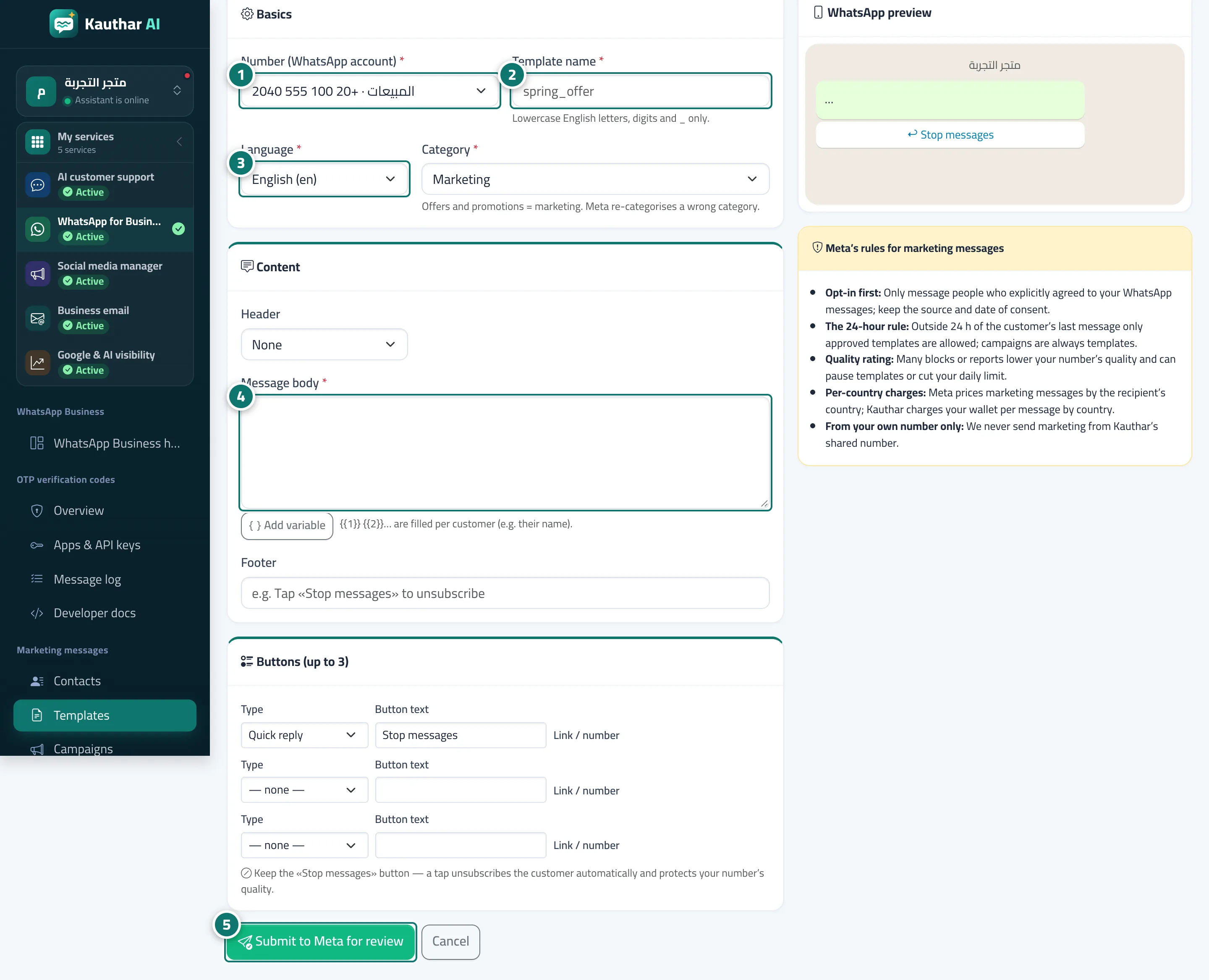
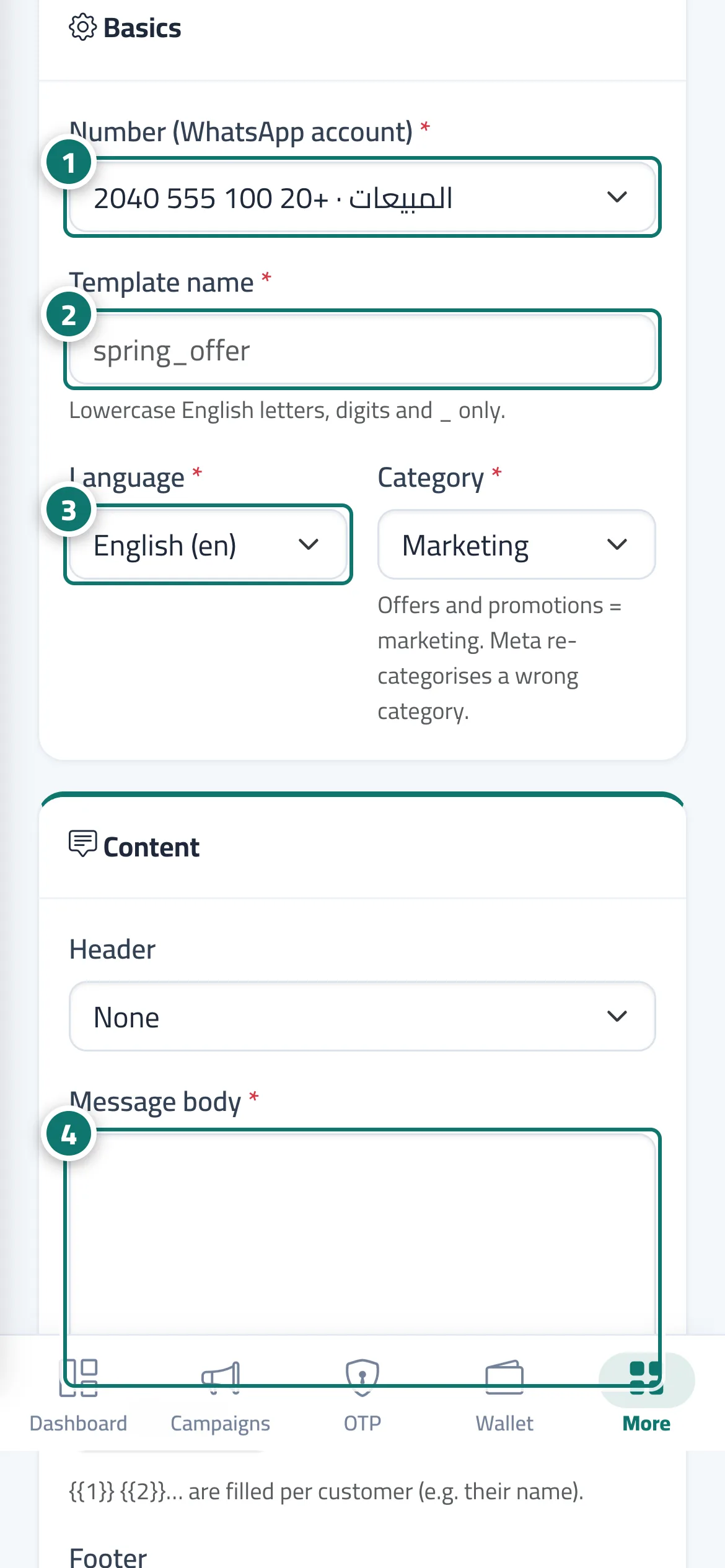
The Templates screen lists your templates with name, language, category (marketing or utility), number, status (approved, in review, rejected with the reason, paused…) and last update, with Sync statuses from Meta, New template and a button to start a campaign with an approved template. The New template page has Basics (the number, the template name in lowercase English letters, digits and _, the language and the category), Content (header: none, text or image; the message body with Add variable and sample values; and the footer), Buttons (up to 3) (quick reply, link or call), a WhatsApp preview, and the "Meta's rules for marketing messages" card.
- Who can use it
- Business owner / manager / staff member with marketing permission
- Where to find it
- Sidebar → WhatsApp Business → Marketing messages → Templates
Step by step#
- Choose the number the template is created on.
- Enter the Template name in lowercase English letters.
- Choose the language and category.
- Write the message body, add variables with their sample values, and the footer.
- Add the buttons (we recommend keeping Stop messages), then click Submit to Meta for review.
Tips#
Good to know#
Frequently asked questions#
Can I use a template before it's approved?
No. Only approved templates appear in campaigns.