
Printing a ticket and exporting tickets
Print any ticket on an A4 page with all its messages, or export the ticket list to Excel with the same filters.
Overview#
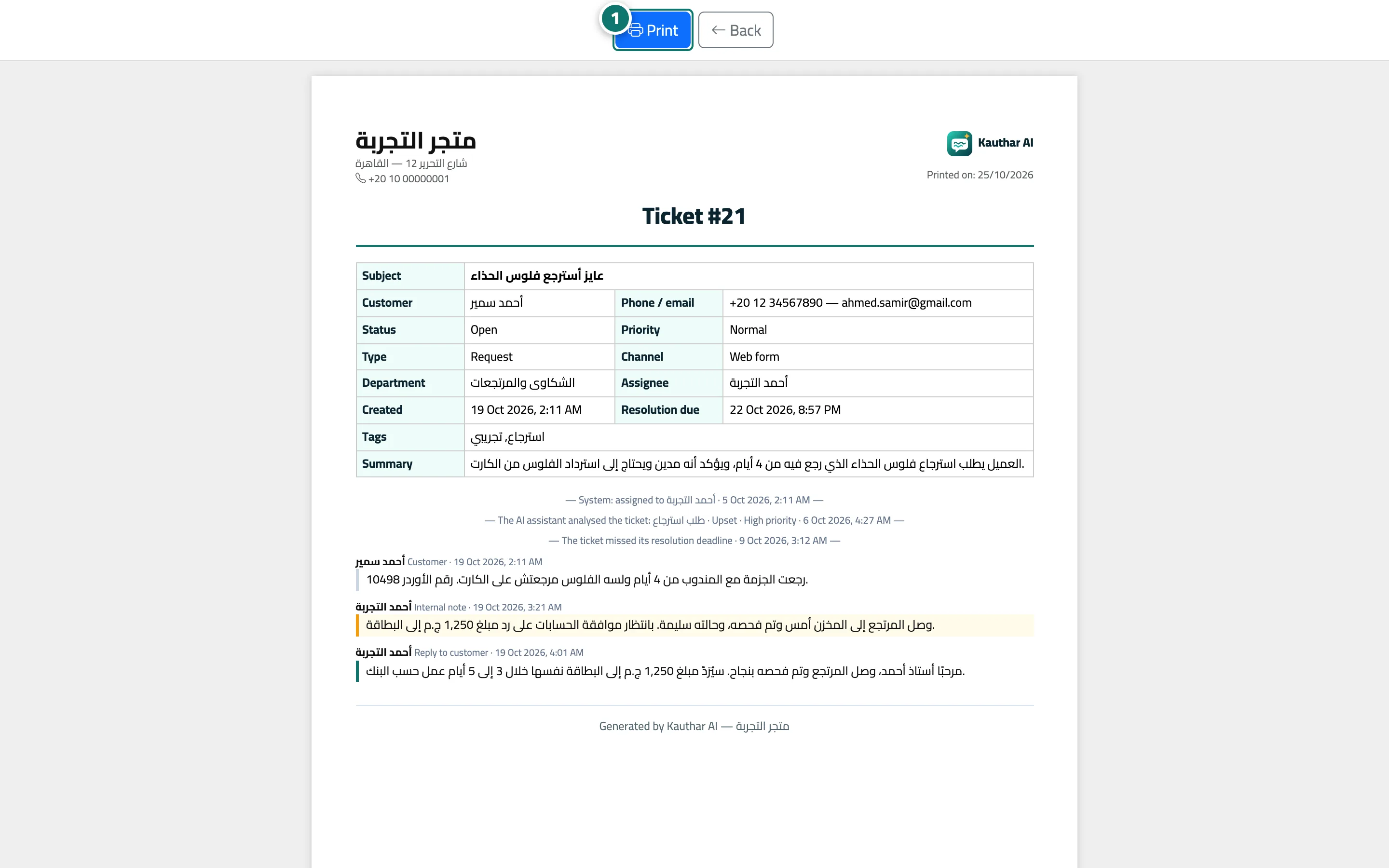
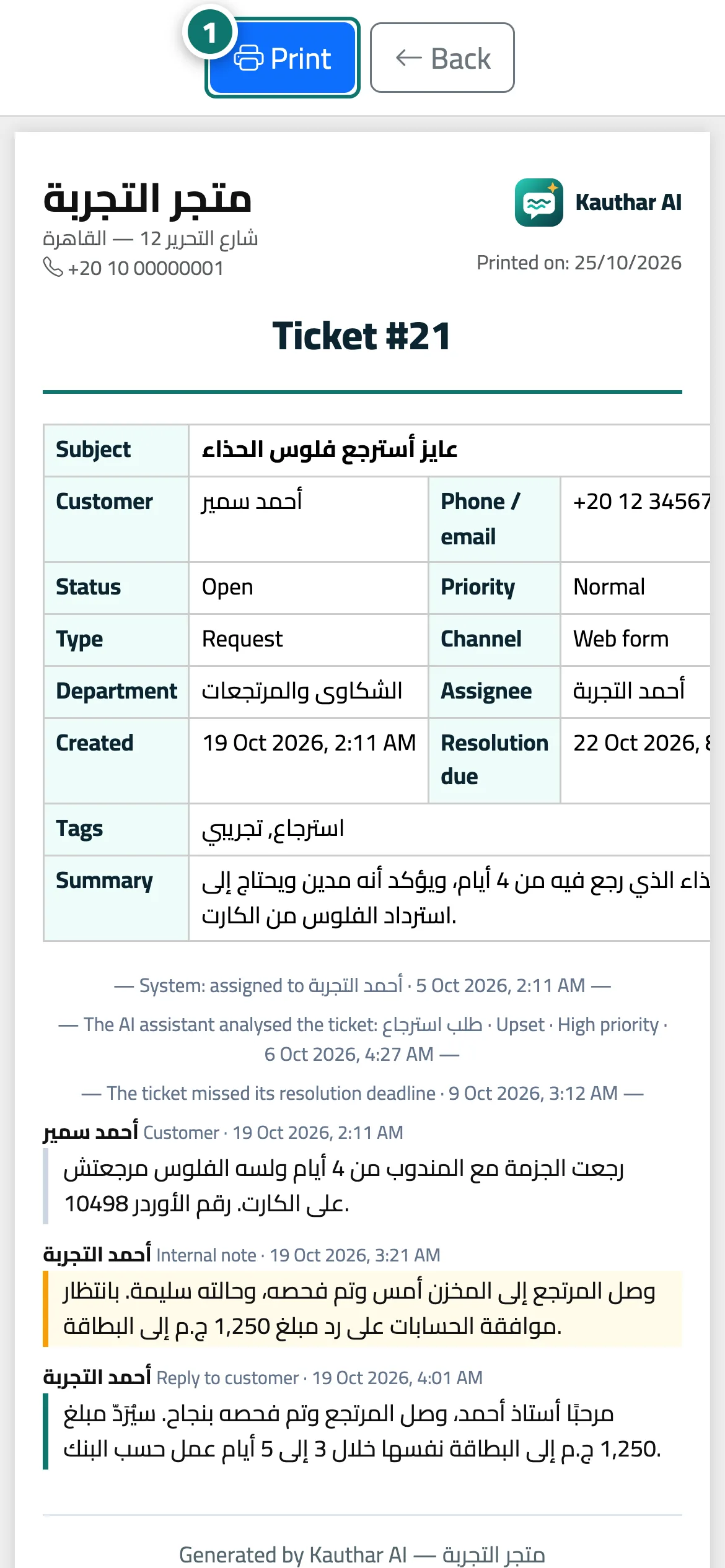
The Print button at the top of a ticket opens an A4 page with the ticket and customer details, the AI assistant's summary if there is one, and all messages and events. In the ticket list, the Excel and Print buttons export the tickets shown with your current filters and search.
- Who can use it
- Business owner / manager / agent
- Where to find it
- Sidebar → Support desk → Tickets → (the ticket) → Print
Step by step#
- Open the ticket and press Print; the print page opens in a new window together with the print dialog.
- To print or export a whole list: filter the tickets first, then press Excel or Print above the list.
Tips#
Good to know#
Frequently asked questions#
Does the Excel file support Arabic?
Yes, the file opens correctly in Excel with Arabic text.
Are internal notes printed?
Yes. They appear on a yellow background with their type marked, along with the AI assistant's summary if there is one. Printouts are meant for your team, so check them before handing them to a customer.