
Send a WhatsApp message and message templates
Send a WhatsApp message from your business number to any number, and create message templates approved by Meta to start conversations after the 24-hour window.
Overview#
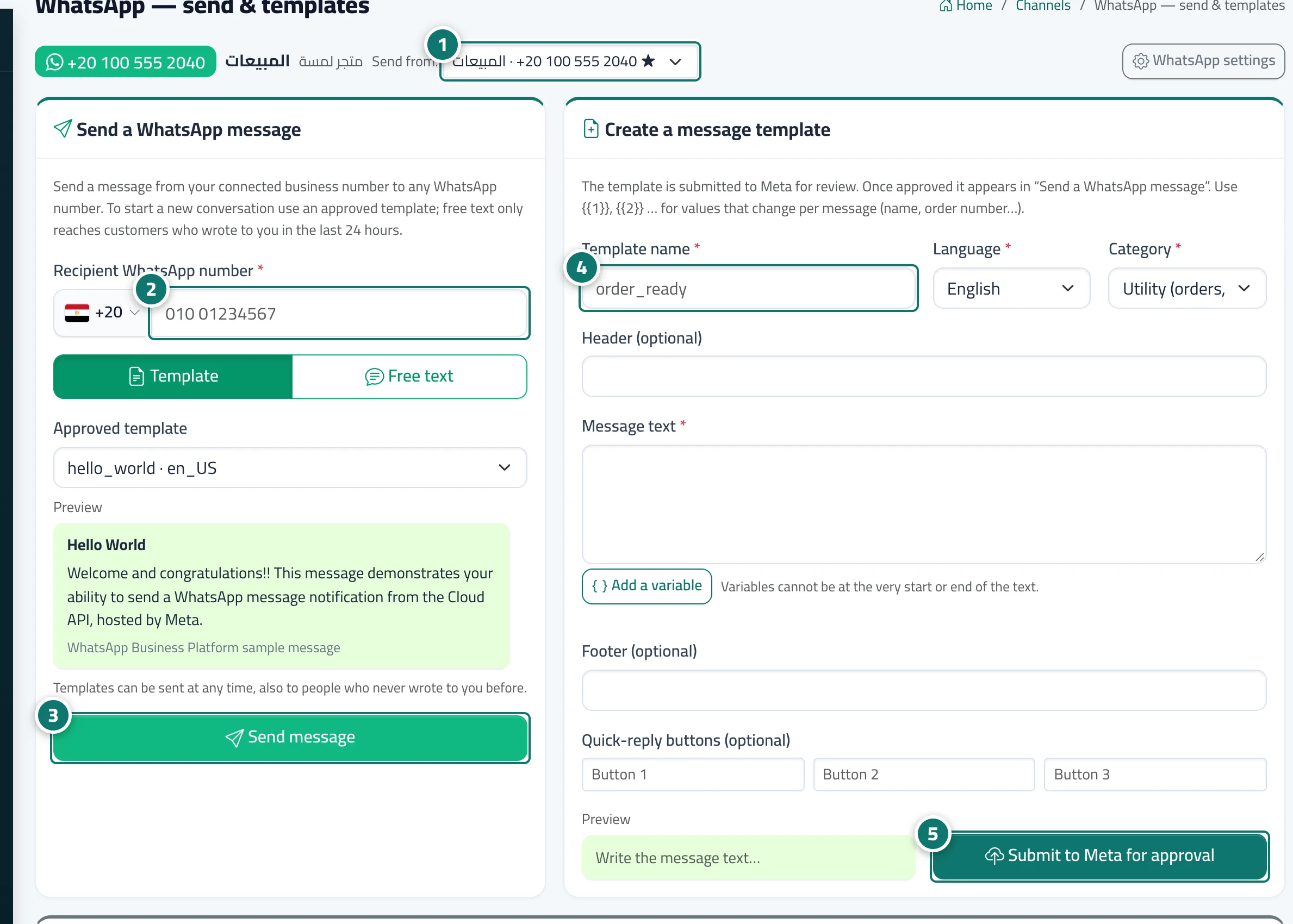
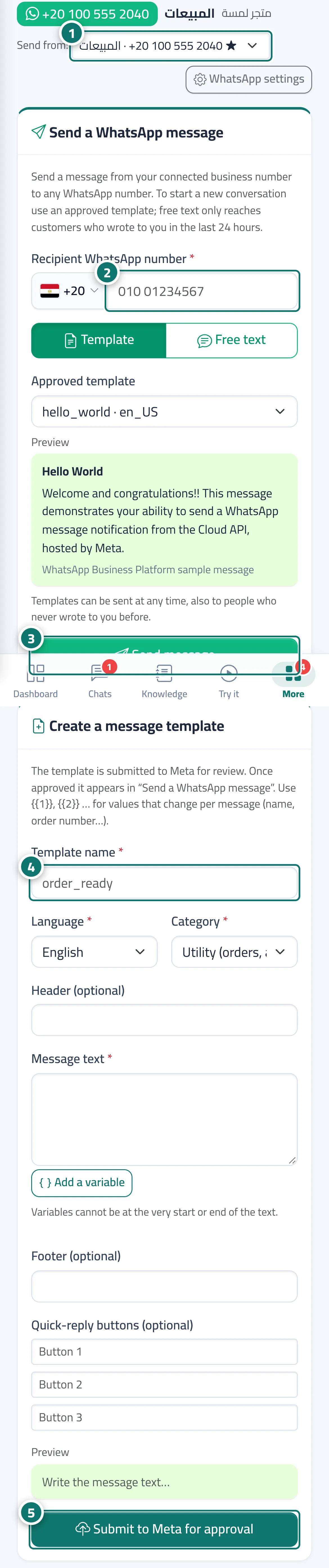
The WhatsApp — send & templates page opens from the Templates & send button on a number's card. At the top, the Send from: list lets you pick the number. The Send a WhatsApp message card: the recipient's number (with a country picker) and the message type, Template or Free text. The Create a message template card: the template name (small English letters, digits and _), the language, the category (utility or marketing), and the header, body, footer and quick-reply buttons, with Add a variable ({{1}}, {{2}}…) and a preview, then Submit to Meta for approval. Below are Your message templates (from Meta) with their status, and Sent messages with the time, type, status and who sent each one.
- Who can use it
- Business owner / manager (or a team member allowed to edit Channels)
- Where to find it
- Sidebar → Channels & customers → Channels → the number's card → Templates & send
Step by step#
- Choose the number you're sending from in the Send from: list.
- In Send a WhatsApp message, enter the recipient's number and choose Template or Free text.
- Write the message or choose the approved template, then click Send message.
- To create a new template, enter the template name, choose the language and category, and write the text.
- Click Submit to Meta for approval and follow its status in Your message templates (from Meta).
Tips#
Good to know#
Frequently asked questions#
What's the difference between a utility and a marketing template?
Utility templates are for order, appointment and account updates; marketing templates are for offers and news. Meta re-classifies a template if its category doesn't fit.