
Order calculator
When a customer asks «What's my order total?», the assistant works it out in figures from the prices in your own files — quantity × price + delivery — instead of guessing.
Overview#
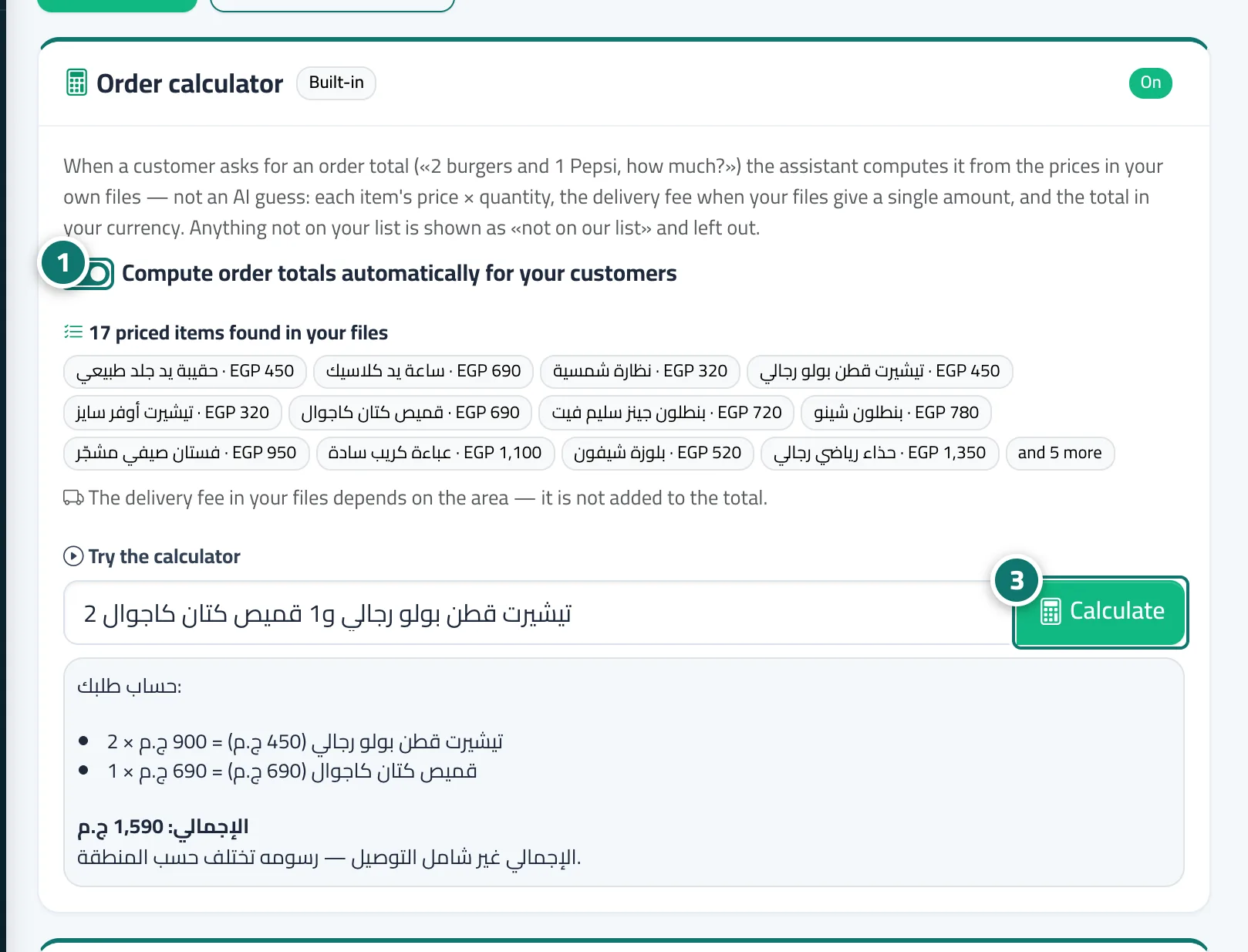
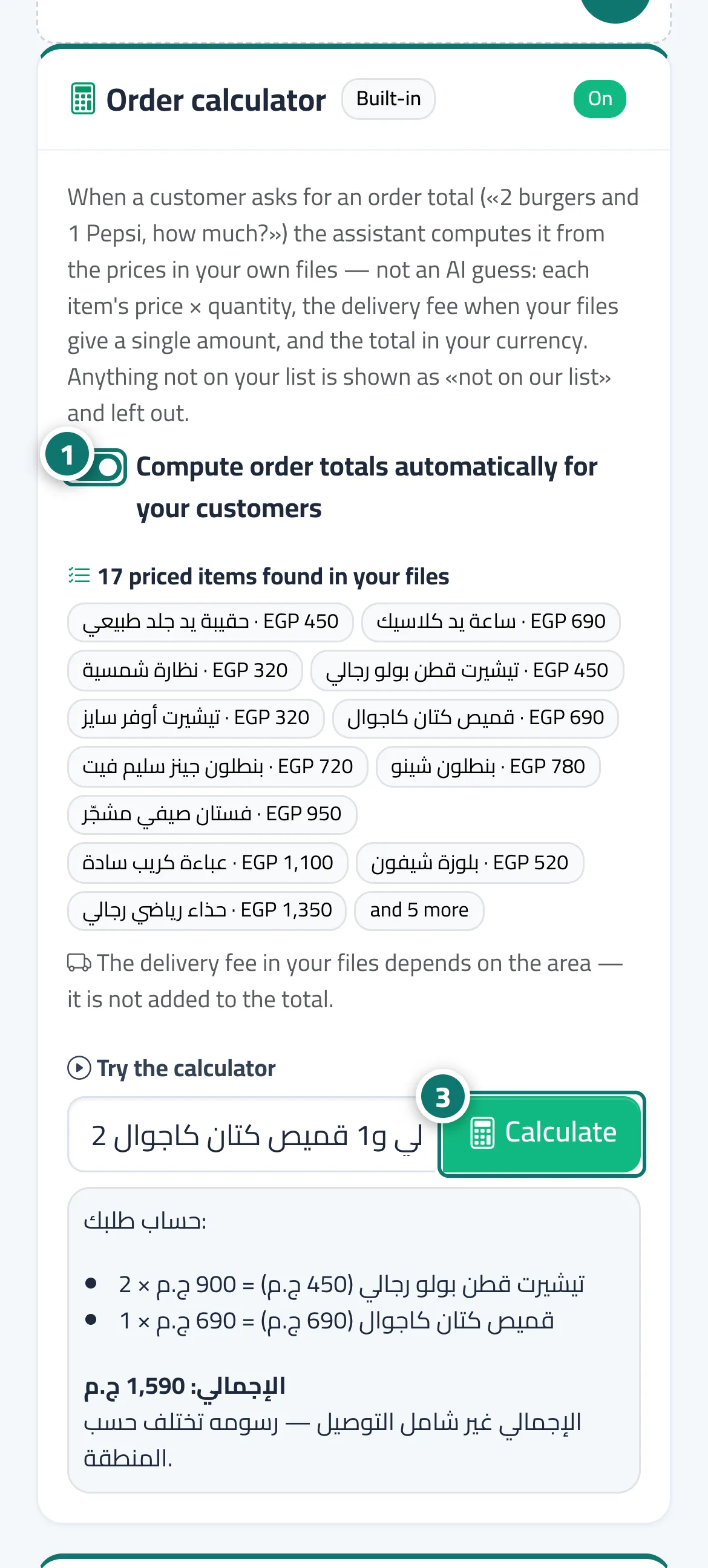
The Order calculator is built into the assistant and is on by default. When a customer writes an order such as I'd like 2 T-shirts and 1 shirt — what's the total?, the assistant replies with a Your order: card: one line per item (quantity × item (unit price) = subtotal), then the delivery fee if there is one, then the Total in your business's currency. Items and prices are picked up automatically from your ready files in Knowledge base (an Excel file with a name column and a price column, a table in a Markdown or text file, or the products of your connected store). Any item that isn't on your list shows as Not on our list (not counted), and if a name matches more than one item the assistant asks the customer which one they mean. You'll find it in Assistant settings (the Order calculator card, with the number of items it recognised and a test box) and at the top of Fixed answers as a built-in answer.
- Who can use it
- Business owner / manager
- Where to find it
- Sidebar → Account → Assistant settings → Order calculator card (also at the top of Fixed answers)
Step by step#
- Open Assistant settings, scroll down to the Order calculator card, and make sure the Compute order totals automatically for your customers switch is on (status On).
- Check the line … priced items found in your files, the items listed under it, and the delivery fee line.
- In Try the calculator, type an order the way your customer would and click Calculate to see the reply they will receive.
Tips#
Good to know#
Frequently asked questions#
Does the AI produce the total?
No. The figures are calculated directly from the prices in your files (each item's price × quantity + delivery); the AI does not guess them.
Why does the calculator say No priced items found in your files yet?
Because your ready files have no clear price column. Upload an Excel file with a name column and a price column, or connect your store, and the items will appear automatically.