
Fixed answers
Write the answers to important questions yourself, and the assistant sends them word for word, instantly, to any similar question.
Overview#
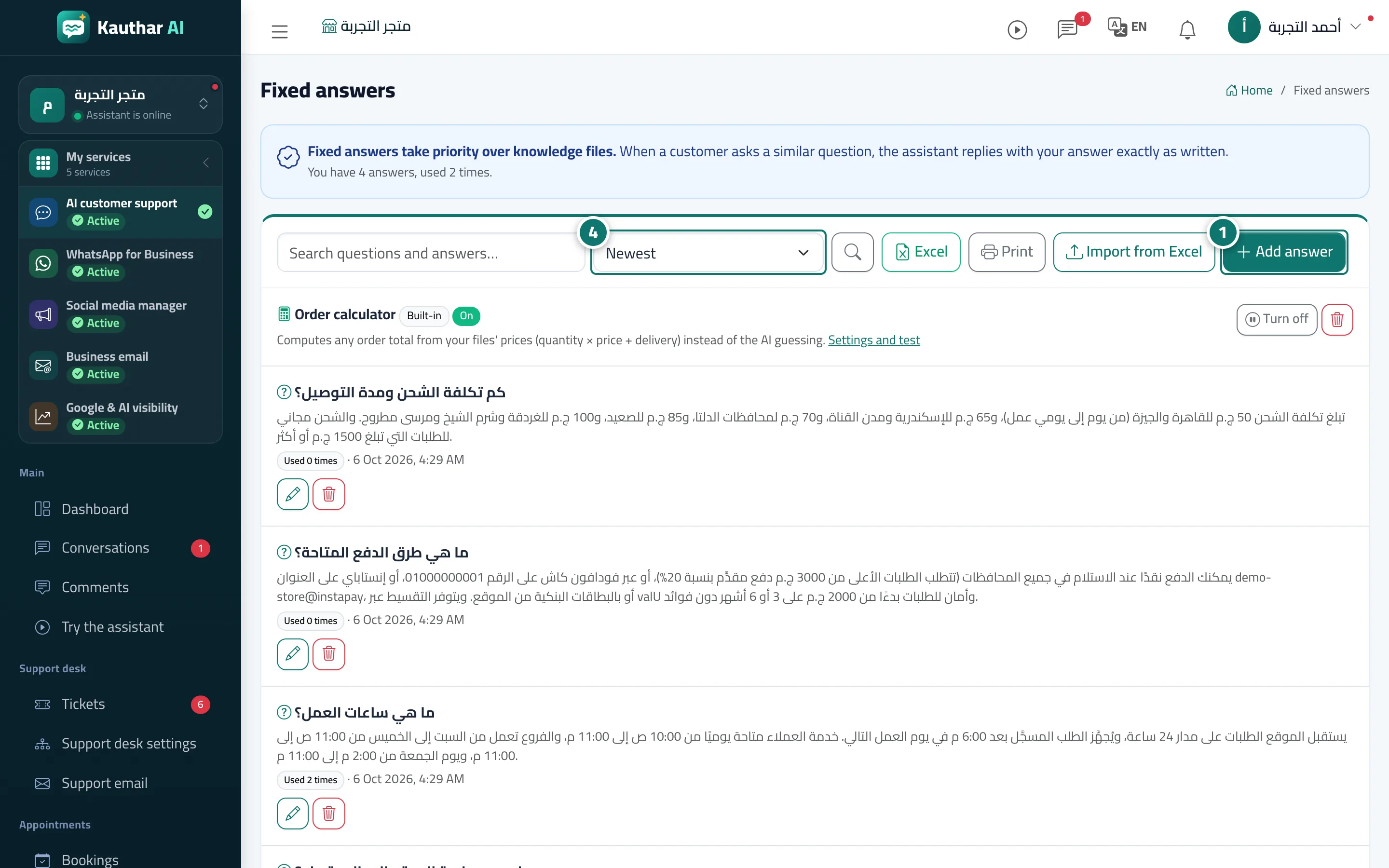
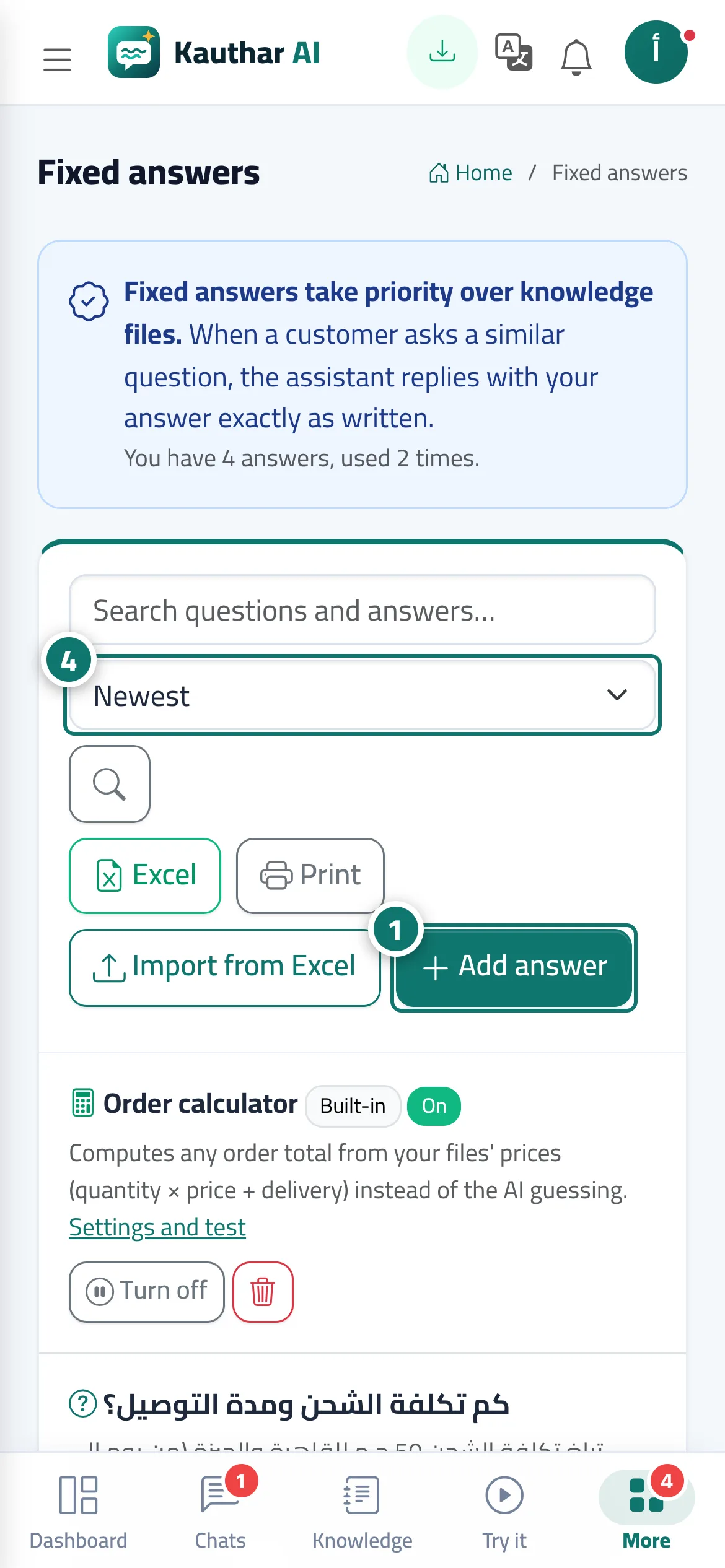
Fixed answers take priority over knowledge files: when a customer asks something similar to one of them, the assistant replies with exactly the answer you wrote — no rewording — in under a second. The assistant recognises questions that are similar in meaning, not just word-for-word matches. Each answer shows how many times it has been used, and you can sort by Newest or Most used, search, export to Excel and print.
- Who can use it
- Business owner / manager / team member (depending on permissions)
- Where to find it
- Sidebar → Train your assistant → Fixed answers
Step by step#
- Open Fixed answers and click Add answer.
- Write the Question the way your customers ask it (for example: Do you deliver to other cities?), then the Answer with the exact text you want the customer to receive.
- Click Save; the assistant starts using it immediately.
- Check the usage counts from time to time and sort the list by Most used to see your most important questions.
Tips#
Good to know#
Frequently asked questions#
What if a fixed answer conflicts with what's in a file?
The fixed answer is the one sent. So update the file as well, so there is no conflict in other replies.
Can I use the same answer for several wordings of a question?
Yes — add each wording as a separate question with the same answer, or import them all at once from Excel.
If I delete an answer, can I get it back?
Yes, from Trash.