
Connecting a mailbox: Gmail, Microsoft and IMAP
Connect your existing email to Kauthar so your team answers it from one inbox: one click with Google or Microsoft, Gmail with an app password, your business mail on Kauthar, or any IMAP/SMTP server.
Overview#
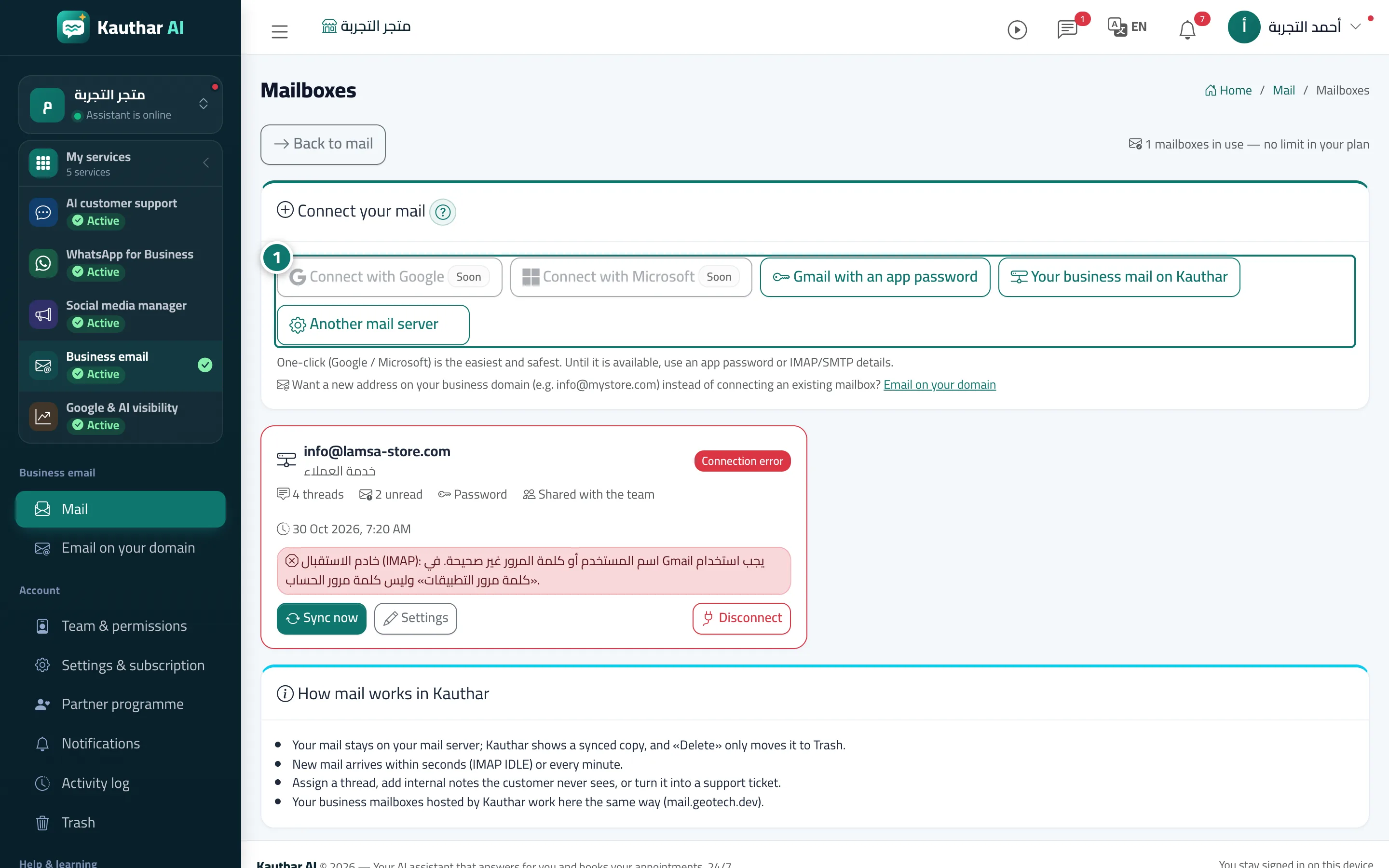
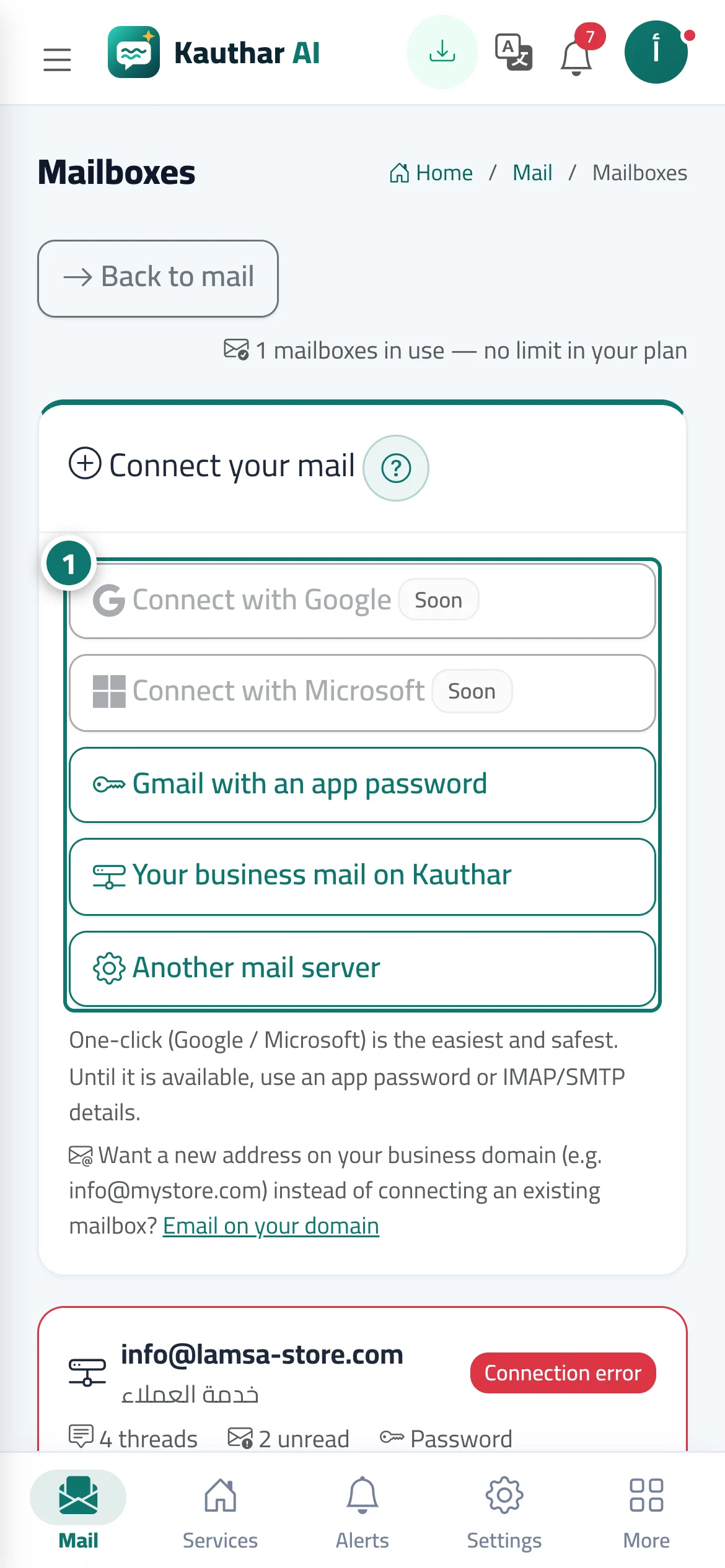
The Mailboxes screen starts with the Connect your mail card and its connection options: Connect with Google and Connect with Microsoft (a secure sign-in with no password; they show Soon until they are switched on), Gmail with an app password, Your business mail on Kauthar for the mailboxes you created on your domain, and Another mail server for any provider that supports IMAP and SMTP. In the connection form you enter the E-mail address, the Username (usually the e-mail address itself) and the Password / app password, plus the incoming server (IMAP) and the outgoing server (SMTP) with the port of each, and you test the connection before saving. The password is stored encrypted and never shown to anyone. The same form sets the Sender name, the Signature, Who can see this mailbox? and Auto-reply by Kauthar. Once connected, each mailbox has a card with its status, the number of threads and unread messages and the last sync, with Sync now, Settings, Reconnect and Disconnect.
- Who can use it
- Business owner / manager / anyone with the Mail permission
- Where to find it
- Sidebar → Business email → Mail → Mailboxes
Step by step#
- Open Mailboxes and, in the Connect your mail card, choose how to connect: Connect with Google or Connect with Microsoft when available, or Gmail with an app password or Another mail server.
- For Gmail with an app password: turn on 2-Step Verification in your Google account, then create an app password (16 letters) and copy it.
- Enter the E-mail address and the Username and paste the password; for Another mail server also enter the incoming server (IMAP), the outgoing server (SMTP) and their ports from your mail provider.
- Press Test connection until the success message for receiving and sending appears, then press Connect and test.
- Watch the mailbox card: Kauthar starts fetching the last 90 days of mail, and you can press Sync now at any time.
Tips#
Good to know#
Frequently asked questions#
Does the whole team see the mailbox once it is connected?
In Who can see this mailbox? you choose: everyone with the Mail permission, or selected members only.
Does Kauthar answer emails automatically?
Only if you turn on Auto-reply by Kauthar for the mailbox; it then replies only when the answer is in your business knowledge, otherwise it saves a draft for your team, and it never answers automated, mailing-list or spam mail.