
WhatsApp, Messenger and Instagram
Kauthar answers your customers inside WhatsApp (one number or more), Messenger and Instagram, and on comments on your posts — connected in one click from the Channels page.
Overview#
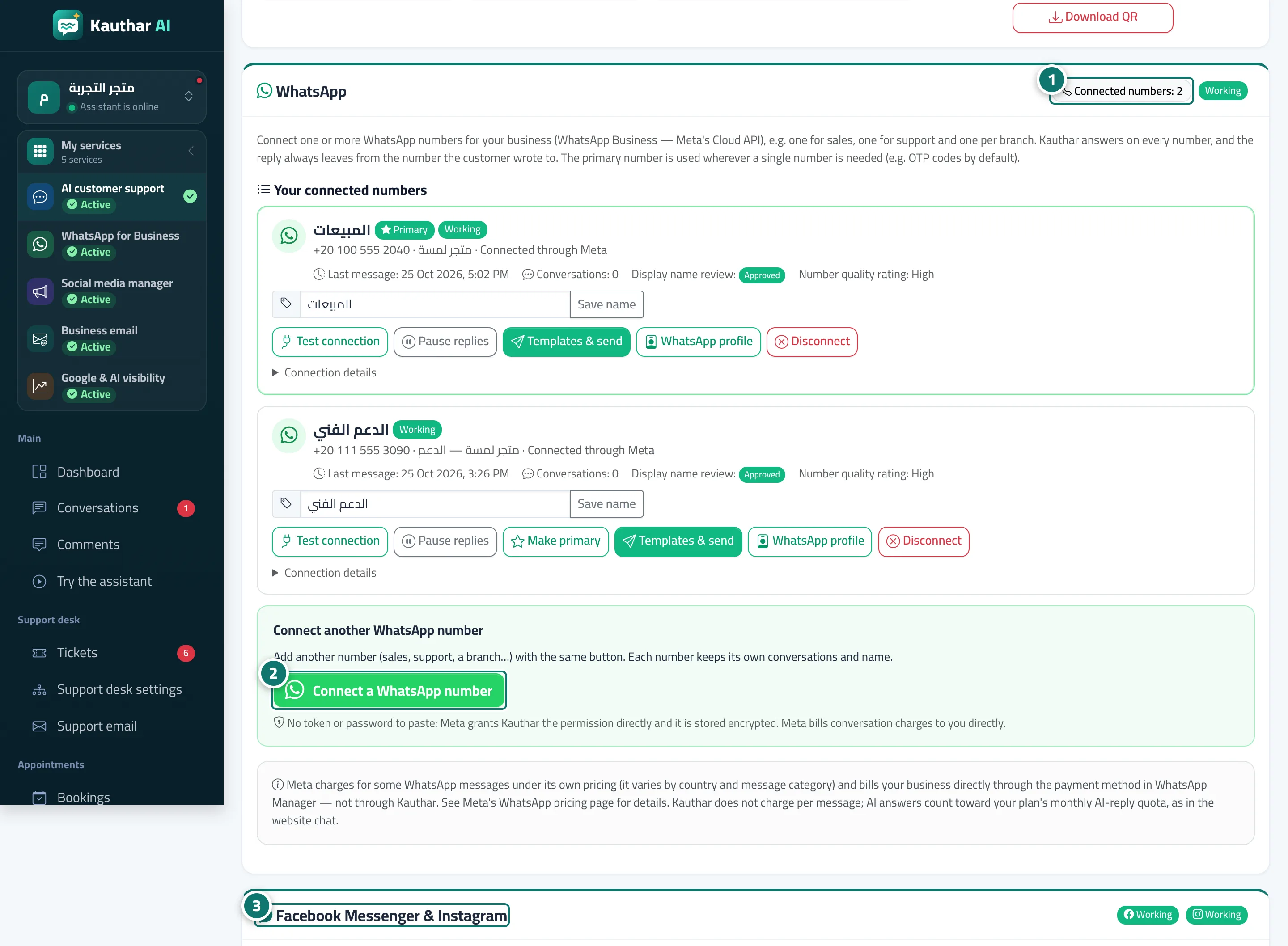
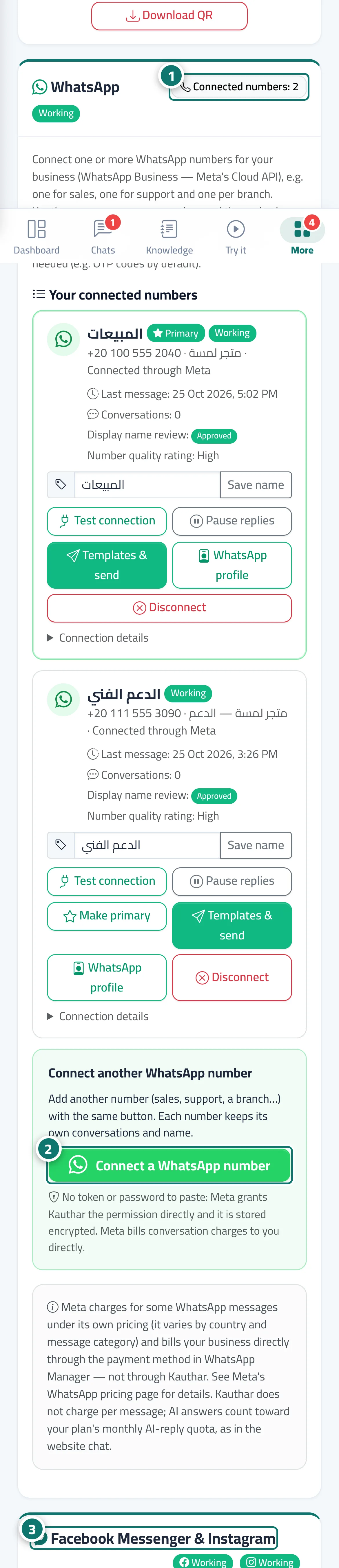
The Channels page has two cards for Meta's channels: the WhatsApp card, with your connected numbers (one or more), each number's status and the Connect a WhatsApp number button; and the Facebook Messenger & Instagram card, with the connected Page, the Instagram professional account linked to it and the comment-reply setting. Once connected, Kauthar answers customers there just as in your website chat: from the knowledge base and fixed answers, showing reply paths as buttons and menus, booking appointments and handing the conversation to your team when needed. All these chats appear in Conversations with their channel label. Telegram has its own card on the same page (see Connect a Telegram bot). Each step is explained in: Connect a WhatsApp number in one click, Several WhatsApp numbers, WhatsApp profile, Sending and templates, Disconnecting a number, and Connect Messenger and Instagram.
- Who can use it
- Business owner / manager (or a staff member allowed to edit Channels)
- Where to find it
- Sidebar → Channels & customers → Channels → the WhatsApp and Facebook Messenger & Instagram cards
Step by step#
- Open Channels and scroll to the WhatsApp card; next to its title you see how many numbers are connected and the connection status.
- To connect a number press Connect a WhatsApp number and finish in Meta's window.
- Scroll to the Facebook Messenger & Instagram card and press Connect with Facebook to choose your Page and its linked Instagram account.
Tips#
Good to know#
Frequently asked questions#
Do I need my own Meta app?
No. Connect a WhatsApp number and Connect with Facebook use Kauthar's app; Meta gives Kauthar permission on your number or Page only, and you can revoke it at any time.
Can I keep using my number in the WhatsApp Business app on my phone?
When you connect it to Kauthar the number moves off the phone app and only works there again after you disconnect it from Kauthar — which is why Kauthar asks you to back up and export important chats before connecting.