
Orders from the chat
Every order your customers placed from the chat on one screen: customer, address, products, total and its status in the store.
Overview#
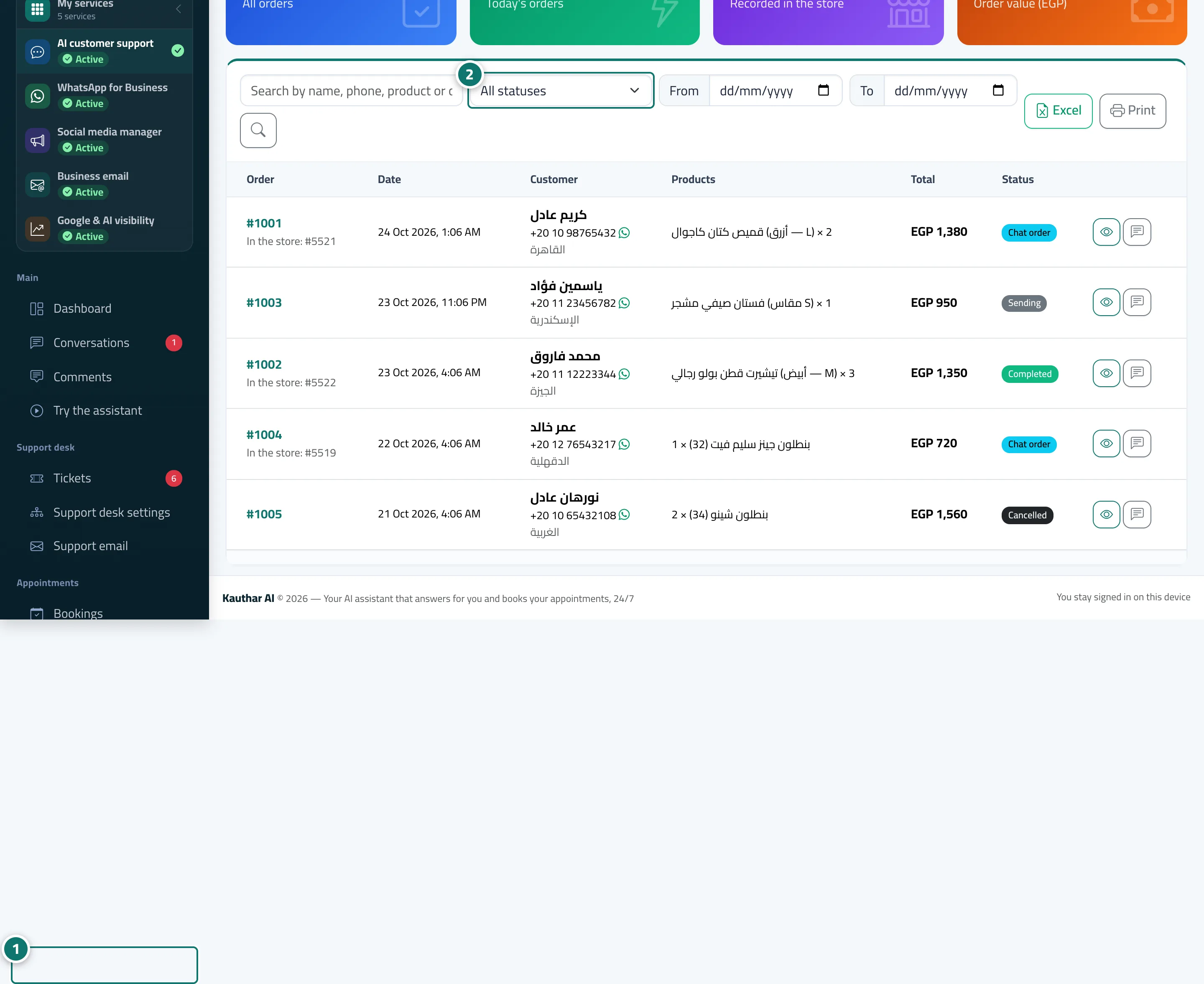
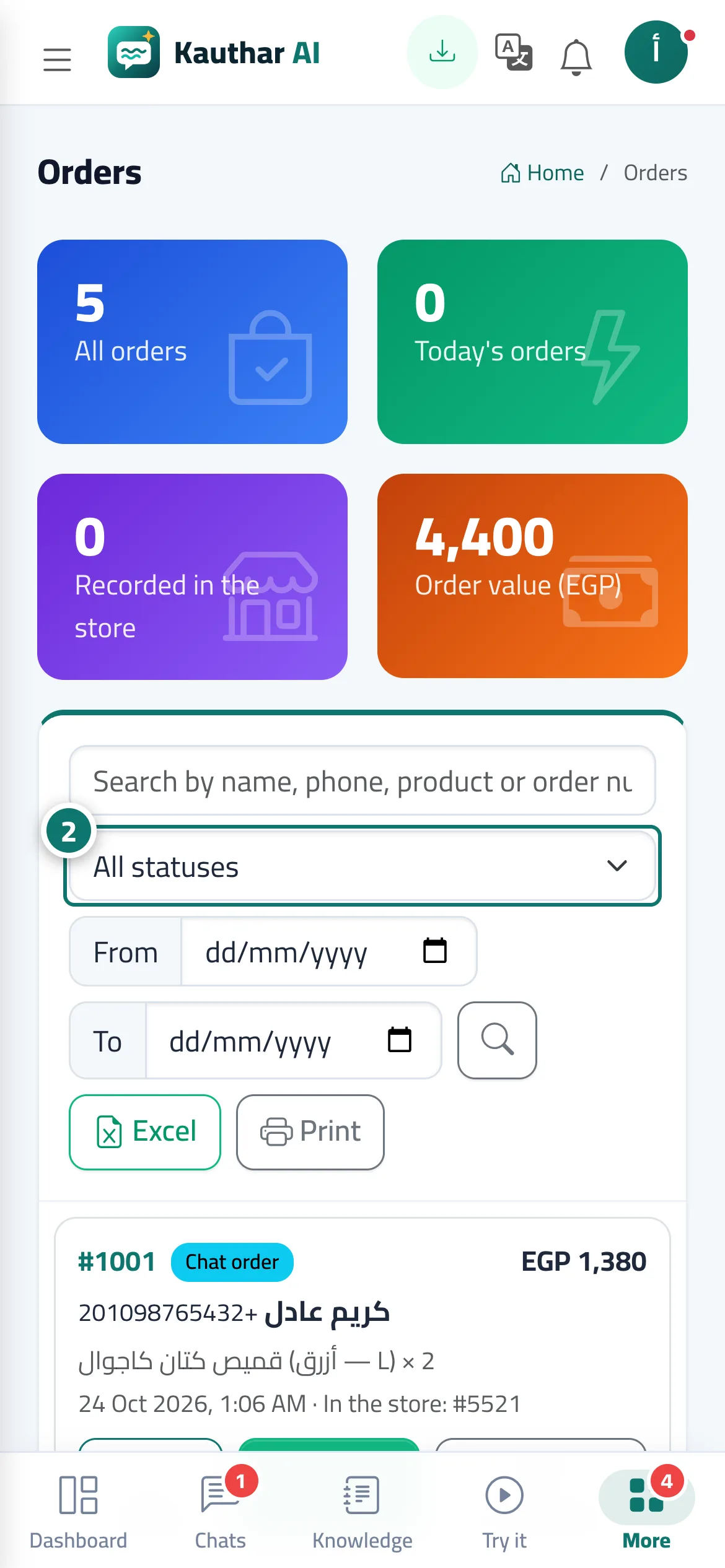
The Orders screen shows indicators (All orders, Today's orders, Recorded in the store, Order value) and the list of orders with a search by name, phone, product or order number, filters by status, store and date, and Excel and print buttons. The order page shows the Customer details (with WhatsApp and call), the products, the total and the Store order number, plus Open in the store dashboard and Open conversation buttons. You can update the Follow-up status (Chat order / Completed / Cancelled) without changing the order in the store.
- Who can use it
- Business owner / manager / customer service team member (with the Orders permission)
- Where to find it
- Sidebar → Channels & customers → Orders
Step by step#
- Open Orders.
- Search, or filter by status (All statuses), store and date.
- Click Details to see the order and contact the customer.
- After fulfilling it, update the Follow-up status with Update.
Tips#
Good to know#
Frequently asked questions#
Am I alerted for every order?
Yes — an alert inside the dashboard (New chat order…) and a phone notification if you have notifications turned on.