
Email on your domain: the domain and mailboxes
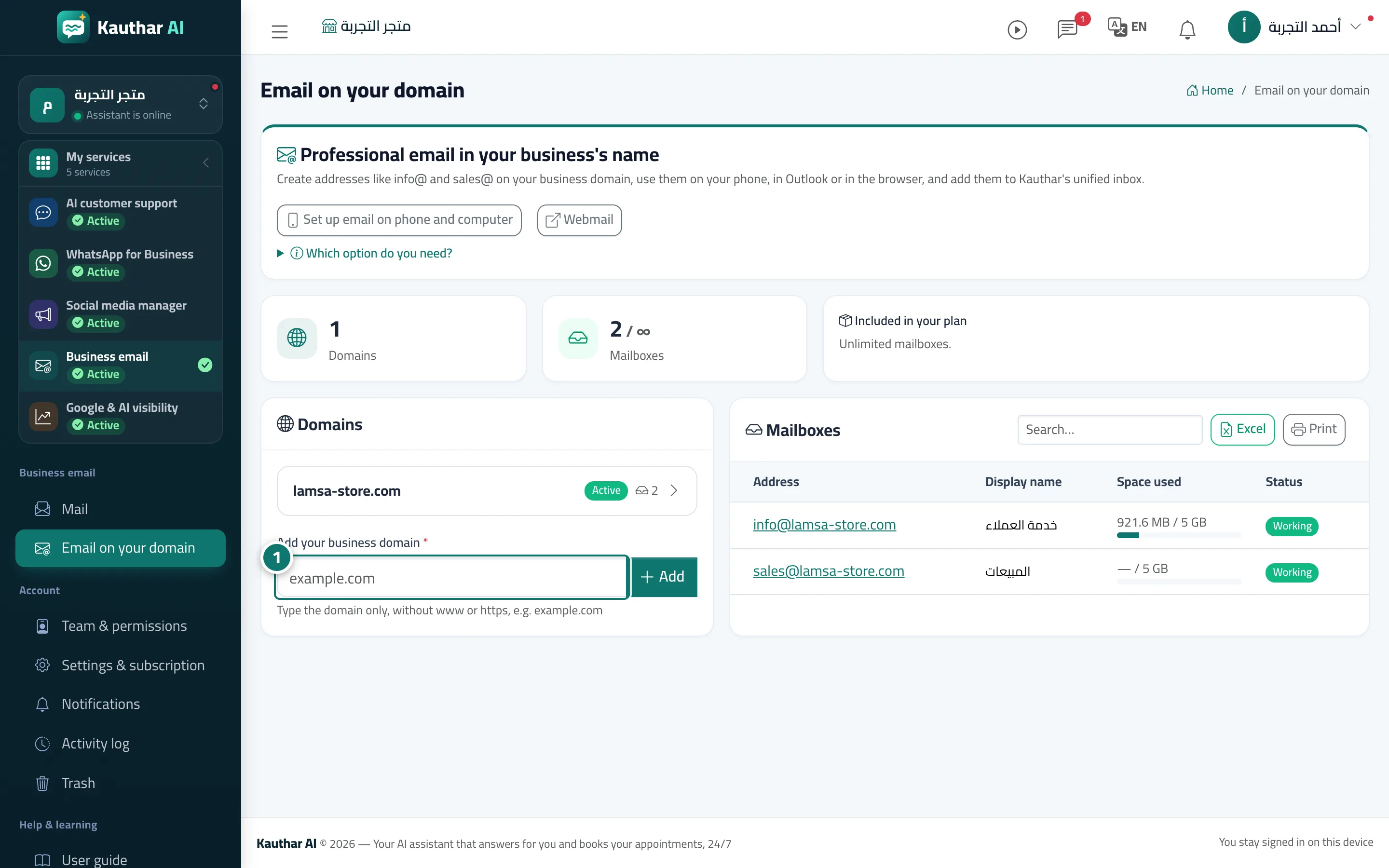
Add your business domain, copy the ready-made DNS records and click “Verify”, then create mailboxes such as info@ and sales@ in your business name to use on your phone, in Outlook, in the browser or in Kauthar's “Mail”.
Overview#
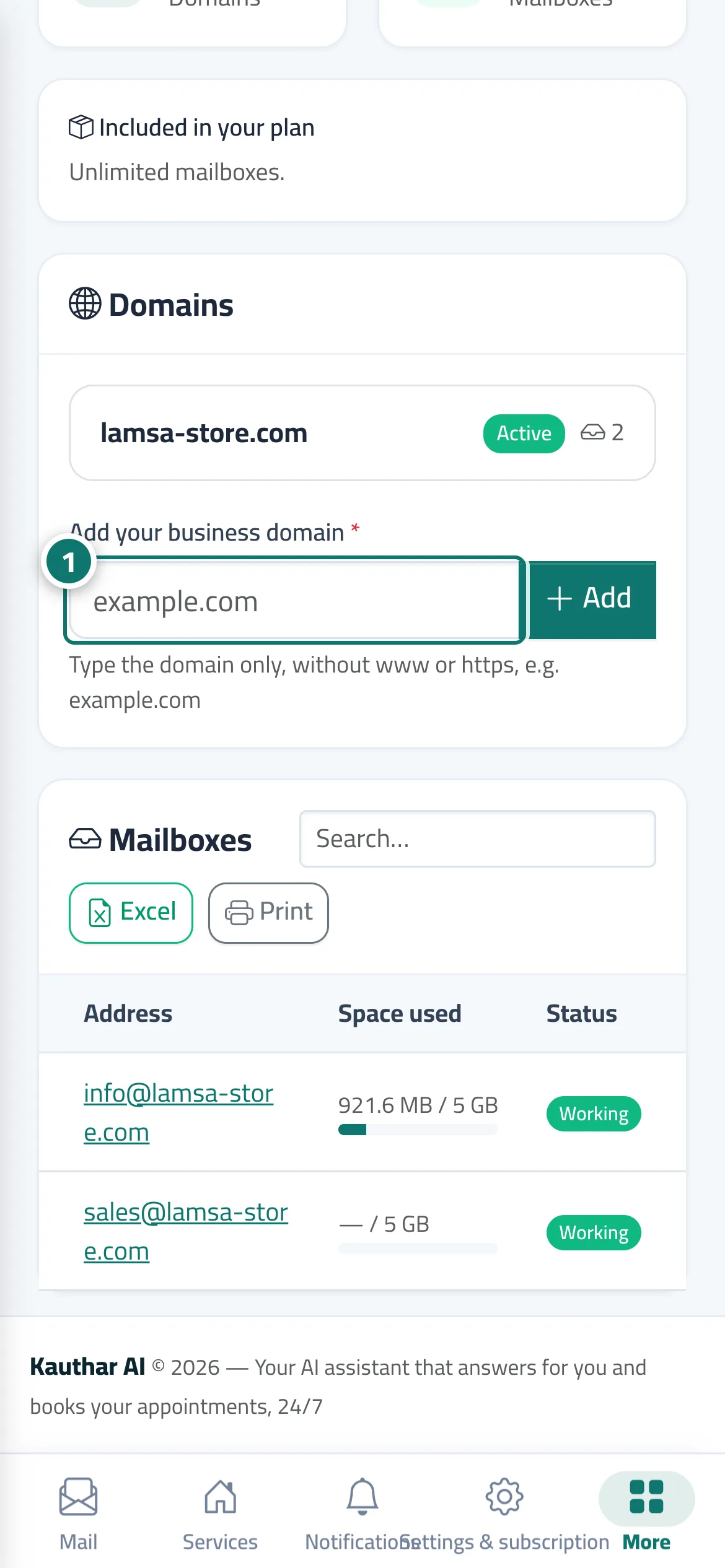
The Email on your domain page starts by explaining Which option do you need? (a new address on your domain here, or connecting your existing email from Mail) and what you'll need: a domain registered for your business and access to its control panel to add ready-to-copy records (about 15 minutes). After you Add the domain, Kauthar shows the ownership record and the MX, SPF and DKIM records (plus recommended ones); Verify then checks the live records, and email is turned on only when the required records are in place. Next you create mailboxes: the address and display name, with a strong password shown only once (or sent to an email you choose); you can track the storage used and each mailbox's status, and add aliases and forwarding between your mailboxes. The page also has Set up email on phone and computer and Webmail.
- Who can use it
- Business owner / manager
- Where to find it
- Sidebar → Business email → Email on your domain
Step by step#
- Type only the domain (such as
example.com) in Add your business domain and click Add. - Copy the records shown into the domain control panel of the company you bought it from, then click Verify.
- Once it's active, create the mailbox: the address and display name, and save the password that is shown only once.
- Add the mailbox to Mail so your team answers it from Kauthar, or use it on your phone and in Outlook with the settings shown.
Tips#
Good to know#
Frequently asked questions#
I forgot a mailbox's password. What do I do?
Open the mailbox from the table and choose to reset the password; a new password is shown once.