
Connect your store in one click: Kauthar apps on Shopify, Salla, Zid and YouCan
Install the Kauthar app from your platform's app store and approve: Kauthar receives the connection directly and starts syncing your products — no key to copy.
Overview#
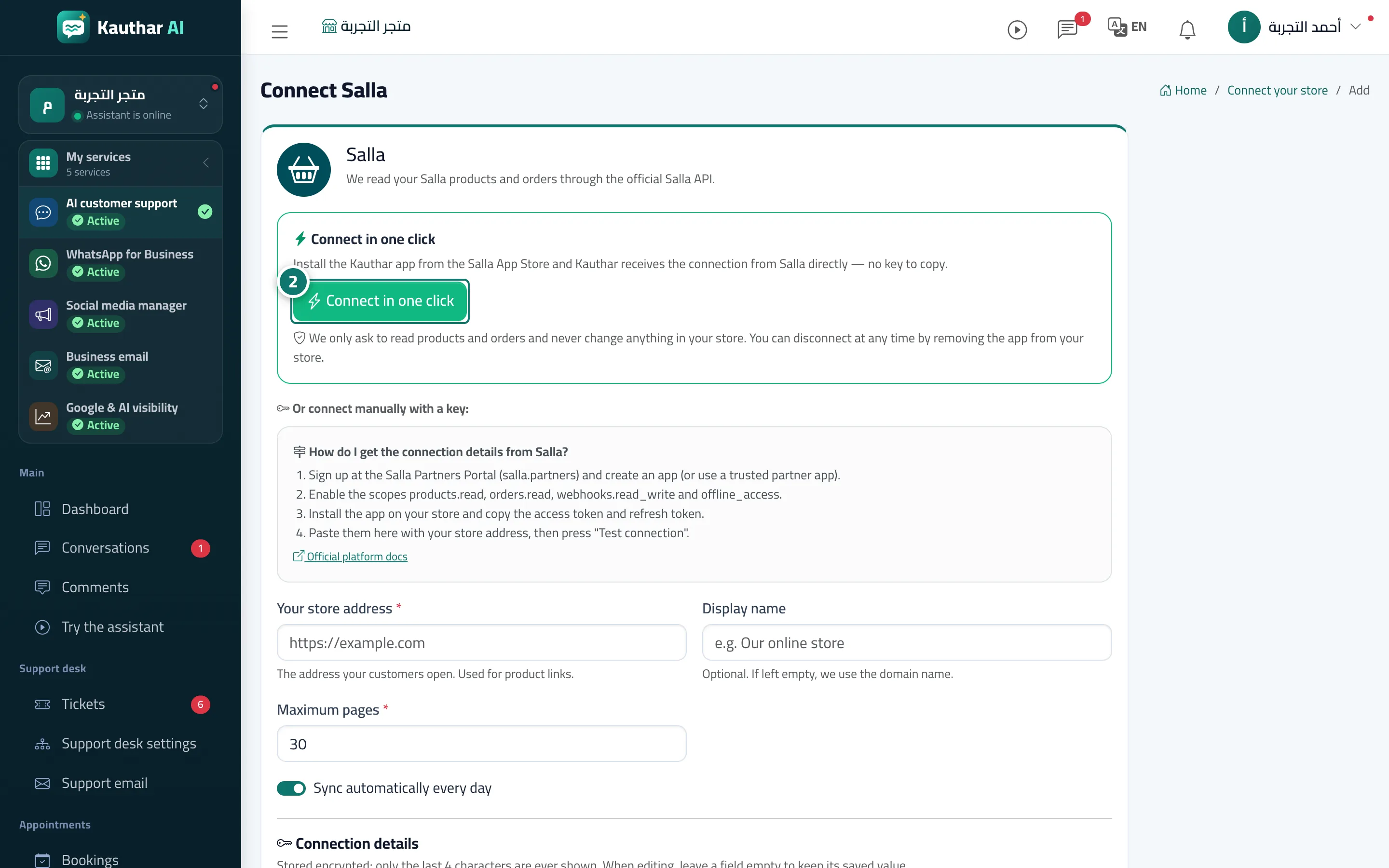
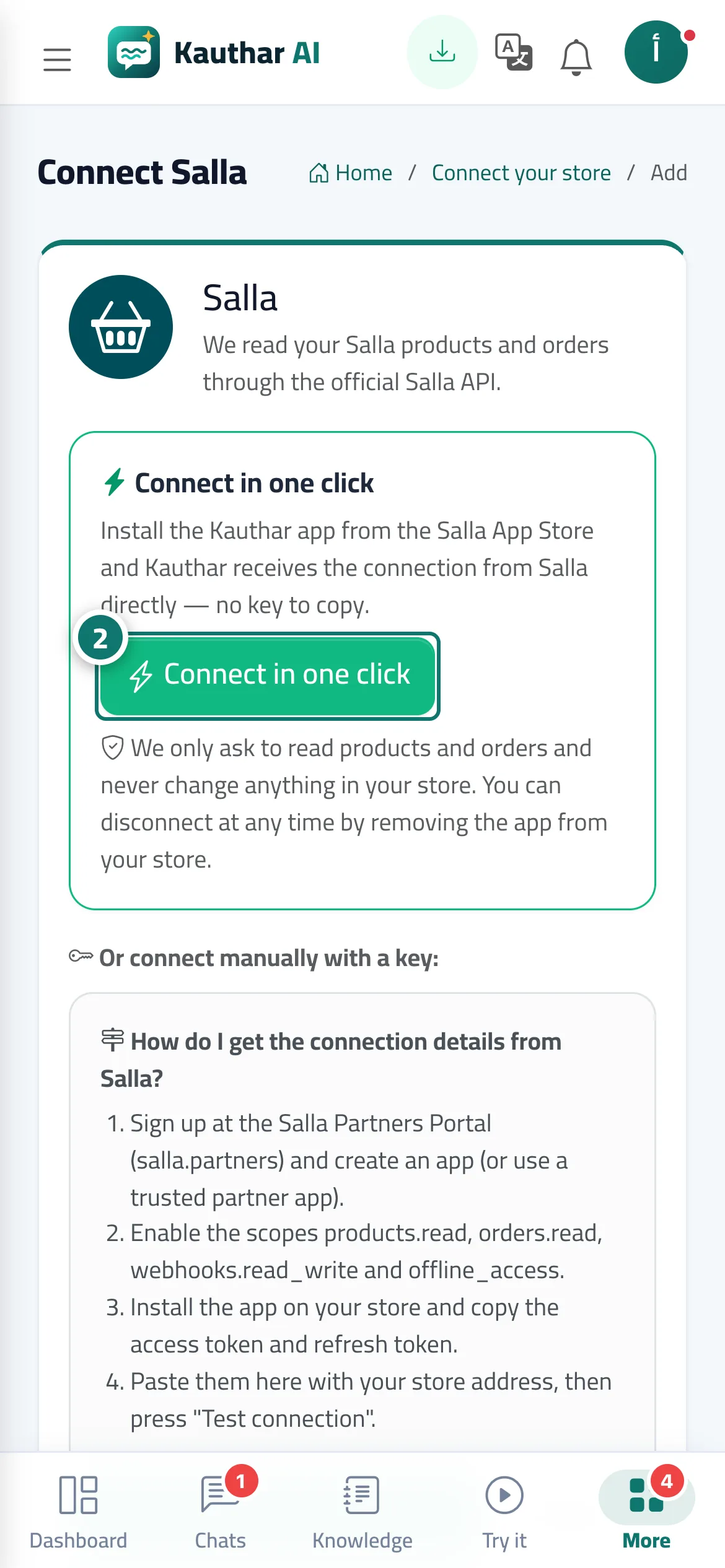
In Connect your store → choose Shopify, Salla, Zid or YouCan, and a Connect in one click card appears above the manual connection form. Shopify: type your my-shop.myshopify.com address and press the button; you go to Shopify to approve and come back. Salla: open the Kauthar app page in the Salla app store and install it; Kauthar receives the connection from Salla automatically (by the store owner's verified mobile number or email, or the connection code shown on the page). Zid and YouCan: the button takes you to the platform's approval page and back to Kauthar. After connecting, the store card shows the one-click badge, the sync starts straight away and the keys renew automatically. We ask to read products (and orders on Salla, Zid and YouCan; the Shopify app doesn't ask for orders — see The Kauthar app for Shopify and the chat bubble), and if you subscribe to the Google & AI visibility service, product pages are improved on the platforms that allow it (see Improving product pages in your store).
- Who can use it
- Business owner / manager
- Where to find it
- Sidebar → Train your assistant → Connect your store → choose your platform
Step by step#
- Open Connect your store and press your platform (for example Salla).
- In the Connect in one click card press the install or connect button, and approve on the platform's page.
- Come back to Kauthar: the store card shows Connected with the one-click badge, and the sync starts.
Tips#
Good to know#
Frequently asked questions#
Does Kauthar change anything in my store?
The connection reads products (and orders where the platform allows). Product pages are only edited within the Google & AI visibility service if you subscribe to it, and every edit is logged and can be undone.