Import contacts from Excel or CSV
Upload an Excel or CSV file with your customers' numbers, map its columns to fields, confirm their consent and add them to lists in three steps.
On this page
Overview#
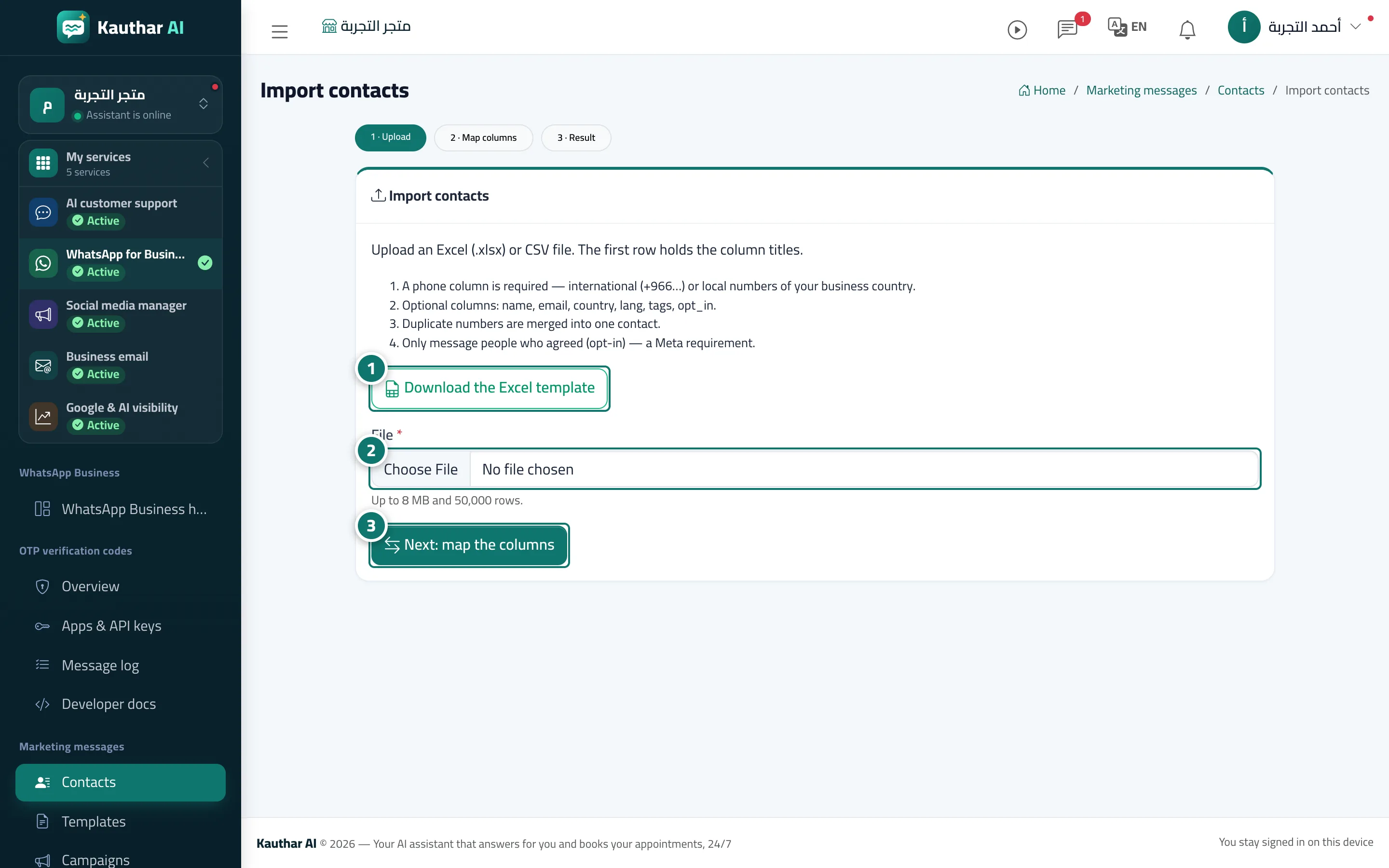
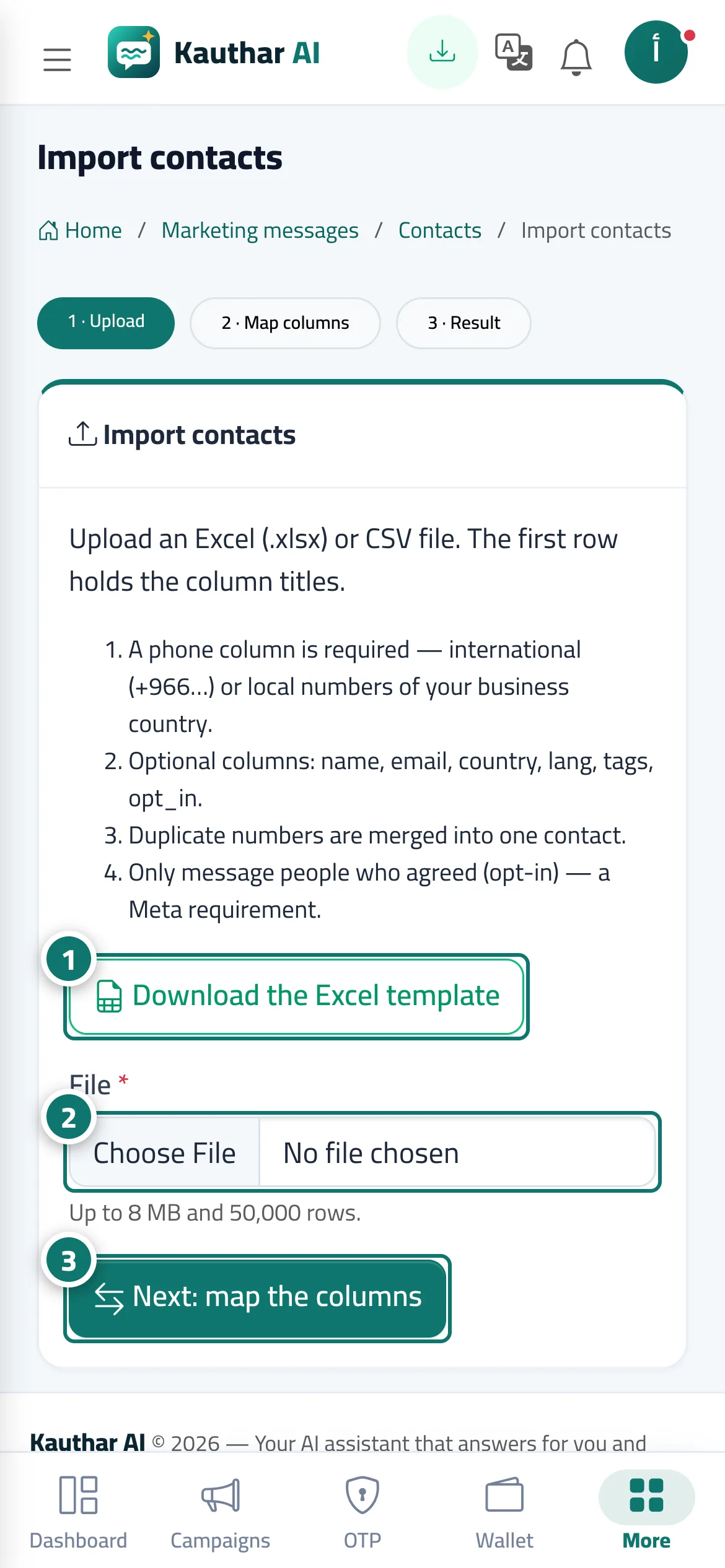
The Import contacts page has three steps: Upload (Excel .xlsx or CSV, with column headings in the first row, plus a Download the Excel template button), then Map columns (the number is required; name, email, country, language, tags and a consent column are optional; extra columns are saved as fields you can use in template variables; a preview of the first 5 rows; confirming consent to marketing messages; and adding them to lists), then Result (new, merged, duplicates in the file, over the plan limit, and invalid numbers with their row numbers).
- Who can use it
- Business owner / manager / staff member with add permission for marketing
- Where to find it
- Sidebar → WhatsApp Business → Marketing messages → Contacts → Import Excel/CSV
Step by step#
- Click Download the Excel template and fill it with your customers' numbers (in international format or the local format of your business's country).
- Choose the file in the File field.
- Click Next: map the columns, choose the column for each piece of information, confirm consent, pick the lists, then Import.