
Approve & schedule: publish now or at a time in one tap
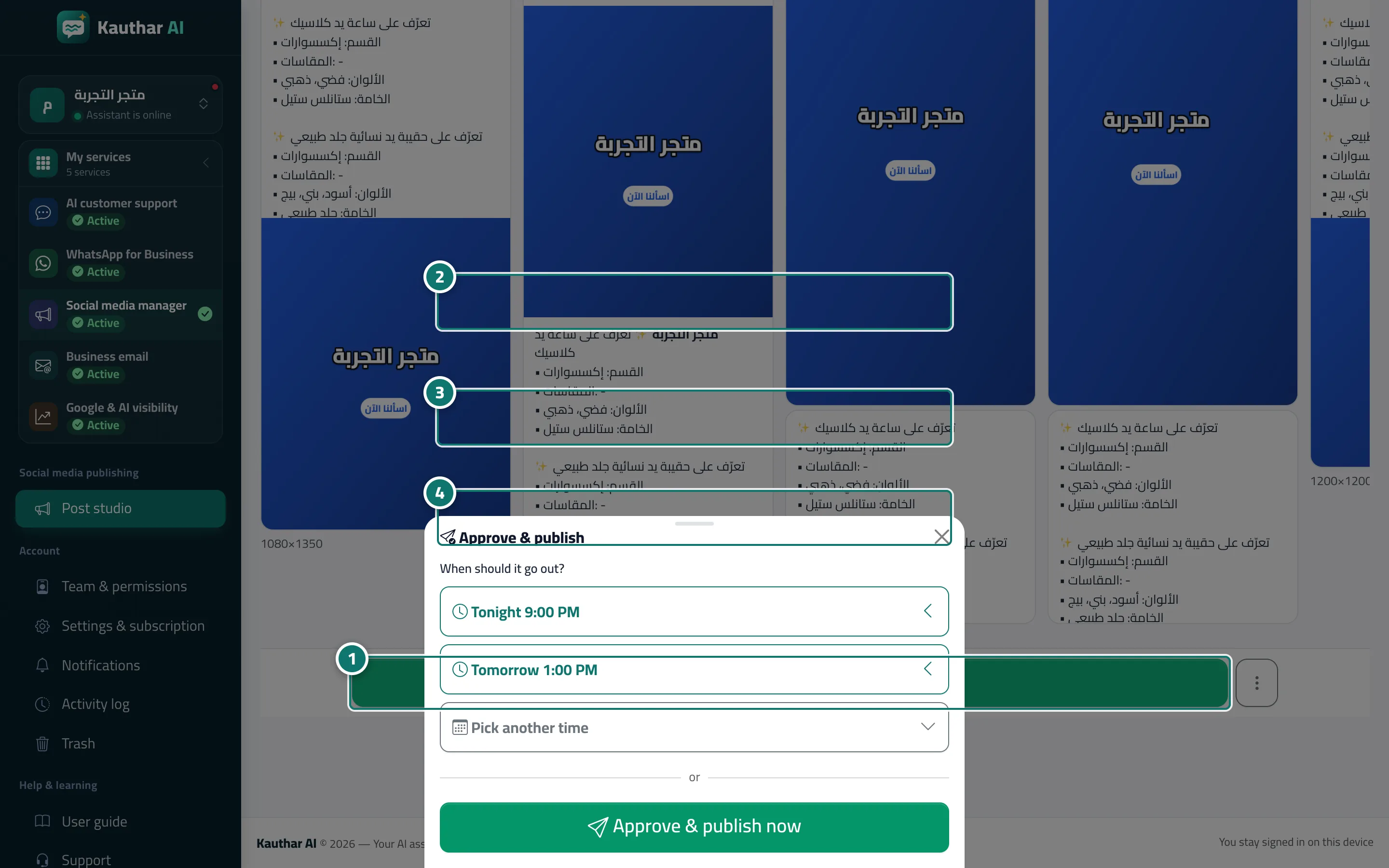
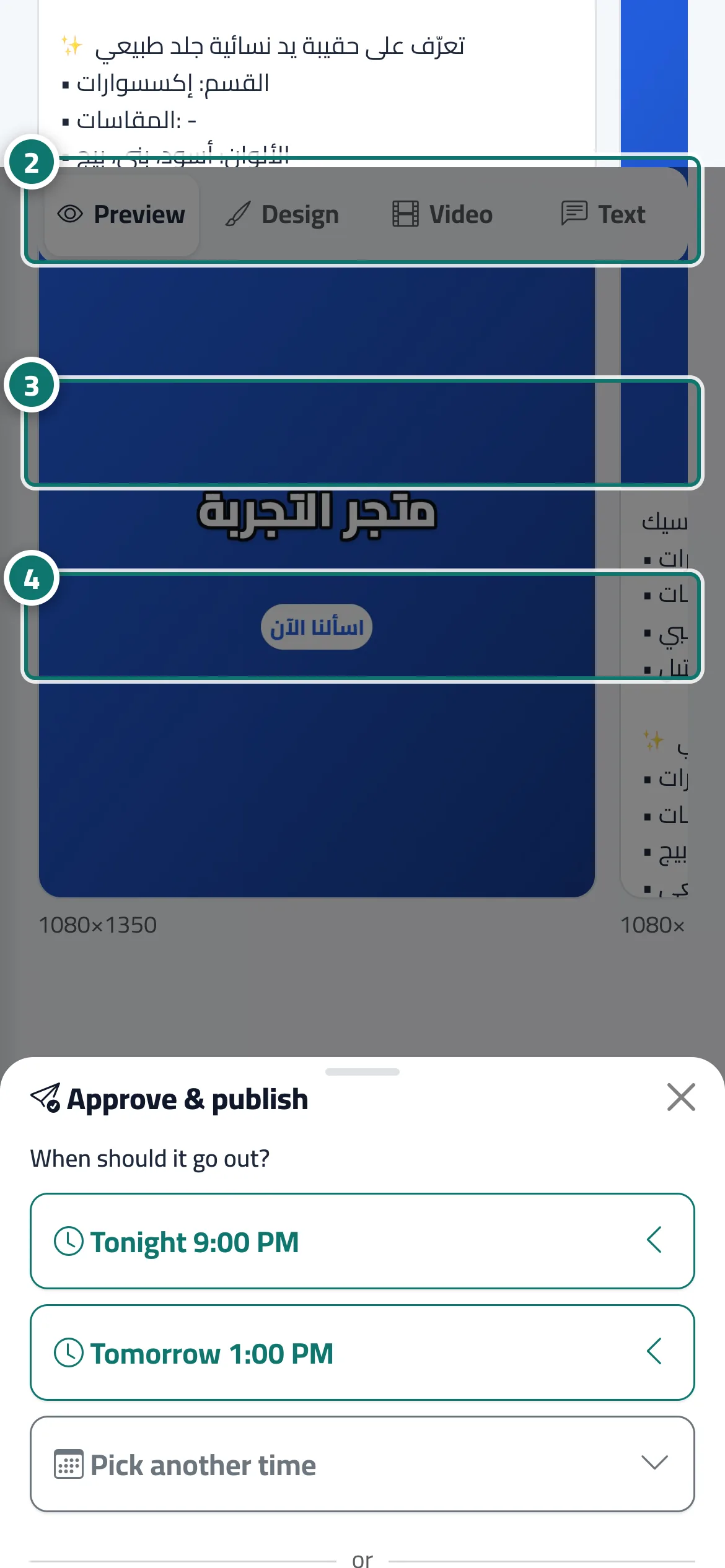
Press “Approve & schedule” and pick a ready-made time in one tap (tonight, tomorrow, or the best time), another time, or “Approve & publish now” — publishing runs in the background.
Overview#
The Approve & schedule button in the bar at the bottom of the post page opens the Approve & publish panel. Under When should it go out? there are one-tap times (such as Tonight 9:00 PM and Tomorrow 1:00 PM, plus Best time when Kauthar suggests a different time), Pick another time for the Publishing time field in your business’s time zone with an Approve & schedule button, then Approve & publish now. Publishing now runs in the background: Publishing… appears and each platform’s status refreshes every 5 seconds; you can leave the page and you’ll be notified when it’s done. A scheduled post appears in the calendar and goes out automatically at its time; to move it press Change time, and to cancel it use More actions → Cancel the schedule (back to draft).
- Who can use it
- Business owner / manager / staff allowed into the post studio
- Where to find it
- Sidebar → Social media publishing → Post studio → tap a post → Approve & schedule
Step by step#
- On the post page, press Approve & schedule.
- Tap one of the ready-made times under When should it go out? — it is scheduled straight away.
- Or press Pick another time, set the Publishing time and press Approve & schedule.
- Or press Approve & publish now and confirm to publish immediately.
Tips#
Good to know#
Frequently asked questions#
Does publishing or scheduling use my post allowance?
No. Only Kauthar writing a post counts.