
Menu buttons in the chat
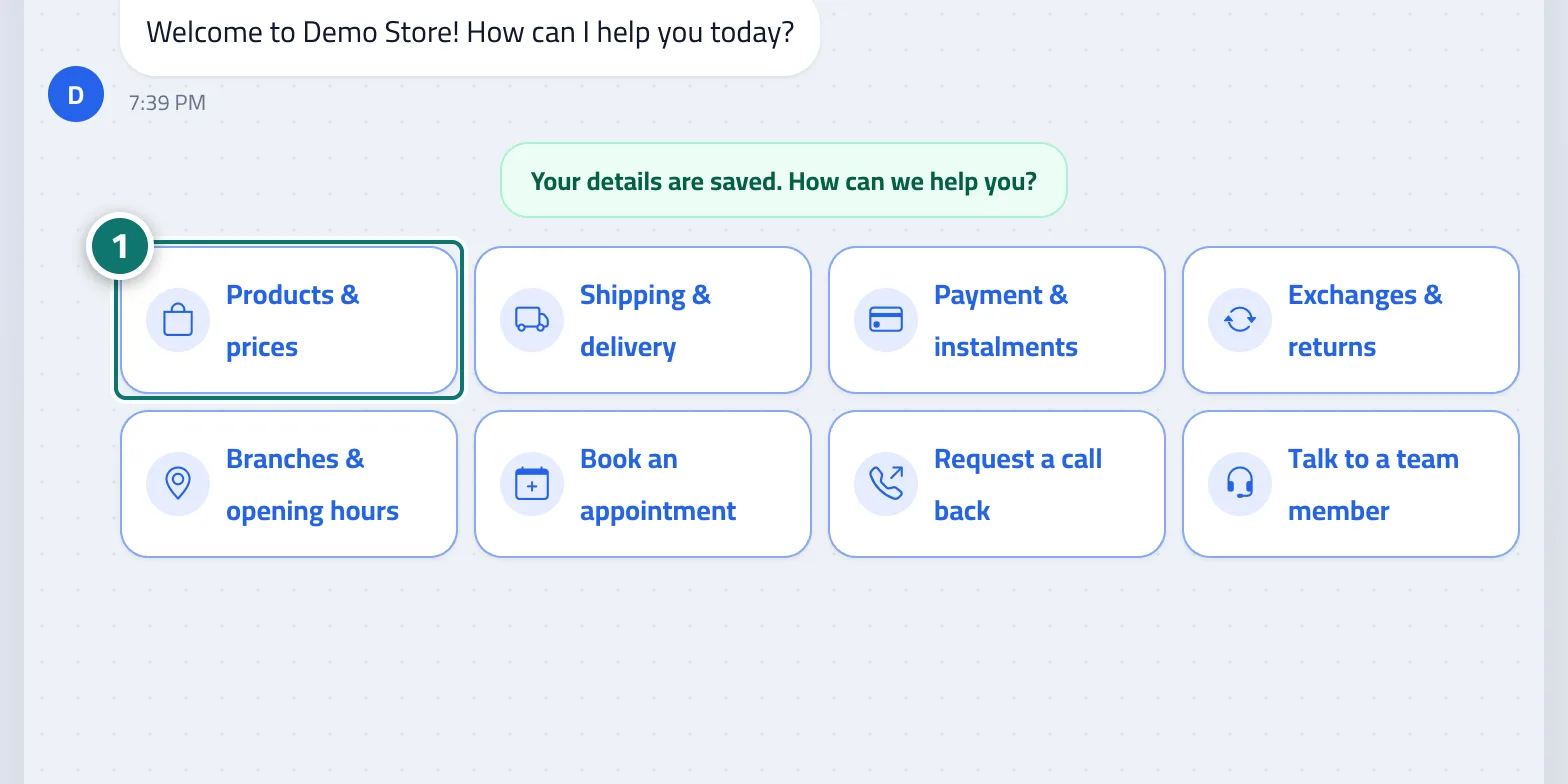
Customers find buttons such as “Products & prices” and “Shipping & delivery” and reach their answer with one tap, without typing.
Overview#
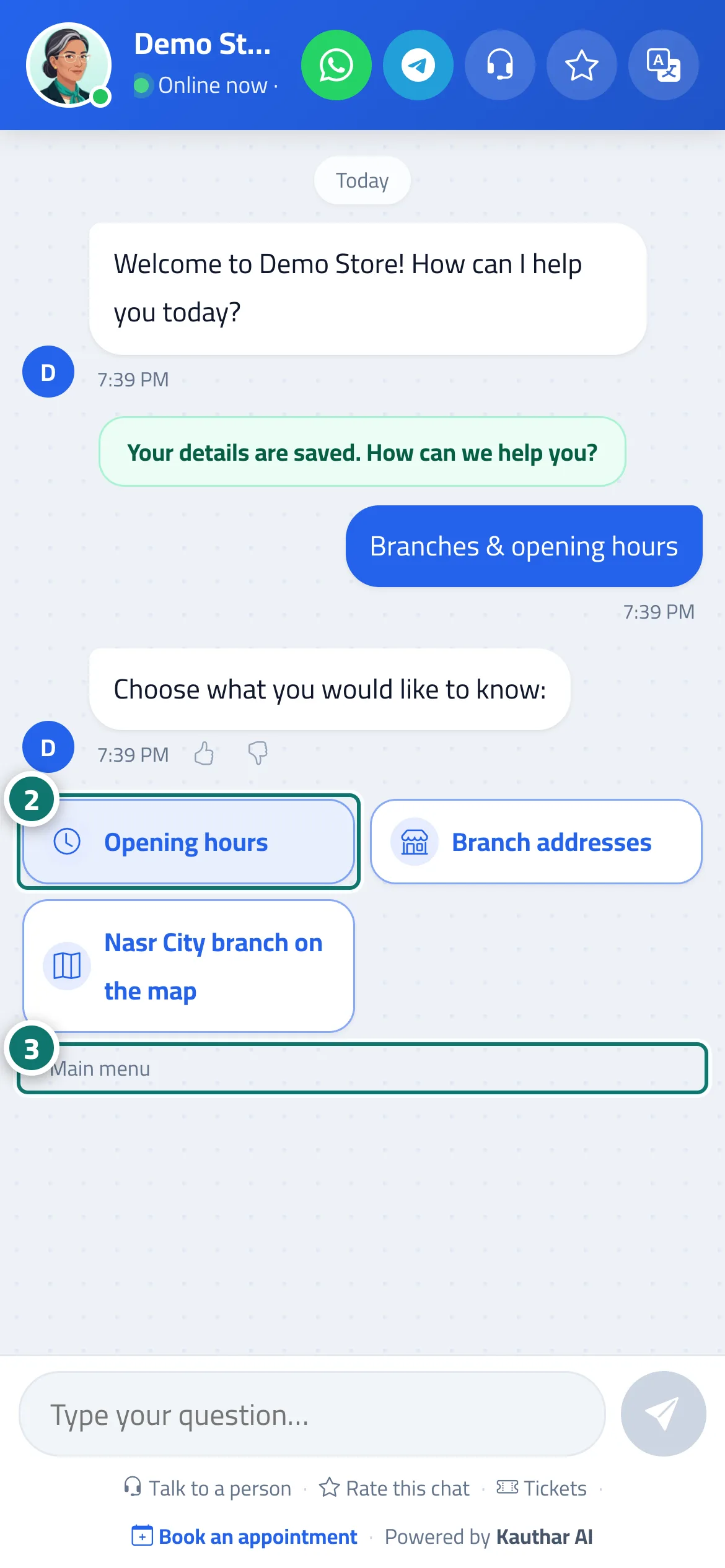
When reply paths are enabled, the main-menu buttons and their icons appear right under the welcome message (after the customer registers, if registration is enabled). Each button does one thing: it opens sub-buttons (with Back and Main menu), shows a fixed reply instantly, opens a link (a price list or a map location) with an Open link button, hands the customer over to a staff member, asks for their name and phone number, starts the appointment booking steps, or limits the AI assistant to one topic — the customer then sees You're asking about: ….
- Who can use it
- Your business's customers
- Where to find it
- Chat page → the buttons under the welcome message · set up from the sidebar → Train your assistant → Reply paths
Step by step#
- The customer taps one of the buttons.
- They continue with the sub-buttons, or type their question on the topic they chose.
- They tap Back to go up one level, or Main menu to return to the start.
Tips#
Good to know#
Frequently asked questions#
Do customers have to use the buttons?
No. They can type their question freely at any time; the buttons are simply a faster route.
Can a button start the appointment booking steps?
Yes. Choose the Book an appointment action in Reply paths if booking is enabled on your plan.