
Reply tone and language
Pick a friendly, formal or brief tone, and the reply language: the customer's own language automatically (Arabic, English or French) or one fixed language.
Overview#
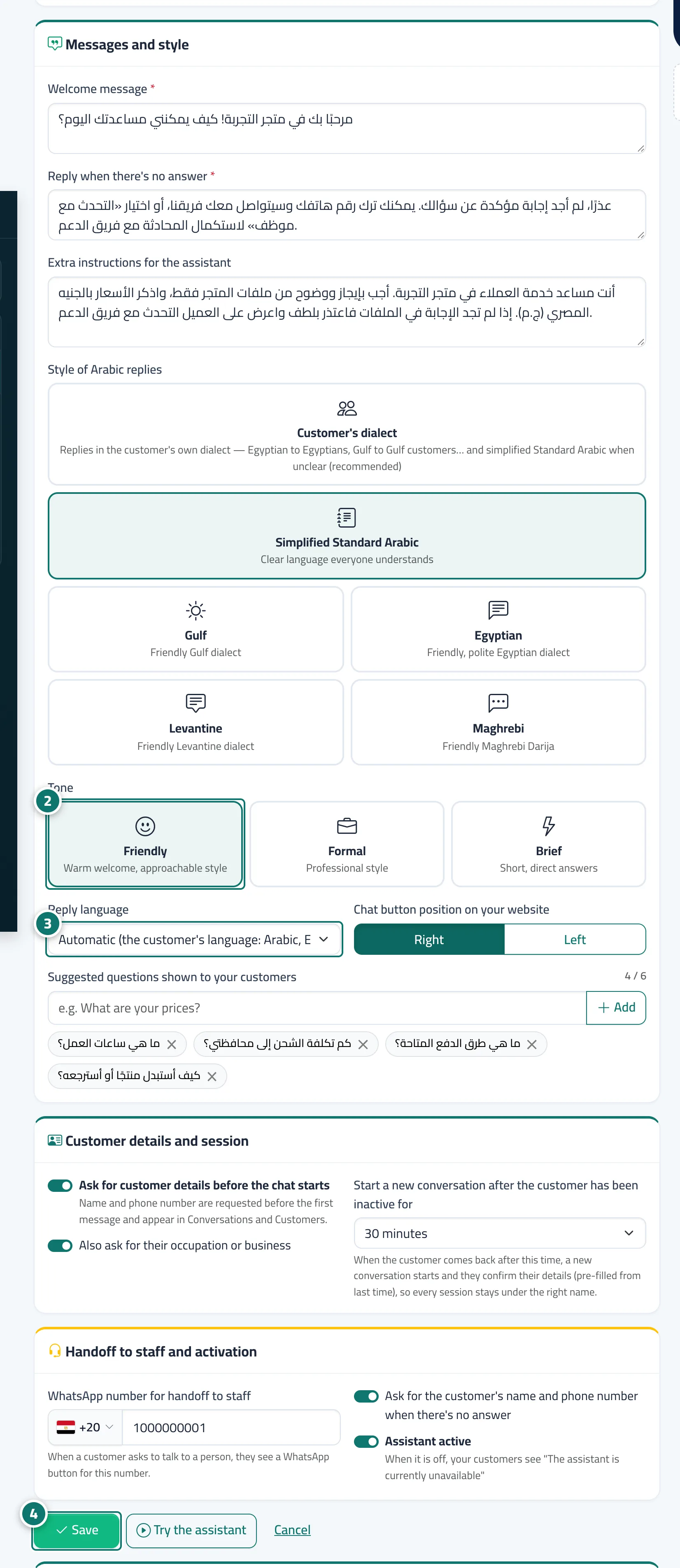
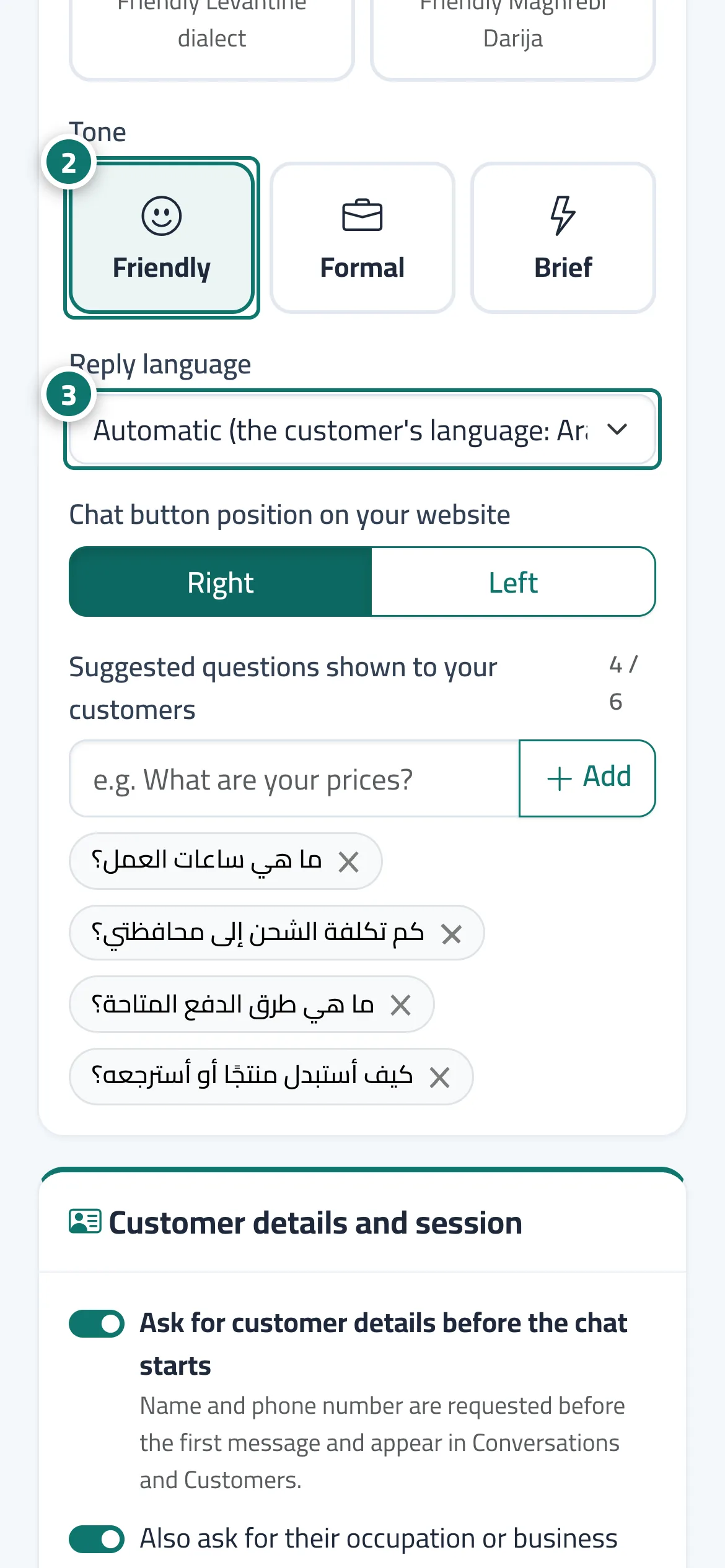
In the Messages and style card you choose the Reply tone: Friendly (warm welcome, approachable style) · Formal (professional style) · Brief (short, direct answers). You also choose the Reply language: Automatic (the customer's language: Arabic, English or French) · Always Arabic · Always English · Always French. How Arabic itself is written (Simplified Standard Arabic or a dialect) is set in Style of Arabic replies on the same card.
- Who can use it
- Business owner / admin
- Where to find it
- Sidebar → Account → Assistant settings → Messages and style card
Step by step#
- Open Assistant settings and go to the Messages and style card.
- Choose the Reply tone: Friendly, Formal or Brief.
- Choose the Reply language from the list.
- Press Save and check the result in Try the assistant.
Tips#
Good to know#
Frequently asked questions#
What is the difference between tone and style?
Tone sets how the assistant deals with customers (friendly, formal or brief); style sets which kind of Arabic she writes (Simplified Standard Arabic, a Gulf, Egyptian, Levantine or Maghrebi dialect, or the customer's own dialect automatically).
I chose Always Arabic and a customer wrote in English. What happens?
Kauthar replies in Arabic, as you chose. To reply in the customer's language, choose Automatic (the customer's language: Arabic, English or French).