
Confirming, cancelling and rescheduling an appointment
From the appointment details: confirm it, mark it «Done» or «No-show», move it, cancel it, or send the customer a confirmation on WhatsApp.
Overview#
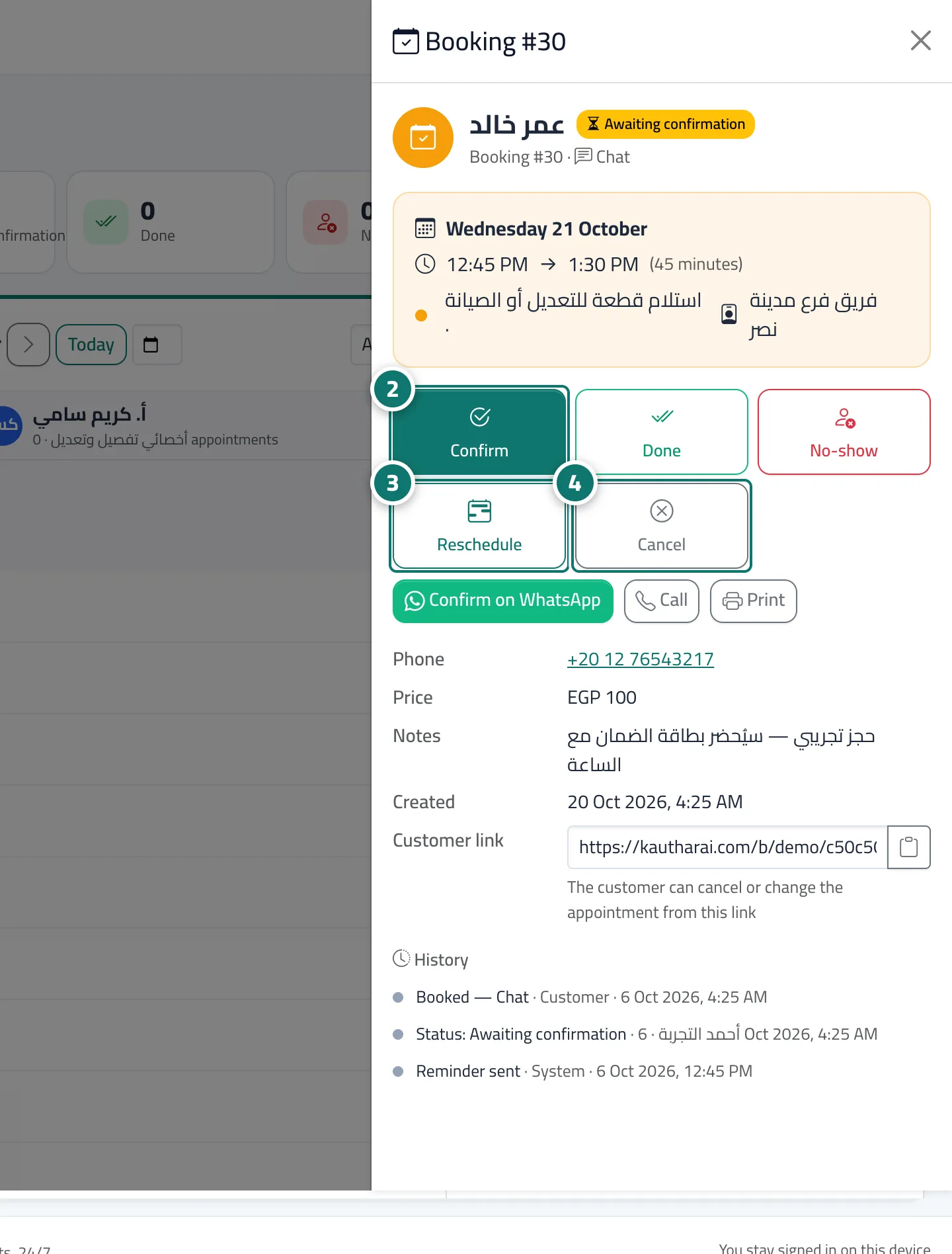
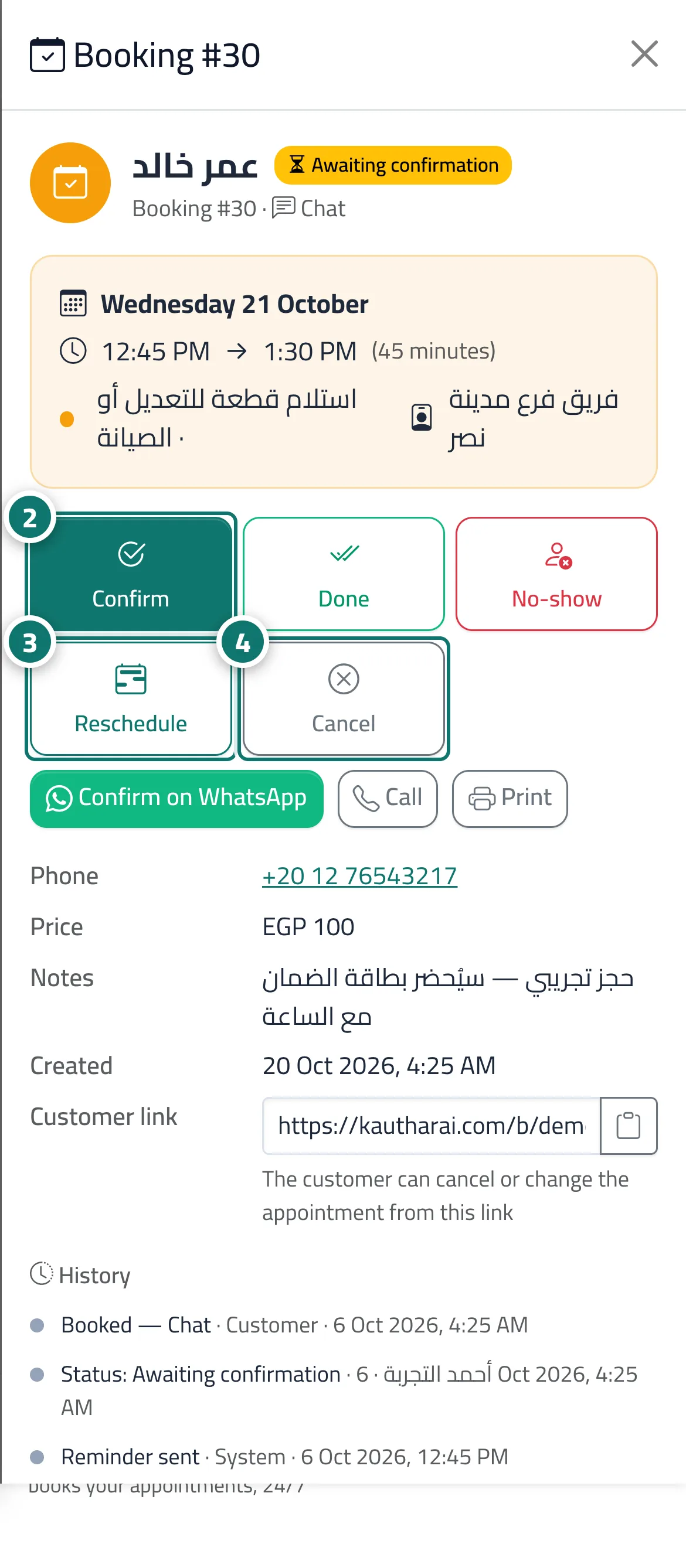
Clicking an appointment opens the Booking details panel with the customer's name, the booking status, number and channel, the day, start and end time and duration, and the service and provider. Its buttons: Confirm (for a booking awaiting confirmation), Done and No-show (shown once the appointment has started), Reschedule (pick a new time with the Same provider or Any available provider), Cancel with an optional reason, Confirm on WhatsApp (a ready message with the appointment details and the link to change it), Call, Print, and the linked Chat or Ticket if there is one. It also shows the Customer link from which the customer can cancel or change the appointment, and the full booking History (booked, reminder sent, rescheduled, cancelled…).
- Who can use it
- Business owner / manager / agent (depending on permissions)
- Where to find it
- Sidebar → Appointments → Bookings → click any appointment
Step by step#
- Open the appointment from the bookings schedule.
- For a booking awaiting confirmation, press Confirm; once the appointment has started, mark it Done or No-show.
- To change the time: Reschedule → choose the provider, day and time → press Move booking to ….
- To cancel: Cancel → enter a Cancellation reason (optional) → Confirm cancellation.
Tips#
Good to know#
Frequently asked questions#
If I change the time, does the customer know?
If their email is on file and Support email is connected, they receive a Your appointment has changed email. Otherwise send them the details with Confirm on WhatsApp.
Does the customer's link change after rescheduling?
No — the same booking management link stays valid and shows the new time. The booking does get a new number, though, and the old one appears Cancelled with Moved to a new booking #…, so if a customer quotes an old number, search by their phone number.