Verification message log
Every verification code sent: time, number (partly hidden), app, status, verification result and cost, with search, filters, print and Excel.
On this page
Overview#
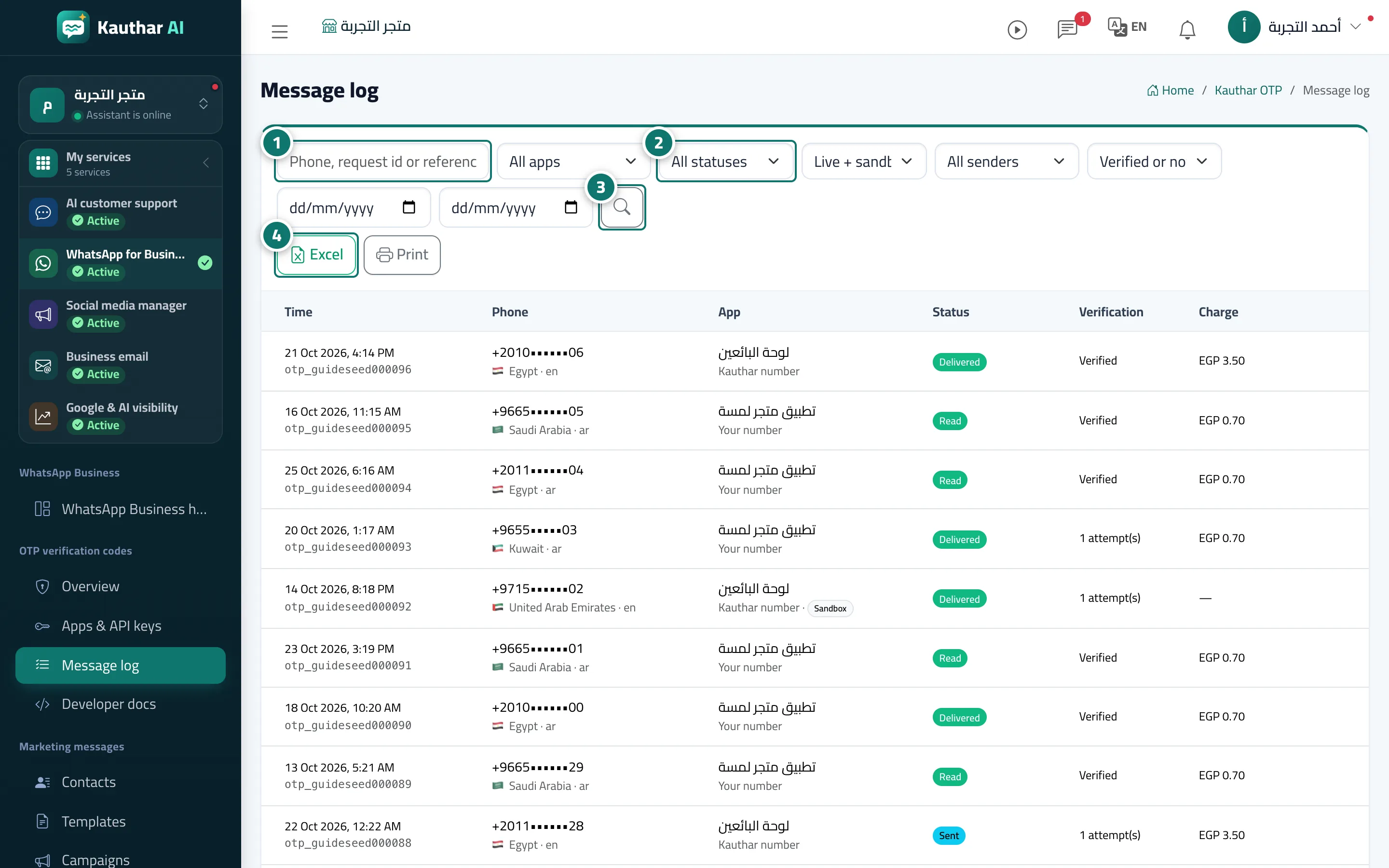
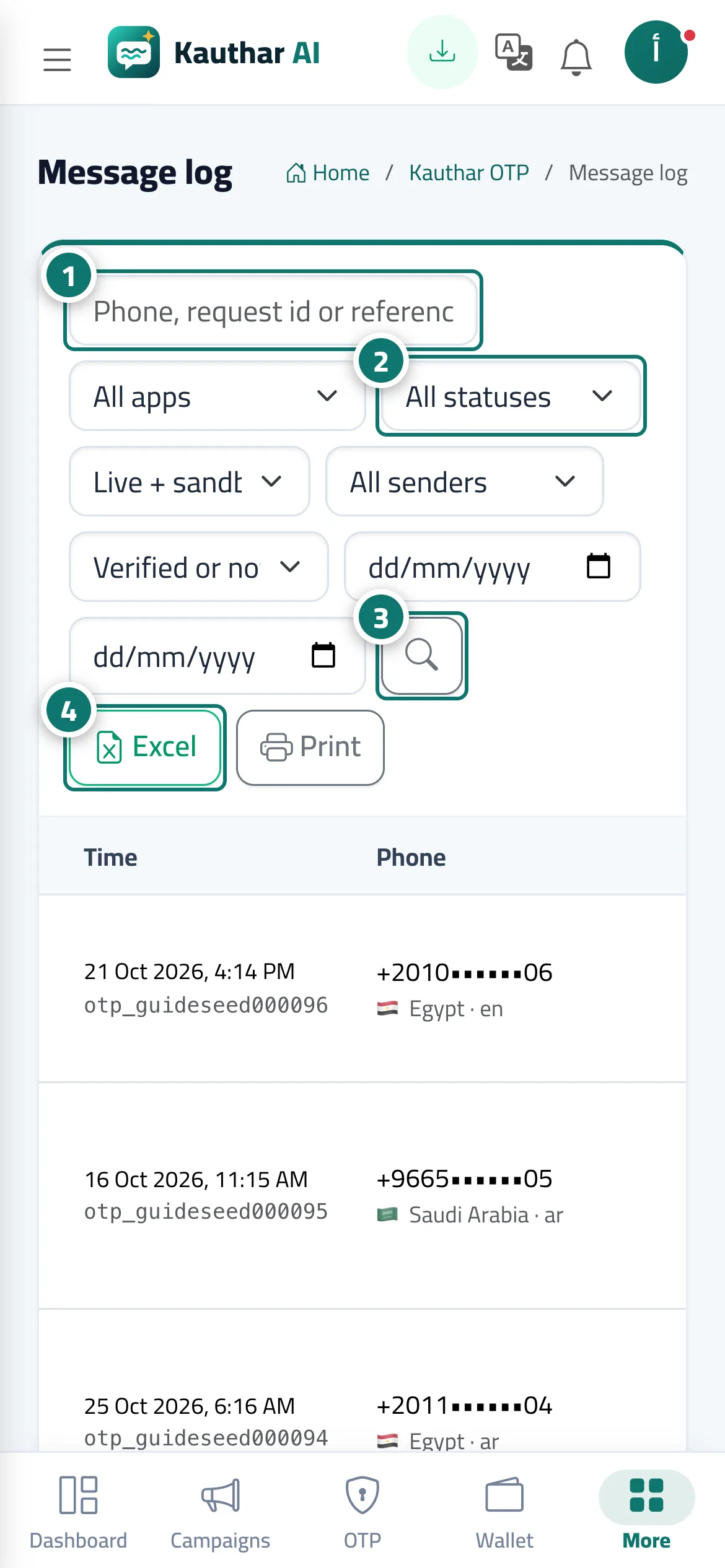
The Message log screen shows a table of every message: time, phone (partly hidden), app, status (accepted, sent, delivered, read, failed with the reason), verification (done or not, and the number of attempts) and cost (with refunded for failed ones). Above it you can search by phone number, request ID or reference, and filter by app, status, mode (live or sandbox), sending number, verification result and period.
- Who can use it
- Business owner / manager / developer with OTP permission
- Where to find it
- Sidebar → WhatsApp Business → OTP verification codes → Message log
Step by step#
- Enter the phone number, request ID or reference in the search box.
- Choose the app, status, mode, sending number and verification result to filter.
- Click the search button.
- Click Excel or Print to export the results.