
Merging duplicate tickets
Customer opened the same request twice? Merge both into one ticket without losing a single message.
Overview#
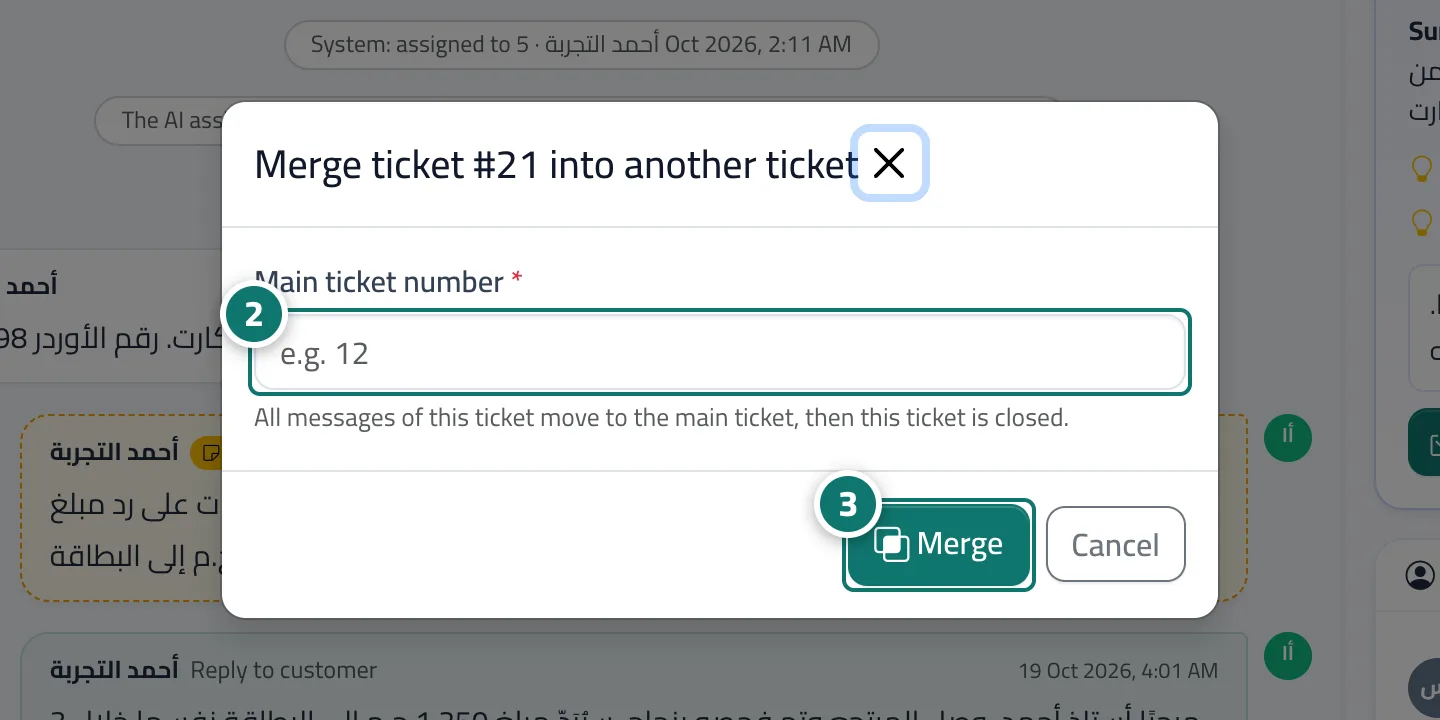
When a customer sends the same problem through two channels (for example the chat and email), you can merge the duplicate into the main ticket: all messages move across, the duplicate is closed and shows a Merged into ticket #number badge that takes you to the main ticket, and the main ticket records Ticket #… was merged into this ticket.
- Who can use it
- Business owner / manager / agent
- Where to find it
- Sidebar → Support desk → Tickets → (the ticket) → Merge
Step by step#
- Open the duplicate ticket and press Merge at the top of the page.
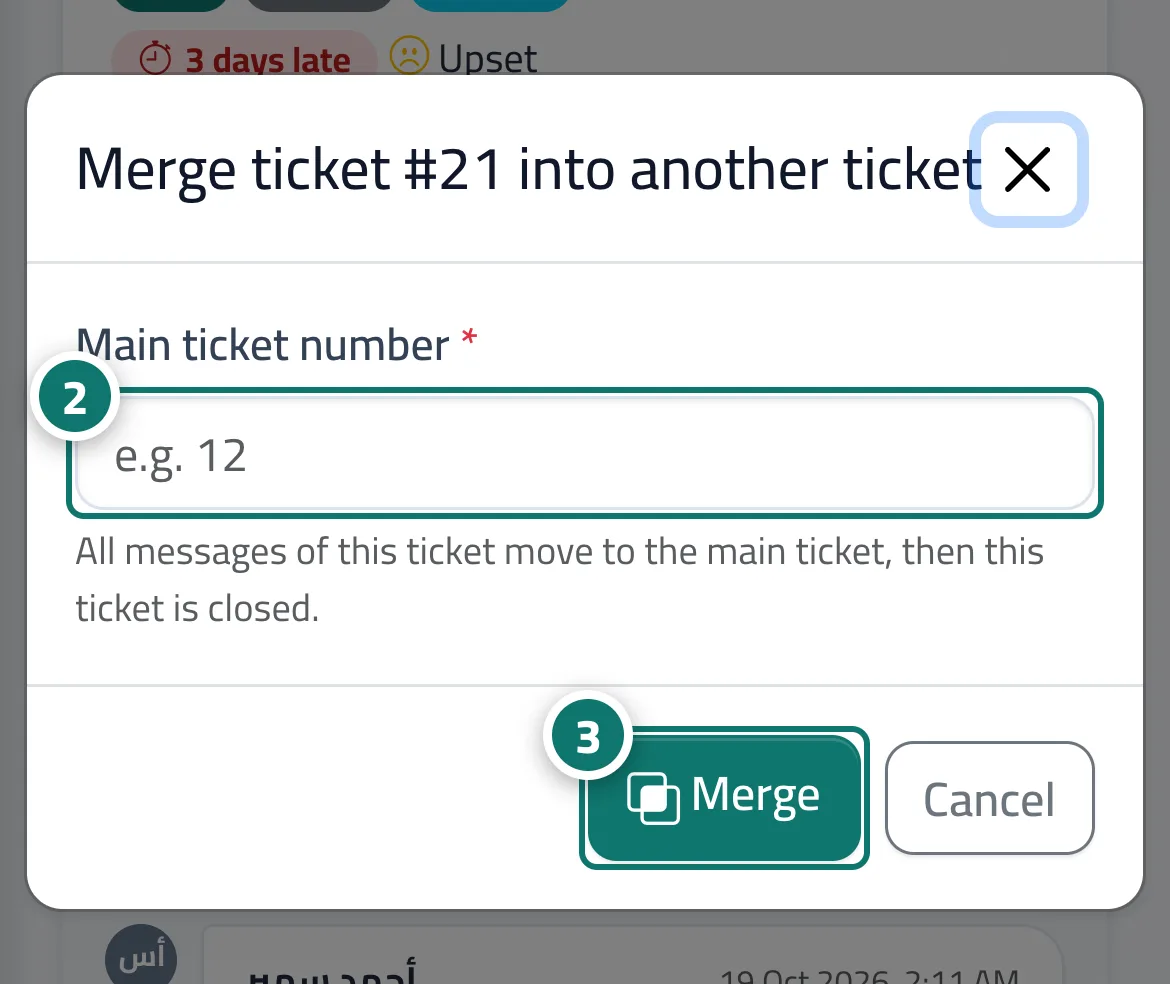
- In the Merge ticket #… into another ticket window, enter the Main ticket number (for example 12).
- Press Merge and confirm.
Tips#
Good to know#
Frequently asked questions#
Does the customer see all the messages after a merge?
Yes. All messages end up in the main ticket and its tracking portal.
Can I merge several tickets at once?
Yes. In the ticket list, select the tickets, press Merge in the bulk actions bar and enter the main ticket number.