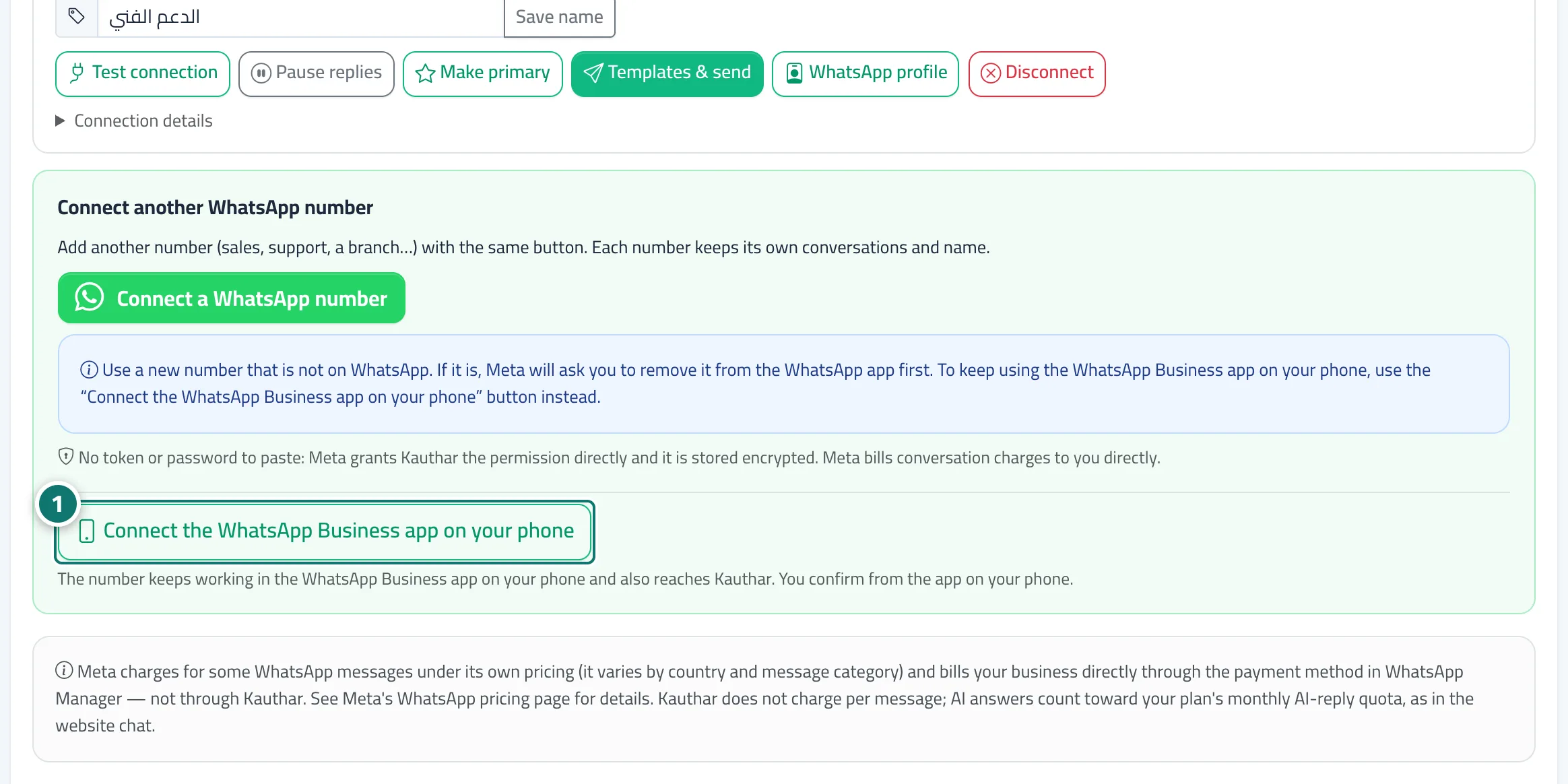
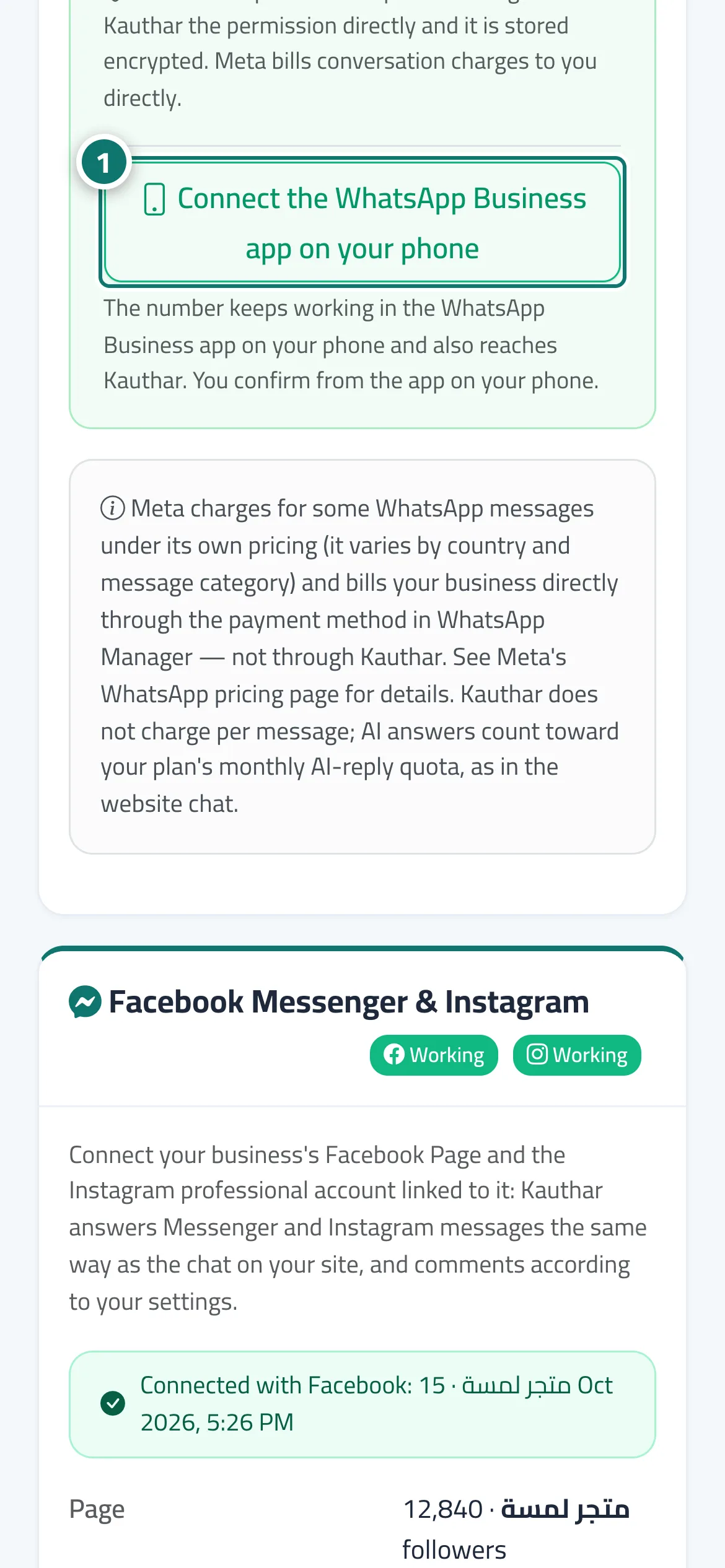
Connect the WhatsApp Business app on your phone
Connect your number without moving it off your phone: the WhatsApp Business app keeps working as it is, and messages also reach Kauthar so it can answer them.
On this page
Overview#
In the WhatsApp card of Channels, under the green connect button, a second button Connect the WhatsApp Business app on your phone. This does not move the number off your phone: the WhatsApp Business app keeps working and messages also reach Kauthar. First the Before connecting the WhatsApp Business app window lists three points to confirm one by one: update the app (2.24.17 or later) and keep it open while connecting; what changes afterwards (broadcast lists become read-only, disappearing and view-once messages stop, WhatsApp for Windows and linked devices are disconnected); and how to undo it from the phone. Then Meta's window opens, you confirm from the app on your phone, and the number appears in Your connected numbers with the badge Also on the WhatsApp Business app.
- Who can use it
- Owner / admin (or a member allowed to edit Channels)
- Where to find it
- Sidebar → Channels & customers → Channels → WhatsApp card → Connect the WhatsApp Business app on your phone
Step by step#
- Press Connect the WhatsApp Business app on your phone.
- Read the three points in Before connecting the WhatsApp Business app and confirm each with I understand.
- Press Understood, start connecting.
- Finish Meta's window and confirm the connection from the WhatsApp Business app on your phone.