
Replying to the customer and internal notes
Reply to the customer or write a note for your team only, with attachments, keyboard shortcuts and a status change on send.
Overview#
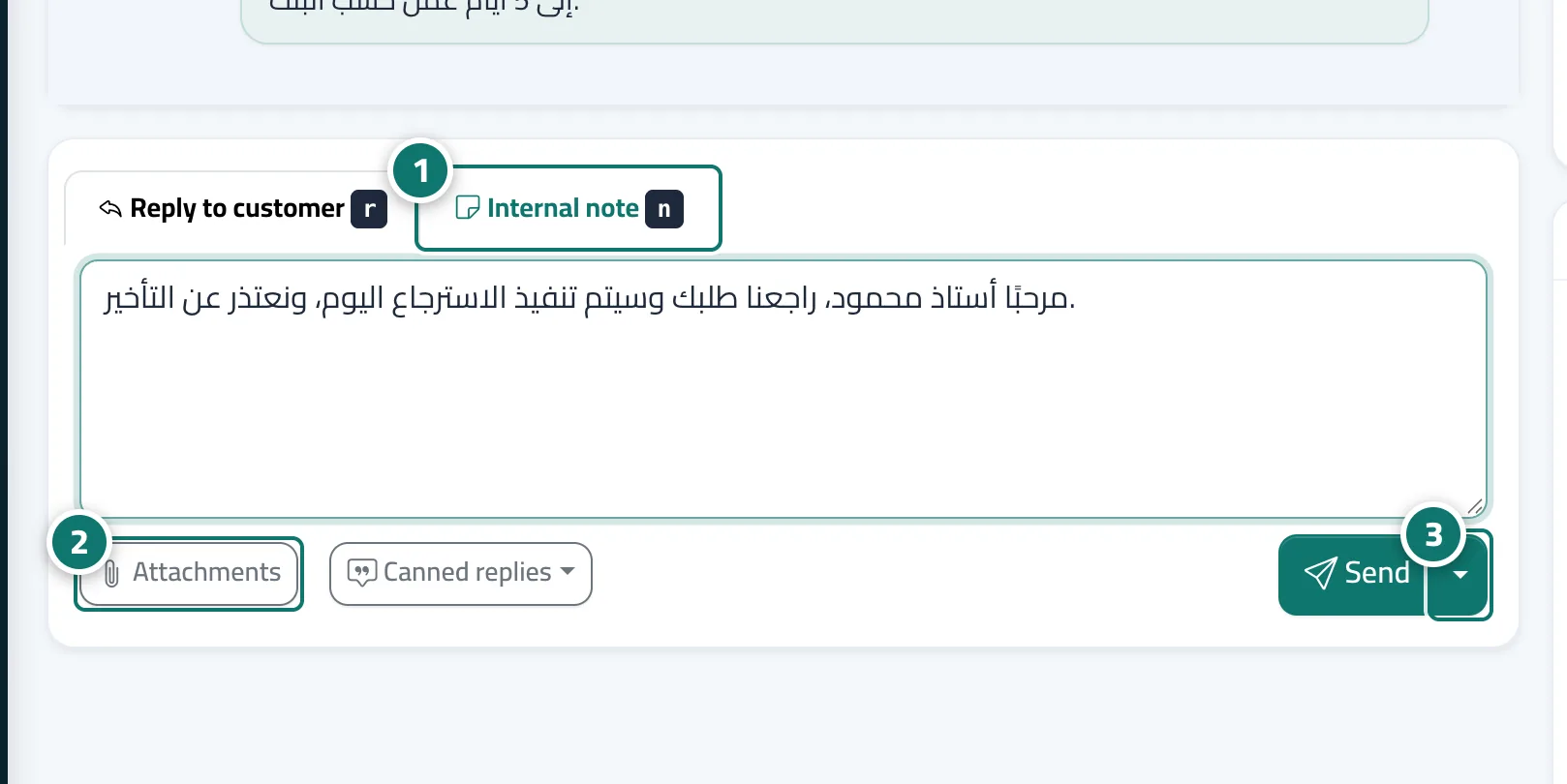
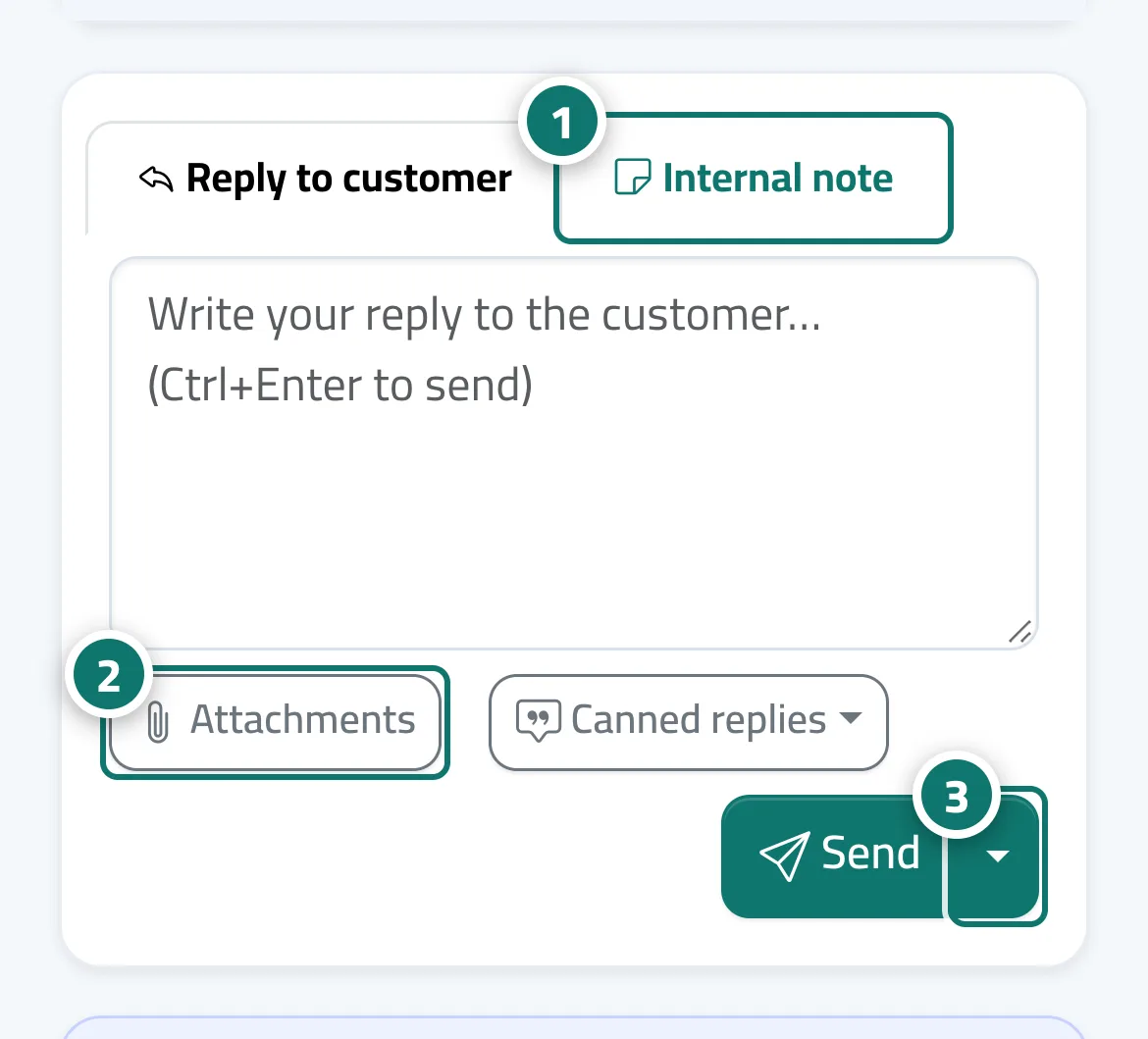
The composer at the bottom of the ticket has two tabs: Reply to customer (it reaches the customer in the ticket tracking portal, and by email if they have an address on file and the support email is connected) and Internal note (for the support team only — never shown to the customer). You can attach files with the Attachments button and pick the status the ticket should take after sending from the Send options arrow next to Send.
- Who can use it
- Business owner / manager / agent
- Where to find it
- Sidebar → Support desk → Tickets → (the ticket) → composer
Step by step#
- Choose Reply to customer or Internal note.
- Write your message. To attach files, press Attachments.
- Press Send (or Save note), or open the Send options arrow and choose Send and set status to: Awaiting customer · Solved · Open · On hold.
- Shortcuts: Ctrl+Enter to send, the letter r (or ق on an Arabic keyboard) for a reply, and n (or ى) for a note.
Tips#
Good to know#
Frequently asked questions#
Can the customer see internal notes?
Never. Internal notes are visible to the support team only, on a yellow background, and they don't reach the tracking portal or email.
How does the customer know I replied?
The reply appears on their own ticket tracking portal link, and arrives by email if they have an address on file and the support email is connected. You can also send them the link on WhatsApp from the Ticket tracking portal card.
Can I send an image or a PDF invoice?
Yes, with the Attachments button — up to 5 files and 10 MB per file.