
Out-of-hours notice
When a customer gets in touch outside working hours, they are told automatically when to expect a reply, so they're never left wondering.
Overview#
If a customer opens a ticket, replies to one from the ticket tracking portal, or asks to talk to a person in the chat outside the working hours you set, they see an automatic message such as We received your message outside working hours and will reply from Saturday at 9:00 am. The time is calculated from your working hours in your business's time zone, with today or tomorrow and the day name where useful, and the message appears in the customer's language (Arabic, English or French). The AI assistant, meanwhile, keeps answering around the clock.
- Who can use it
- Business owner / manager / your customers
- Where to find it
- Sidebar → Support desk → Support desk settings → Working hours tab
Step by step#
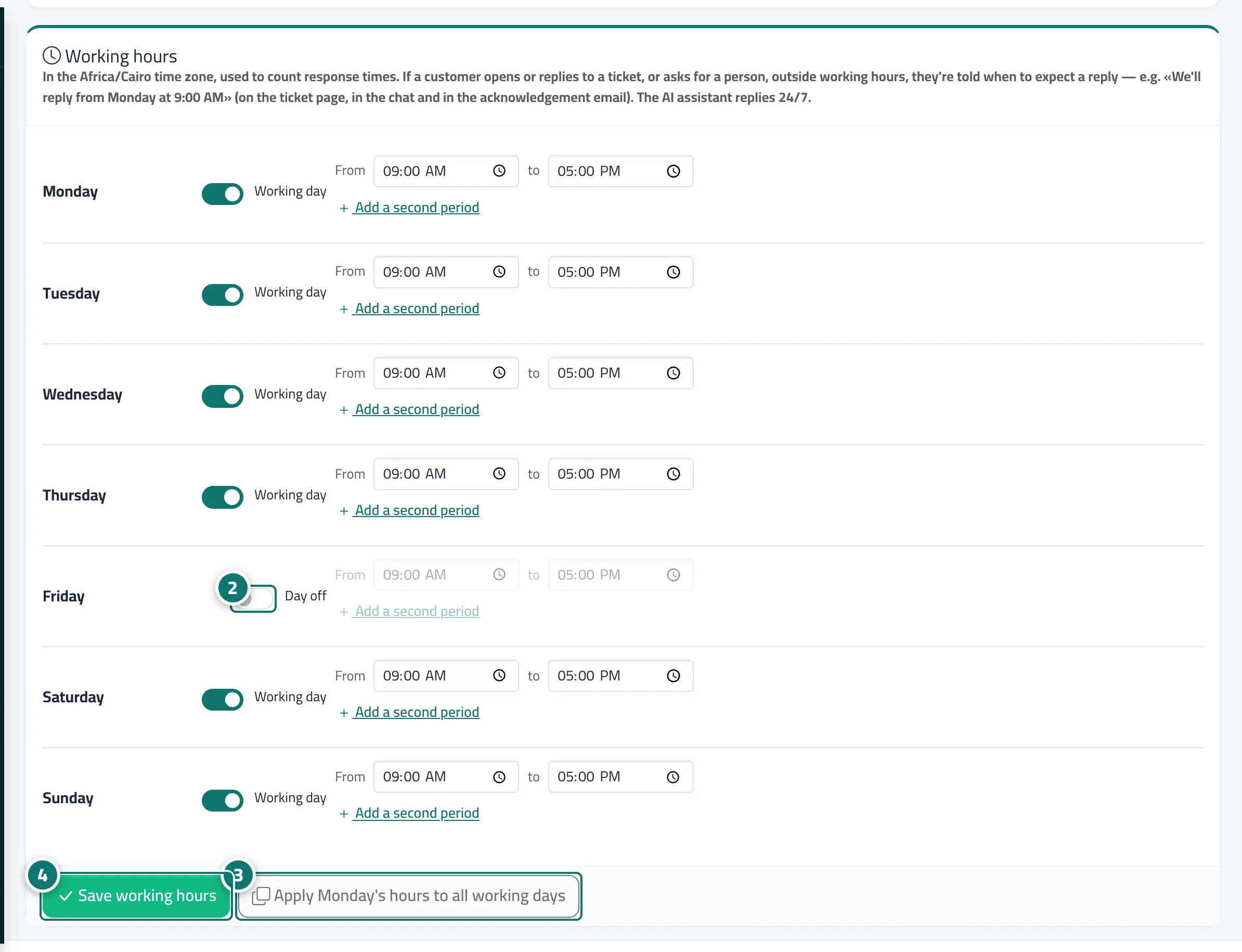
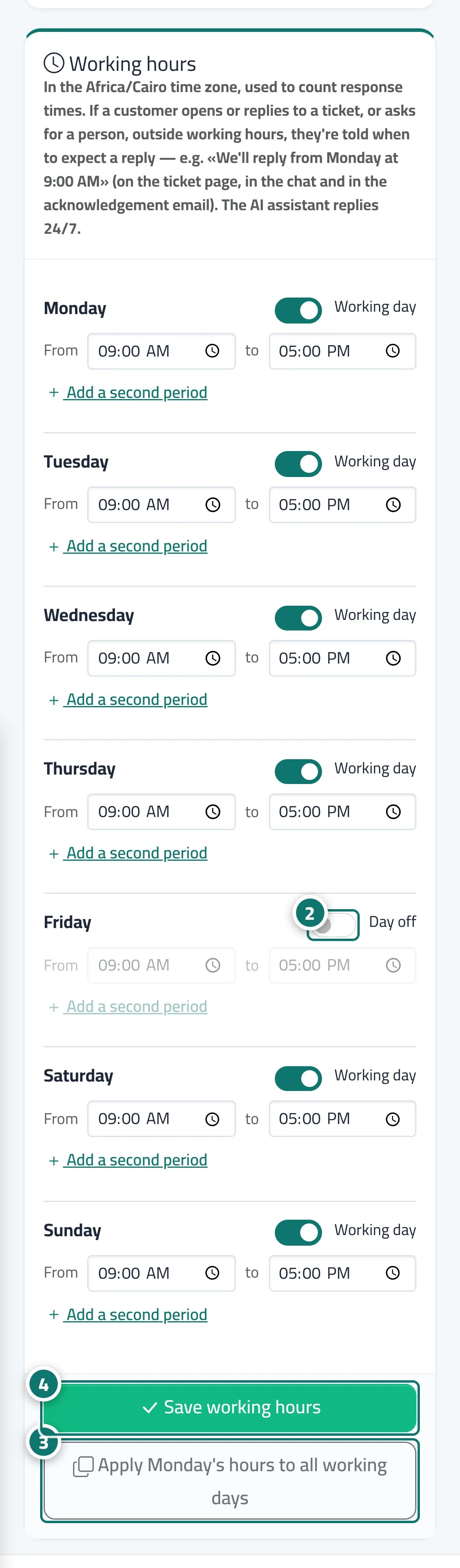
- Open Support desk settings, then the Working hours tab.
- For each day, turn on Working day or leave it as Day off, set the period from and to, and press Add a second period if you work two shifts.
- You can press Apply Saturday's hours to all working days to save time.
- Press Save working hours.
Tips#
Good to know#
Frequently asked questions#
Does the AI assistant stop outside working hours?
No. The AI assistant replies 24 hours a day; the notice only concerns requests that need a person.
We have a morning and an evening shift — can I set that up?
Yes. Press Add a second period for the day and set both periods; Kauthar works out the next opening time automatically.
Friday is our day off — what does a customer who writes then see?
They see the time of your next working period, for example we'll reply from Saturday at 9:00 am.