
Contacts, lists and opt-out
Your campaign audience: add contacts with their consent, organise them with tags and lists, track who opted in and out, and Kauthar unsubscribes anyone who asks automatically.
Overview#
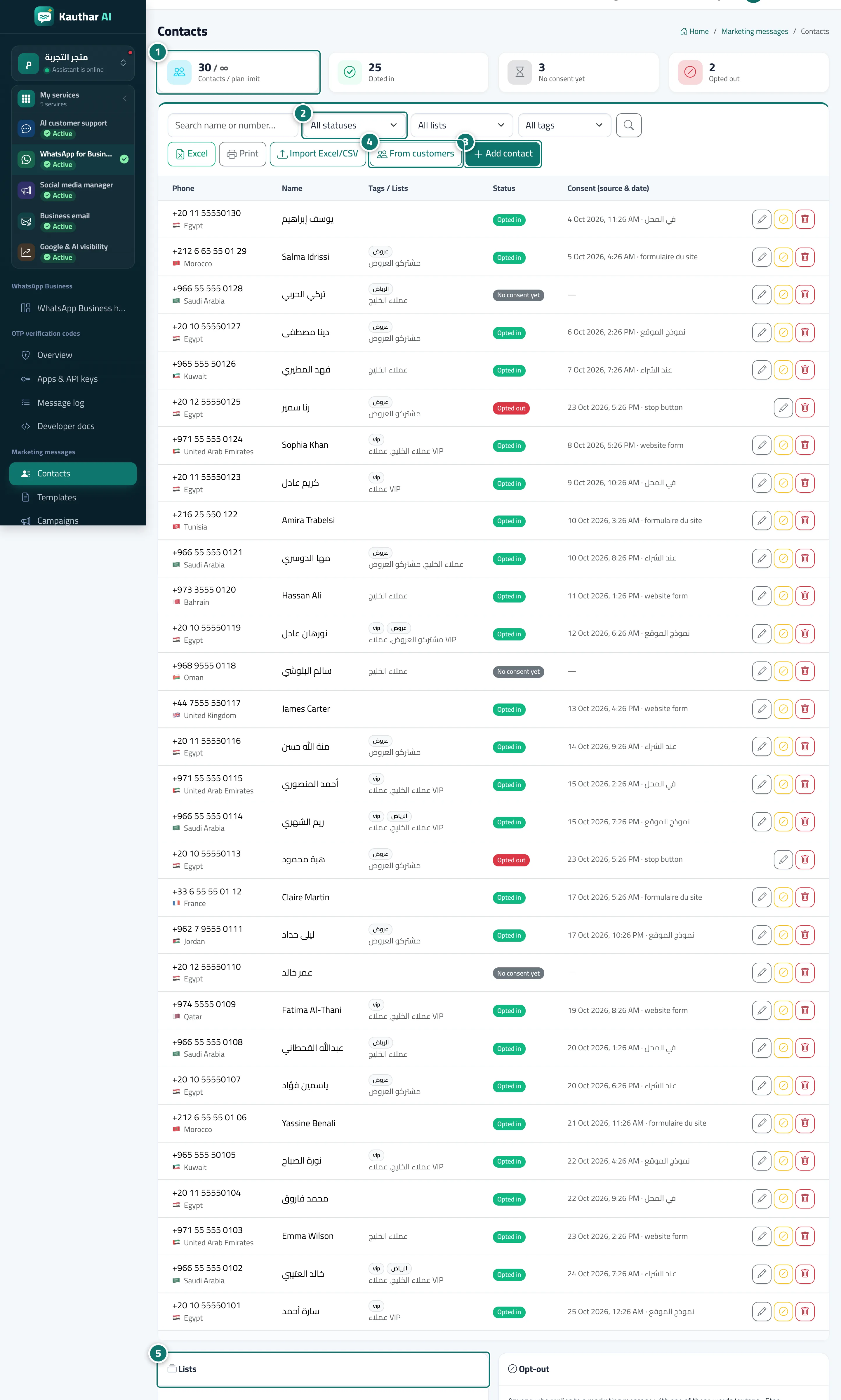
The Contacts screen shows contacts against your plan limit, those who opted in, those without consent, and those who opted out. Then a table (number and country, name, tags and lists, status, consent with its source and date) with edit, stop-marketing and delete buttons, search and filters by status, list and tag, Excel, Print, Import Excel/CSV, From customer profiles and Add contact. Below are the Lists card (create and delete lists) and the Opt-out card with the stop keywords and a field for extra keywords.
- Who can use it
- Business owner / manager / staff member with marketing permission
- Where to find it
- Sidebar → WhatsApp Business → Marketing messages → Contacts
Step by step#
- Review the counts at the top: total against your plan limit, opted in, without consent, and opted out.
- Filter the table by status, list or tag, or search by name or number.
- Click Add contact, enter the number, name, tags and lists, set the consent and its source, then Save.
- Click From customer profiles to add chat customers who have phone numbers.
- Create your lists from the Lists card by entering a name, then Add.

Tips#
Good to know#
Frequently asked questions#
What do I enter as the consent source?
Where the customer agreed to your messages, such as website form, in store or at checkout; Meta requires you to keep the consent source and date.