Design editor: text, price and logo on the image
Edit the post design yourself for every size: move and resize the text, add a price, a button, your logo or a shape, pick the font, colour and background, then save to see the final image exactly as it will be published.
On this page
Overview#
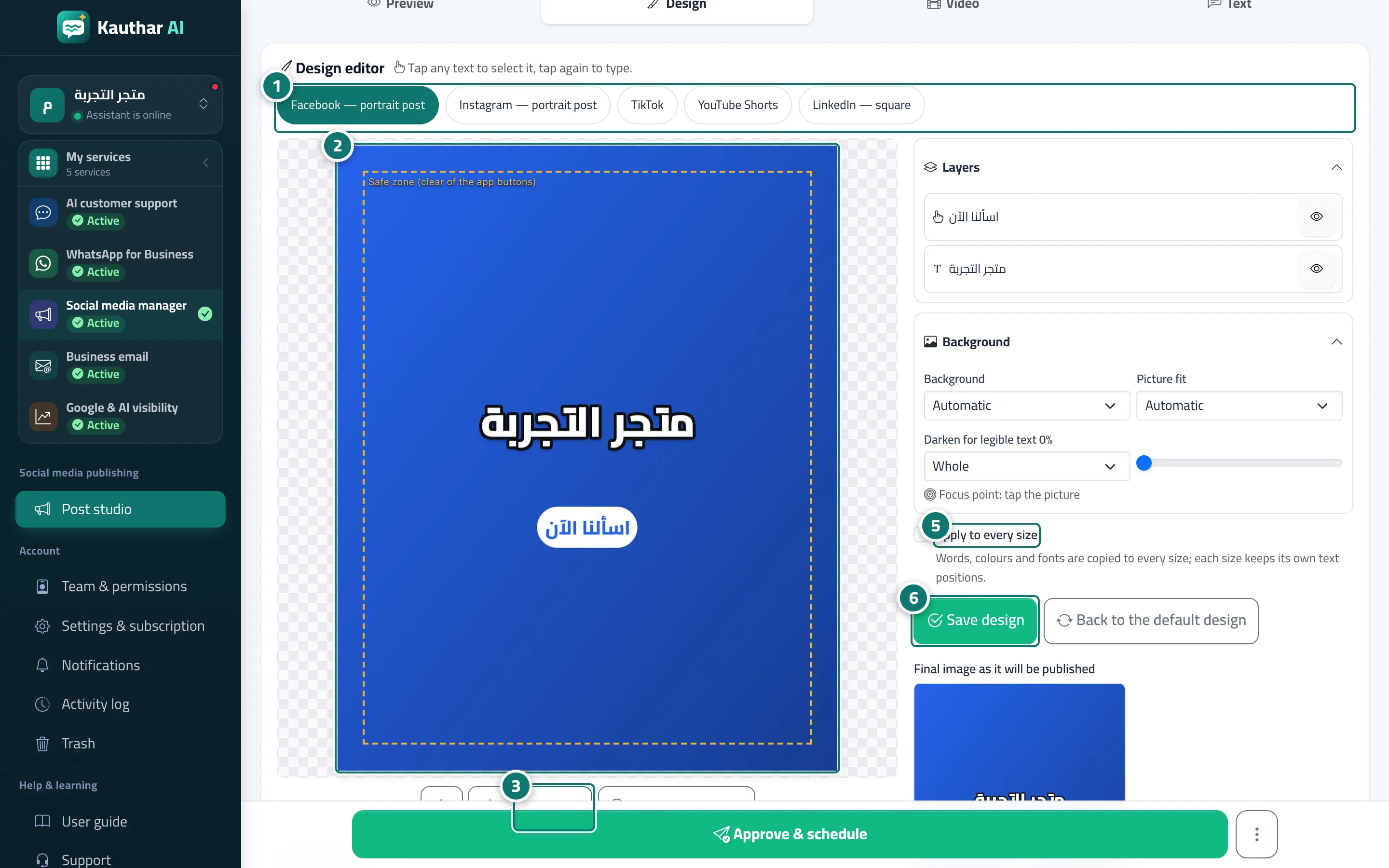
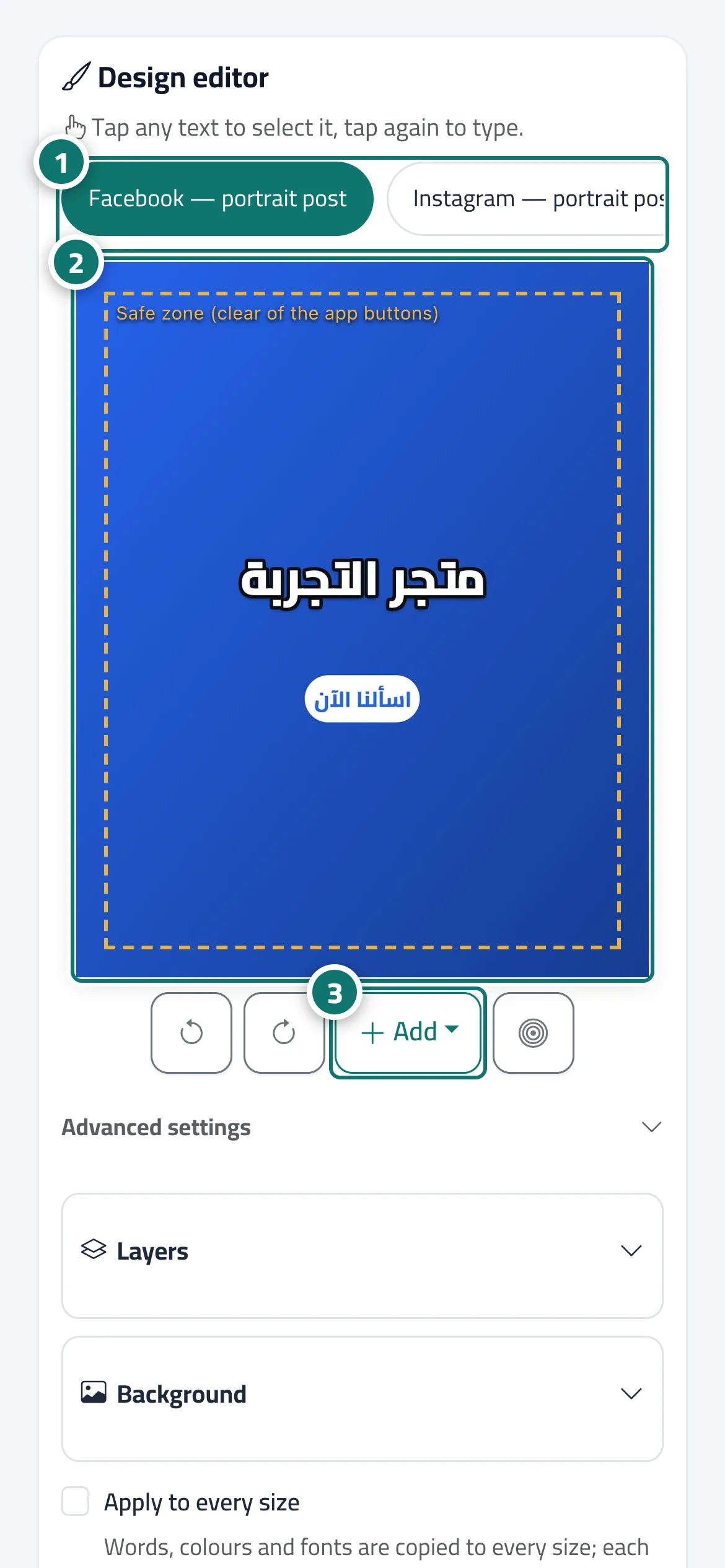
The post page’s Design tab holds the Design editor. At the top are the post’s sizes (such as Facebook — portrait post, Instagram — story, TikTok, LinkedIn — square, WhatsApp Status); in the middle is the image itself with the Safe zone (clear of the app buttons). Tap any text to select it and tap again to type; drag it to move it and drag its corner to resize. Under the image: Undo, Redo, Add (Text, Price, Button, Logo, Shape) and Pick the focus point. Beside it: Layers (show, hide and reorder each element), Background (Automatic, Brand colour only, Image), Picture fit and Darken for legible text, and the selected text’s properties (font, weight, size, colour, outline, shadow, text background, alignment, rotation, max lines and its entrance in the video). Then Apply to every size, Save design, Back to the default design and the Final image as it will be published. At the bottom of the tab the Template and photo card offers the design layout (photo and strip, full photo, card and price), the image, and New photo from your device, then Redesign.
- Who can use it
- Business owner / manager / staff allowed into the post studio
- Where to find it
- Sidebar → Social media publishing → Post studio → tap a post → Design
Step by step#
- Choose the size you want to edit from the buttons at the top of the editor.
- Tap any text on the image to select it, tap again to type, and drag it to move it.
- Use Add to add a text, a price, a button, your logo or a shape.
- Change the font, colour and background under Layers, Background and the text properties.
- Tick Apply to every size to copy the words, colours and fonts to the other sizes.
- Press Save design and check the Final image as it will be published.
- For a completely different design, pick another layout or a new photo under Template and photo and press Redesign.