
Turning a conversation into a ticket
A complaint or an order problem came in through the chat? Turn it into a follow-up ticket in one click, and the whole conversation moves with it.
Overview#
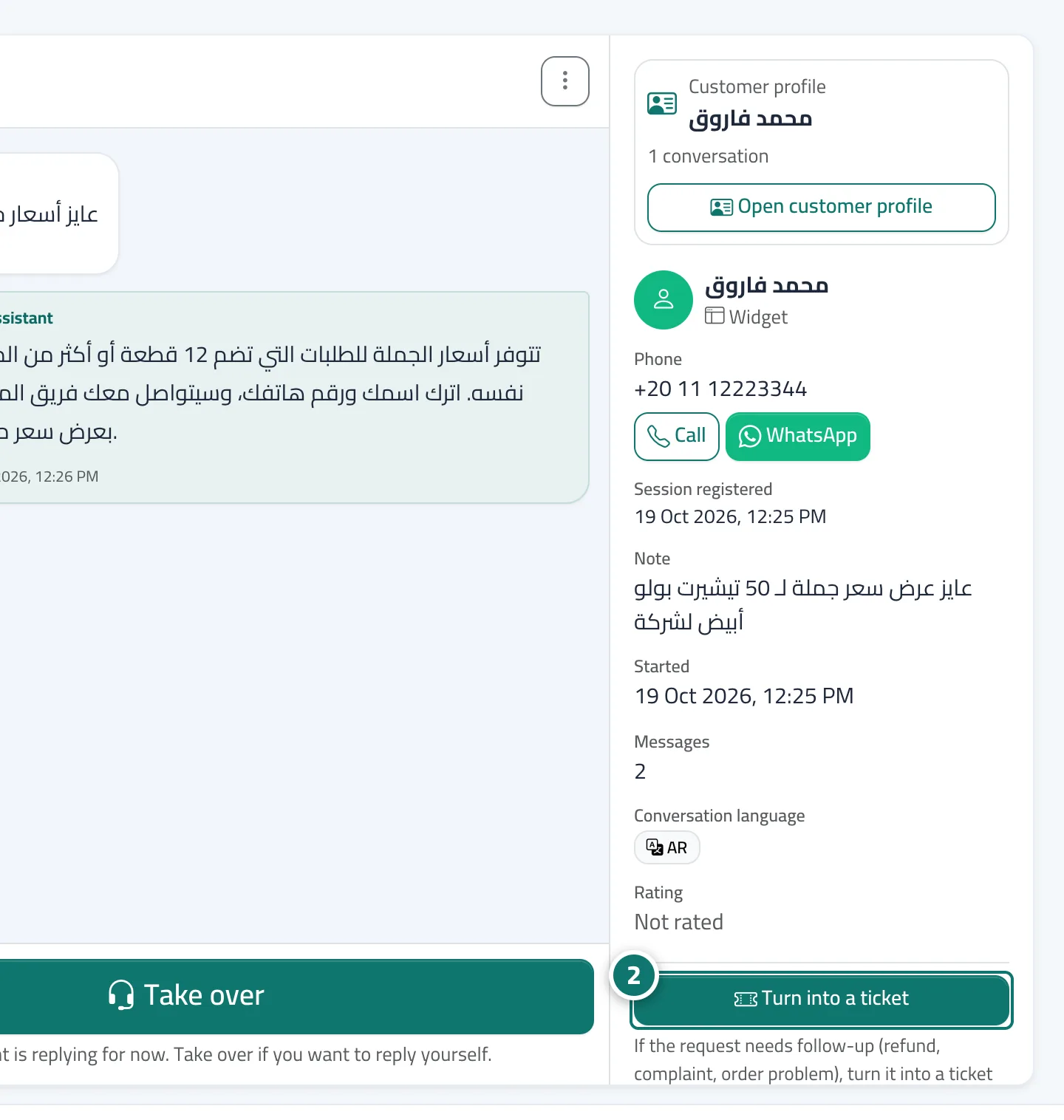
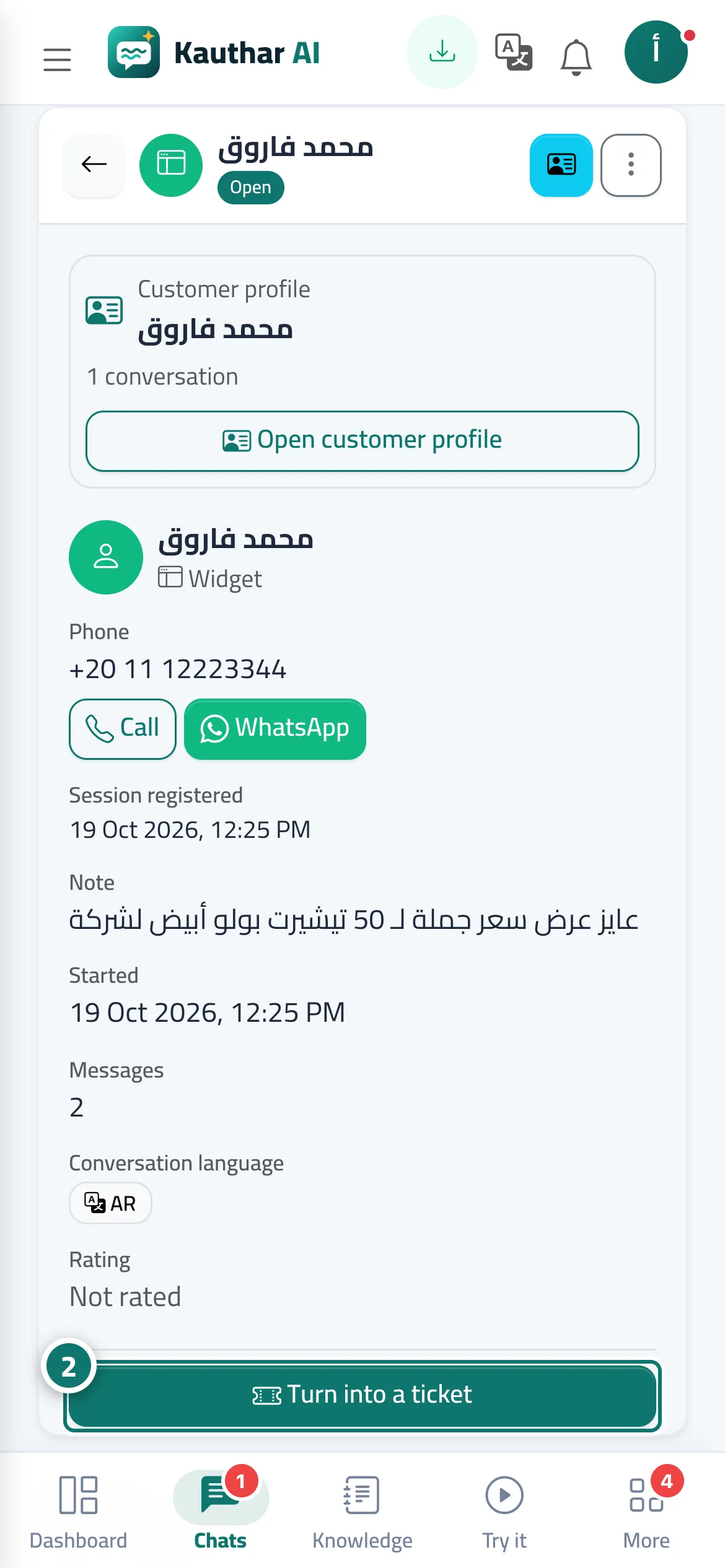
On the customer details card of any conversation, the Turn into a ticket button creates a new ticket, copies the whole conversation as its first message and links the two: the conversation shows a link to the ticket number, and the ticket has an Original chat button. Customers can also open a ticket themselves from the Tickets link at the bottom of the chat window when the Customer ticket form is turned on.
- Who can use it
- Business owner / manager / agent
- Where to find it
- Sidebar → Main → Conversations → (the conversation) → customer details card
Step by step#
- Open the conversation.
- On the customer details card, click Turn into a ticket and confirm.
- You'll land on the new ticket's page; set the priority, department and assignee from the Properties card.
- On the Ticket tracking portal card, click Send via WhatsApp to send the tracking link to the customer.
Tips#
Good to know#
Frequently asked questions#
Does the customer know their request became a ticket?
If the customer opened it from the chat, they see its number and the tracking link right away. If you converted it, send them the link from the ticket page.
Are the earlier chat messages lost?
No. The whole conversation is copied into the ticket's first message, and the original conversation stays saved and linked to it.