
Notifications on your phone and browser
Alerts reach you as notifications on your phone or computer even when Kauthar is closed — from the browser or from the Kauthar mobile app.
Overview#
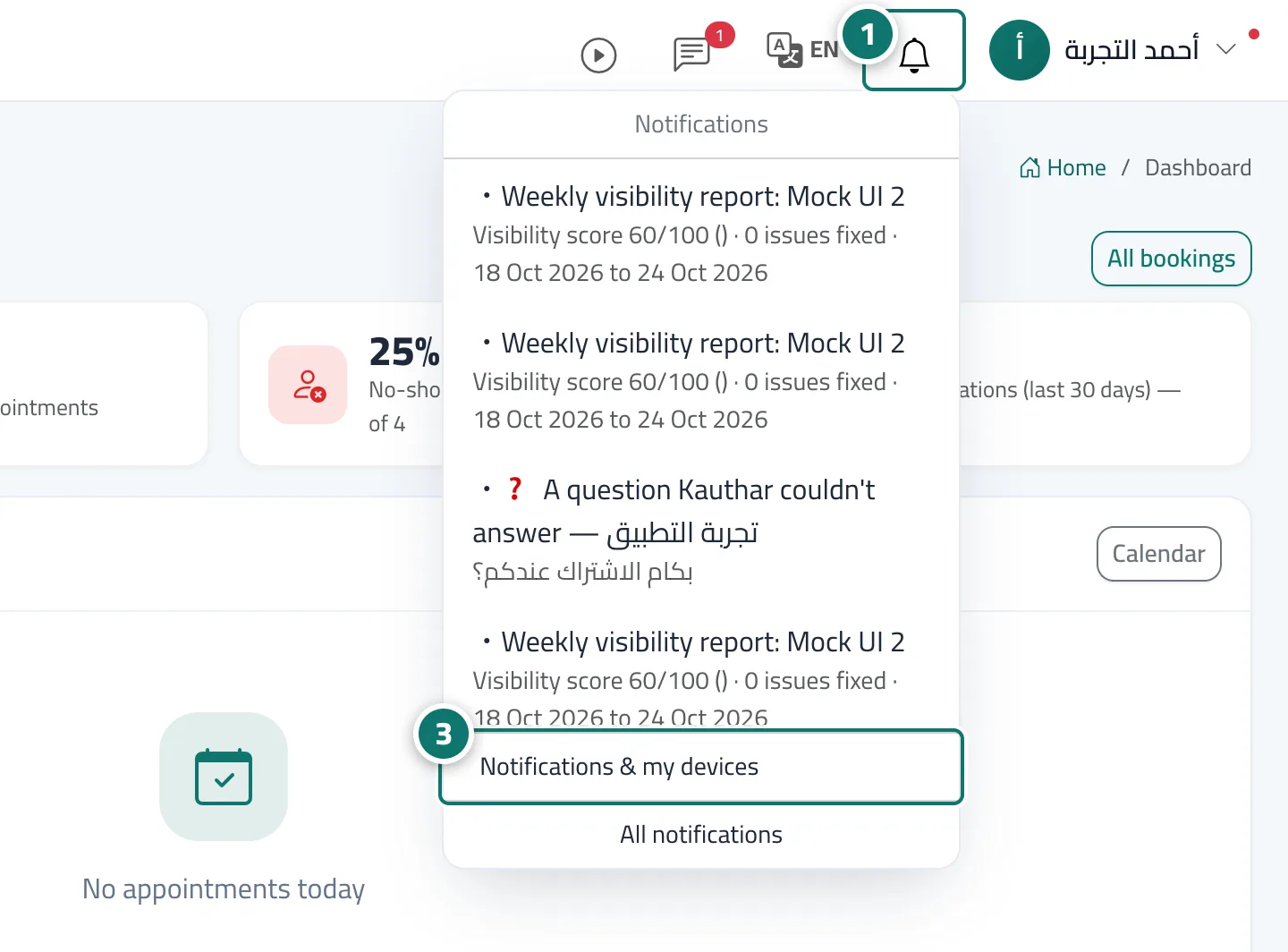
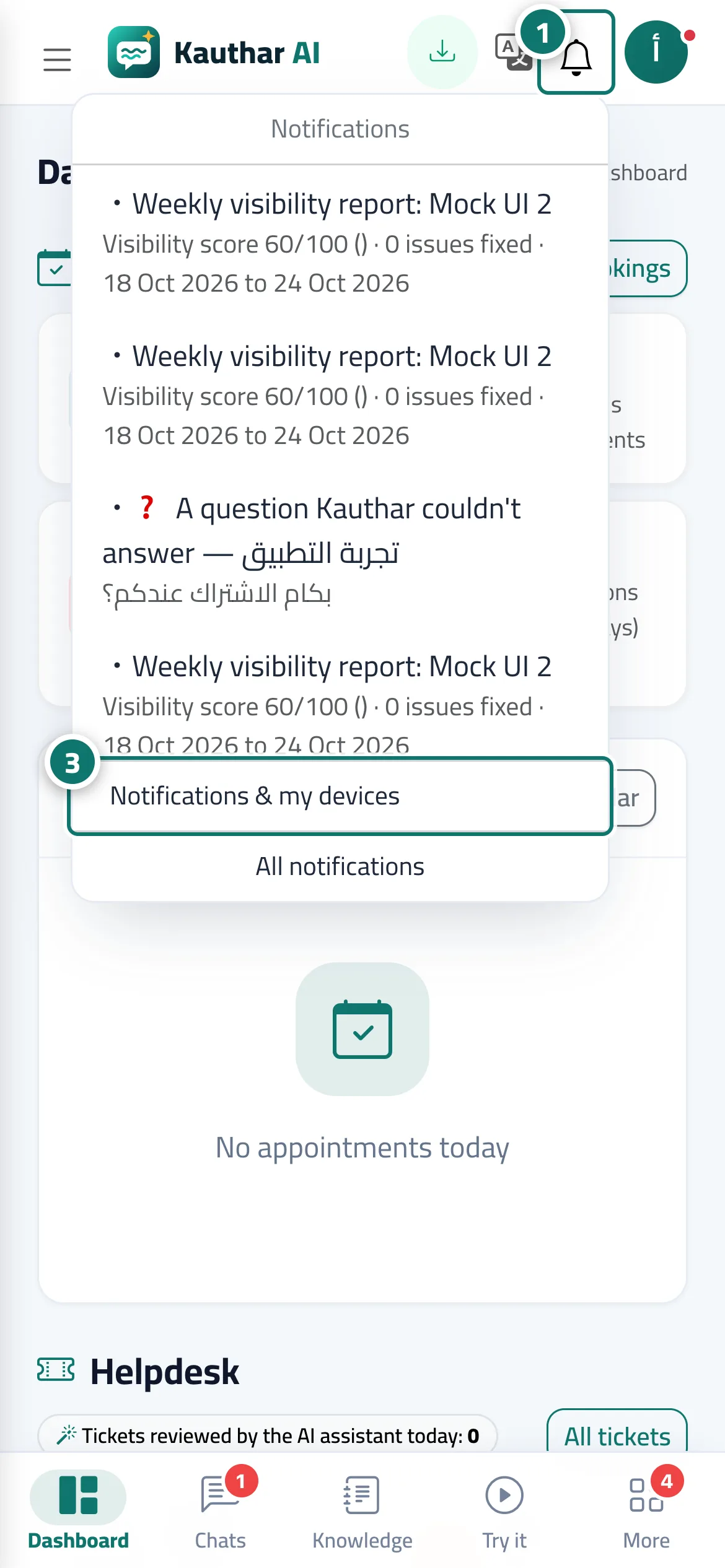
Open the bell menu, press Turn on notifications on this device and accept the browser's request; from then on every new alert reaches the device as a notification, and tapping it opens the related screen. Once on, the option becomes Notifications on — send a test. From Notifications & my devices (in the bell menu and in your name menu) you see all your devices, send a test notification to each one and choose what you receive. In the Kauthar mobile app, notifications are turned on inside the app and arrive like any other phone notification.
- Who can use it
- Business owner / admins / staff
- Where to find it
- The bell in the top bar → Turn on notifications on this device
Step by step#
- Press the bell in the top bar.
- Press Turn on notifications on this device, then Allow in the browser prompt.
- Open Notifications & my devices from the same menu to test each device and choose what you receive, and repeat on every device you use.
Tips#
Good to know#
Frequently asked questions#
Do I need to turn them on on every device?
Yes, notifications are turned on separately for each device and browser.
What reaches me as a notification?
Every alert that appears in the bell: a conversation that needs a team member, a ticket assigned to you, a new booking, a customer who left their details, and subscription alerts.