
Social media · Post studio: a new post from your products in two steps
How do I get Kauthar to write a post about one of my products?
Press “New post”, pick a product, an answer or a section of your business profile, then the format, channels and image — Kauthar writes the text and designs the image at each platform’s size in the background, and saves it as a draft for you to review.
Who this is for: Owner & manager · Team members
Where: Sidebar → Social media publishing → Post studio → “New post”
Steps
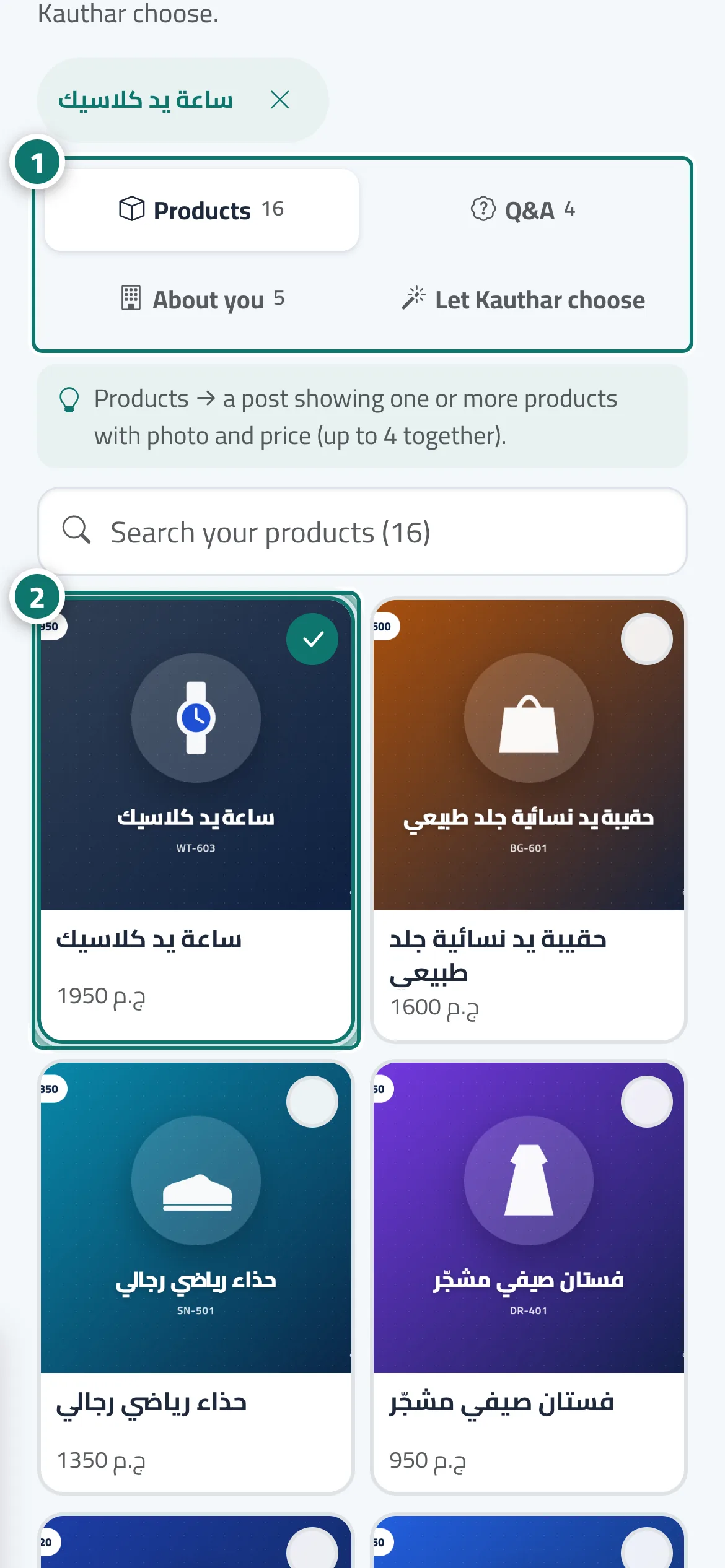
- Under “What is the post about?”, choose the source: “Products”, “Q&A”, “About you” or “Let Kauthar choose”. Number 1 on the picture
- Tick one or more products (up to 4 per post); use the search box to find one quickly. Number 2 on the picture
- Choose the “Goal of the post”.
- Under “Where will it go?”, choose the “Format”: Image, Short video or Both.
- Check the “Channels”: your connected accounts are already selected, and “More channels” adds stories, squares, Reels and WhatsApp Status.
- Choose the “Image”: AI image, your product photo, or upload one from your device.
- Press “Write it for me with AI”. The post page opens, Kauthar prepares the post in the background and saves it as a draft.
Steps
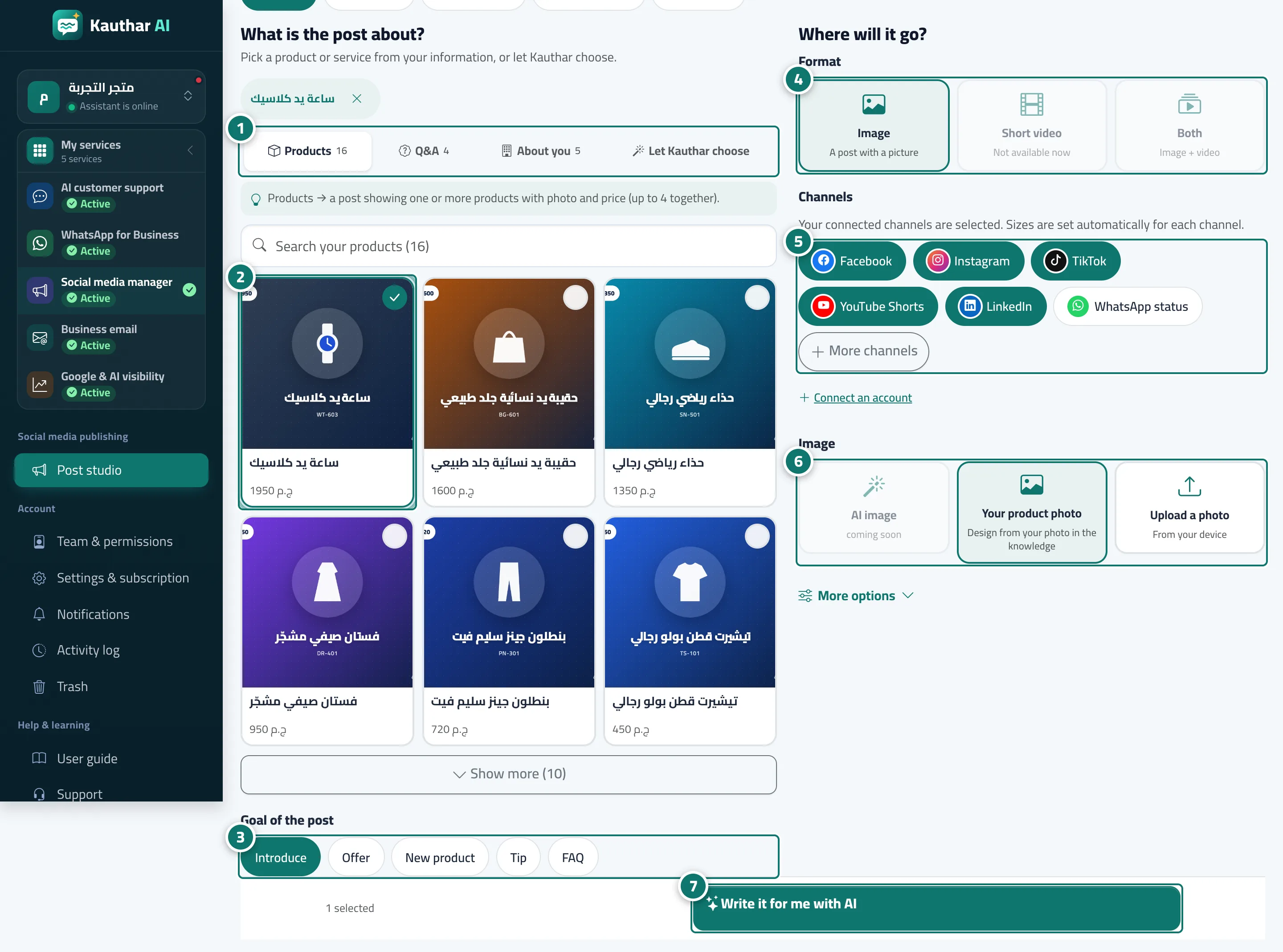
- Under “What is the post about?”, choose the source: “Products”, “Q&A”, “About you” or “Let Kauthar choose”. Number 1 on the picture
- Tick one or more products (up to 4 per post); use the search box to find one quickly. Number 2 on the picture
- Choose the “Goal of the post”. Number 3 on the picture
- Under “Where will it go?”, choose the “Format”: Image, Short video or Both. Number 4 on the picture
- Check the “Channels”: your connected accounts are already selected, and “More channels” adds stories, squares, Reels and WhatsApp Status. Number 5 on the picture
- Choose the “Image”: AI image, your product photo, or upload one from your device. Number 6 on the picture
- Press “Write it for me with AI”. The post page opens, Kauthar prepares the post in the background and saves it as a draft. Number 7 on the picture