
Team & security · My account and changing your password
How do I change my password?
Every member edits their own name, job title and email, changes their own password, can delete their account, and stays signed in on their device.
Who this is for: Owner & manager · Team members
Where: Menu under your name in the top bar → «My account»
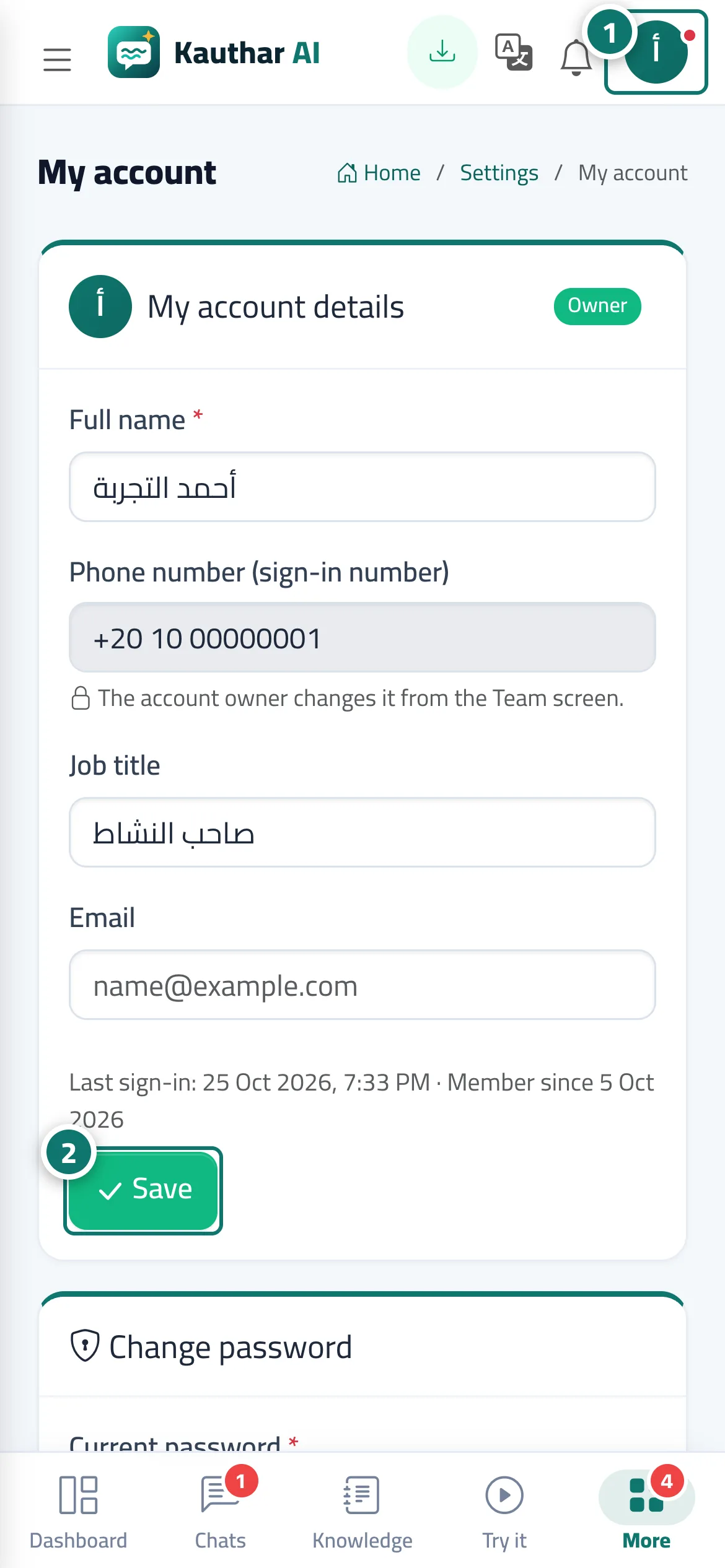
Steps
- Click your name in the top bar, then «My account». Number 1 on the picture
- Edit your details and press «Save». Number 2 on the picture
- To change your password, type the current one, then the new one twice, and press «Change».
- To sign in with one tap later, press «Link Google account» and choose your account.
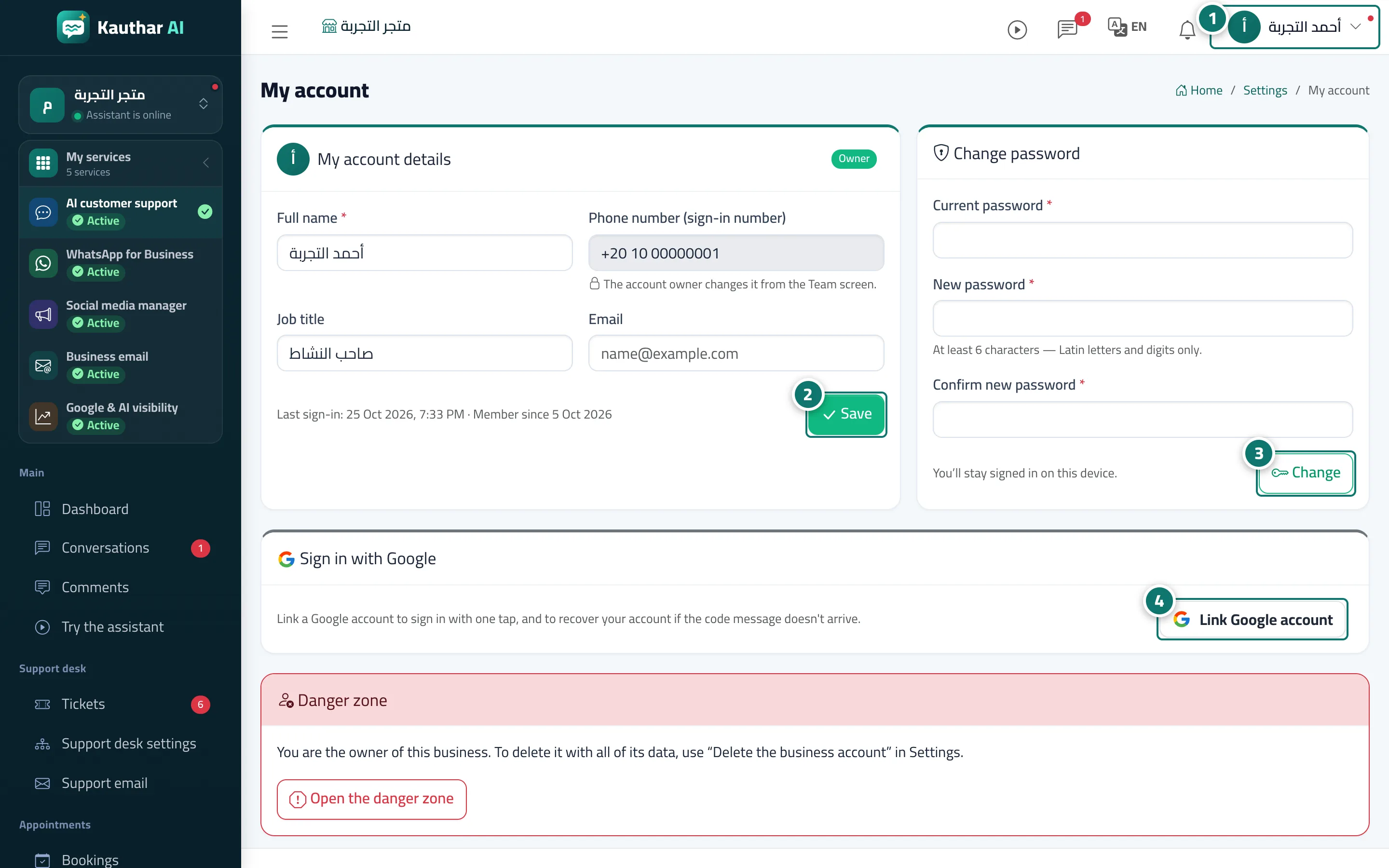
Steps
- Click your name in the top bar, then «My account». Number 1 on the picture
- Edit your details and press «Save». Number 2 on the picture
- To change your password, type the current one, then the new one twice, and press «Change». Number 3 on the picture
- To sign in with one tap later, press «Link Google account» and choose your account. Number 4 on the picture