
Canaux · Connect a WhatsApp number in one click
How do I connect my business WhatsApp number to Kauthar?
Connect your business WhatsApp number to Kauthar straight from Meta's window, without copying any token or password; Kauthar then registers the number, turns on incoming messages and tests the connection by itself.
Pour qui : Propriétaire et responsable · Membres de l'équipe
Où : Sidebar → Channels & customers → Channels → “WhatsApp” card → “Connect a WhatsApp number”
Étapes
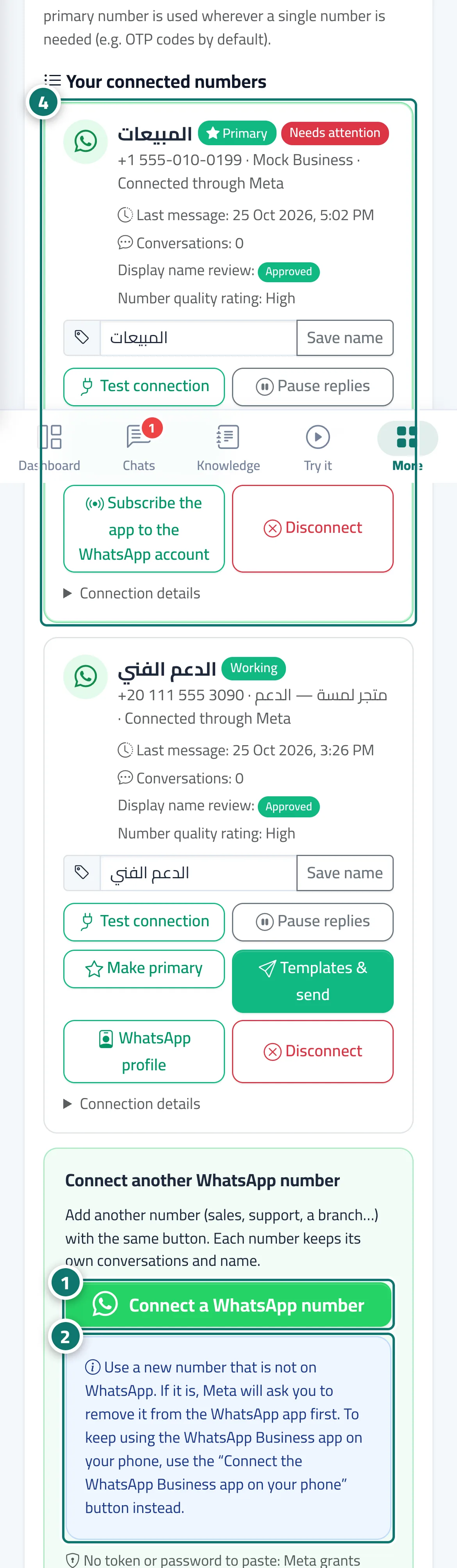
- In the “WhatsApp” card press the green “Connect a WhatsApp number” button. Numéro 1 sur l’image
- Use a new number that is not on WhatsApp (if it is, Meta asks you to remove it from the app first). Numéro 2 sur l’image
- In Meta's window sign in, choose the WhatsApp Business Account and the number, and enter the verification code Meta sends you.
- Back in Kauthar, a “WhatsApp number connected” message appears and the number shows in “Your connected numbers” as “Working”. Copy the two-step verification PIN and keep it safe. Numéro 4 sur l’image
Étapes
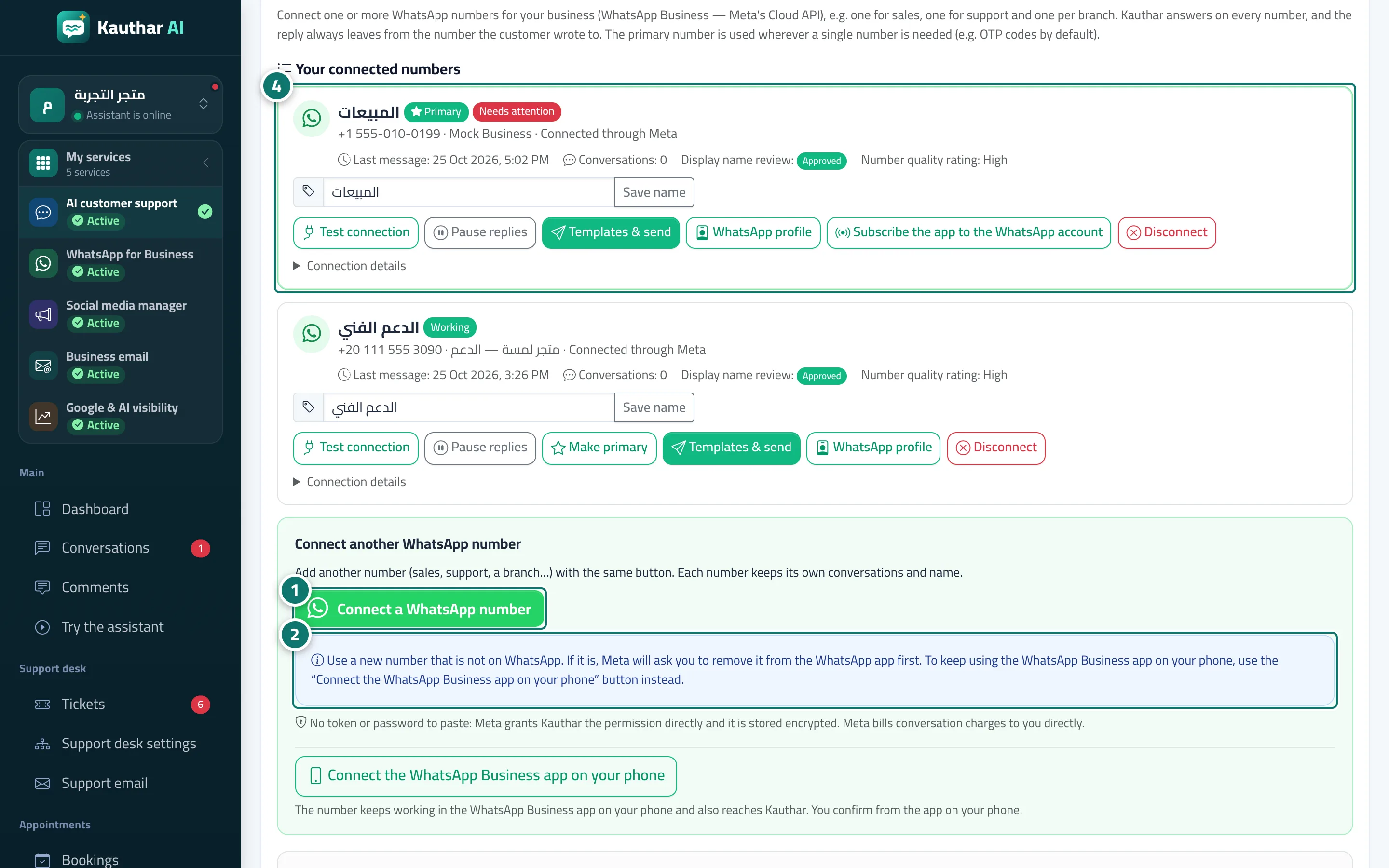
- In the “WhatsApp” card press the green “Connect a WhatsApp number” button. Numéro 1 sur l’image
- Use a new number that is not on WhatsApp (if it is, Meta asks you to remove it from the app first). Numéro 2 sur l’image
- In Meta's window sign in, choose the WhatsApp Business Account and the number, and enter the verification code Meta sends you.
- Back in Kauthar, a “WhatsApp number connected” message appears and the number shows in “Your connected numbers” as “Working”. Copy the two-step verification PIN and keep it safe. Numéro 4 sur l’image